A Free Gold Ceremonial Frame for Your Zelda Webcam and Gameplay
A Hyrulean ceremonial frame for The Legend of Zelda: Ocarina of Time Remake streams, with a gold bevel and Triforce pattern inlay. It adapts to any layer size, from a small webcam to a full gameplay frame, horizontal or vertical.
By Meld
Get Zelda Royal Webcam Frame free
Included with Meld Studio. Or stay in OBS with Spark Plug.
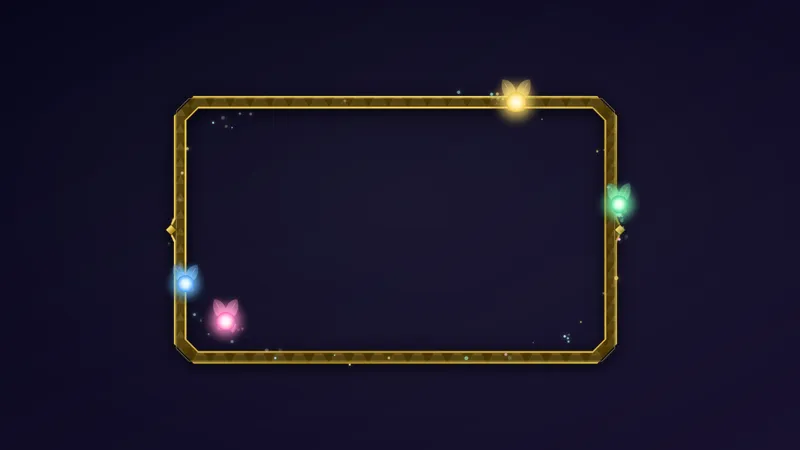
Two copies of one frame can change how a whole scene looks. This one is a Hyrulean ceremonial frame with a gold bevel and a Triforce pattern inlay, made for streams of The Legend of Zelda: Ocarina of Time Remake.
It is free with Meld Studio. No watermark, no setup fee, and no subscription.
What the frame looks like
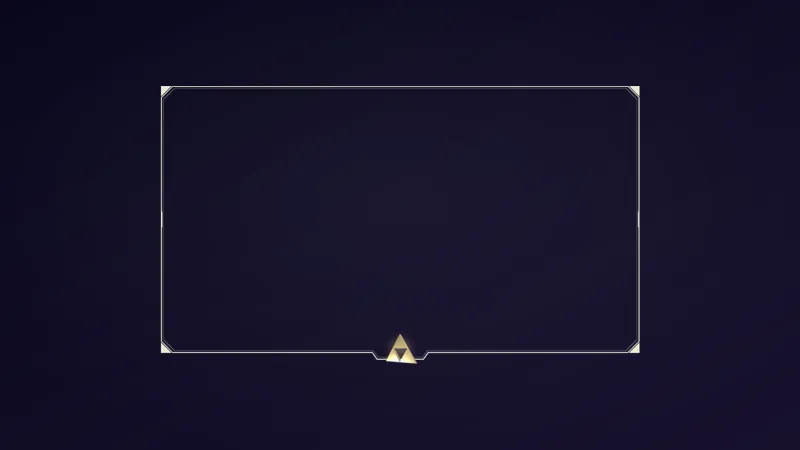
The border is a gold bevel, the kind of raised edge you would expect on a royal plaque. Along it runs a Triforce pattern inlay, so the frame reads as Zelda at a glance without needing a logo or a title card. It sits on the outside of your source and leaves the middle clear, so your face or your game stays the focus.
The frame adapts to any layer size. A small webcam box, a vertical camera, and a full 1080p gameplay frame all take the same look, and it works horizontal or vertical. There is nothing to rebuild when you resize it or switch layouts.
Setting it up
Layer it above your camera or gameplay and match the sizes of the two layers. That is the whole setup. This overlay is about how your sources look, so there are no chat commands to learn and no events to wire up.
For a full scene, use two copies: one for the camera and one for the game. Together they dress the entire layout in Hyrule gold, and viewers who land mid-stream see a finished scene instead of raw rectangles.
Who this is for
Streamers playing the Ocarina of Time Remake who want their camera and gameplay to fit the game. It also suits anyone who likes a gold, ceremonial look for adventure games and long story runs, and anyone who streams to more than one platform in different shapes. Twitch, YouTube Live, Kick, and TikTok Live all work from the same sign-in.
Adding it to your stream
Download Meld Studio and add the frame to a scene as a layer above your camera or gameplay. Meld connects once and works with every platform you stream to, so one frame covers all of them.
If you already run OBS and would rather stay there, the free Spark Plug for OBS plugin brings the same frame into your existing scene. Either way, it costs nothing and takes a minute to place.
How it works
- 1 Layer it above your camera or gameplay and match the sizes.
- 2 It adapts to any shape: a small webcam box, a vertical camera, or a full 1080p gameplay frame.
- 3 Use two copies, one for the camera and one for the game, to dress the whole scene in Hyrule gold.
Use cases
-
Dressing the whole scene for a launch stream
On the first night of an Ocarina of Time Remake run, the scene is the first thing new viewers judge. Put one copy of the frame around your camera and a second around the game feed, and both read as part of the same Hyrule gold set instead of a bare capture and a bare cam.
-
Vertical and horizontal layouts from one frame
If you stream horizontal to one platform and keep a vertical camera for another, the frame adapts to the shape of the layer instead of forcing a fixed crop. A small webcam box, a tall vertical camera, and a full 1080p gameplay frame all get the same gold bevel and Triforce inlay.
Frequently asked questions
Is the Zelda royal webcam frame free?
Yes. The frame is included free with Meld Studio. There is no watermark, no setup fee, and no subscription needed to put it on your stream.
Which platforms does the frame work on?
Twitch, YouTube Live, Kick, and TikTok Live are all supported. Meld signs you in once and works with every platform you stream to, so the same frame shows up wherever you go live.
Does it work with OBS Studio?
Yes. Spark Plug for OBS brings the frame into your existing OBS scene, and you can customize it with help from Meld Spark in seconds. You do not have to leave OBS to use it.
Can I use it around my gameplay and not just my camera?
Yes. The frame adapts to any layer size, so it fits a full 1080p gameplay capture as well as a small webcam box. Many streamers add two copies, one over the camera and one over the game, to match the whole scene.
How do I line it up with my camera or game?
Layer the frame above your camera or gameplay source and match the sizes of the two layers. The frame follows the shape you set, whether that is horizontal or vertical.