How to set up BEACN gear with Meld Studio.
Download And Install The BEACN App
Section titled “Download And Install The BEACN App”- Download the BEACN App.
- Run the installer and follow the on-screen instructions.
Understanding the BEACN App
Section titled “Understanding the BEACN App”Before opening up Meld Studio to start setting up your stream, you will first want to take some time to understand how the BEACN App works to enhance your voice right from the hardware itself. BEACN App was created from the ground up to take professional tools and make them accessible with helpful presets and tutorials. This includes full 8-band EQ, compressor, expander/gate, exciter, de-esser, bass enhance, and more. For a more detailed guide on the BEACN App itself, you can reference our past guides here. The goal is to set up your audio ahead of your stream, so that you can easily import all of your settings into Meld without having to reconfigure your existing settings.
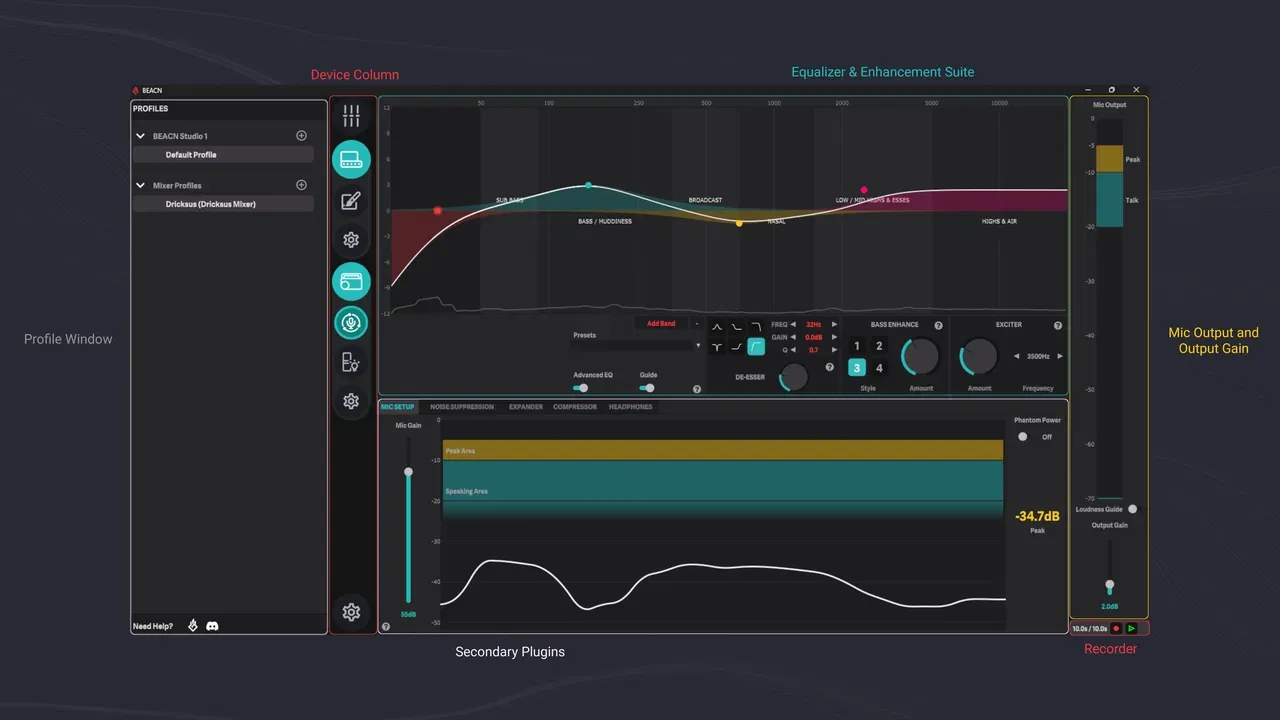
Once you've dialed in your perfect sound, you'll want to configure your Audience Mix, as that's how you'll be able to use BEACN hardware on the fly to adjust audio sources for both yourself & your audience.
BEACN Mic (using the BEACN Mixing Suite), BEACN Studio, and BEACN Mix Create gives you the ability to individually manage how you hear your audio sources versus how your audience hears them. This is often referred to as submixing, and our app allows you to adjust your audio easily on the fly without needing to tab into Meld mid-stream to adjust your settings.
Setting up Audio Tracks in Meld
Section titled “Setting up Audio Tracks in Meld”With your audio all ready to go, now it's time to implement everything right into Meld Studio:
- Add a track by clicking the + symbol next to "Audio Mixer".
- Set your input to Audience Mix on Track 1.
This will route all of your audio channels into Meld, while giving you complete control via your BEACN Mix Create or BEACN App.
VOD track setup & Routing
Section titled “VOD track setup & Routing”If you would like to utilize VOD Track:
- Add a second track in Meld and set it to "Music (BEACN Mix Create)".
- Then click "Edit" and click "Exclude from VOD Track".
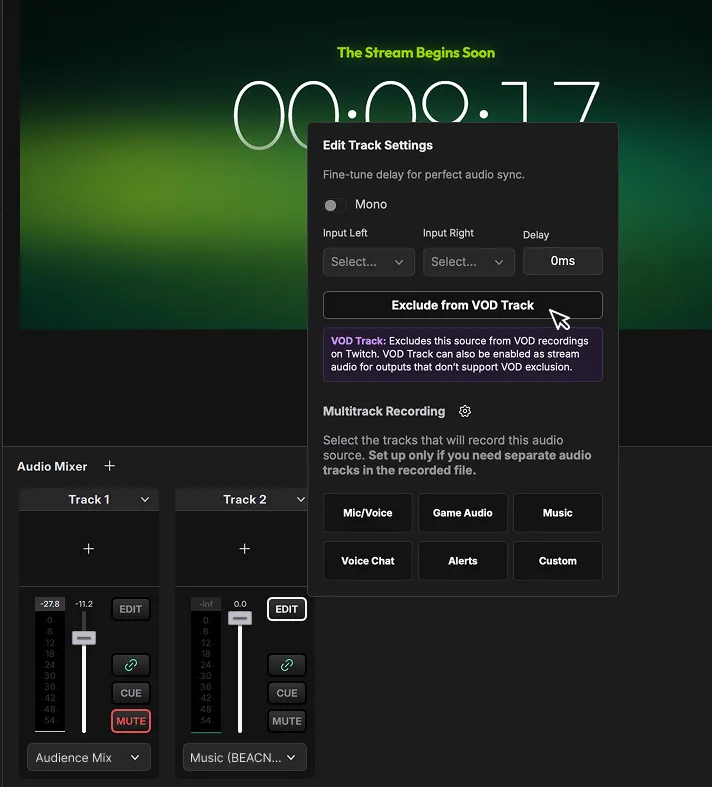
Doing this will ensure that any applications routed to "Music" won't appear on your VOD Track. While this is often most used for music applications like Spotify or YouTube music, it's worth noting that you can drag and drop to assign any application to "Music" if you'd like to listen to that audience source in your headphones and mute it to your audience.
Note: The music source volume will start at 100%, so be sure to lower the volume to avoid any music playing too loud over your Mic.
Due to technical limitations within Meld Studio, you will need to adjust your audio for the Music Track individually within the program for your audience and cannot use BEACN's built in VOD Track routing at the time of this article. The good news is that we've spoken to the Meld team and they're hopeful to add further compatibility sometime in the future. In the meantime, we've found this strategy to be a pretty good workaround to get almost full compatibility with BEACN gear & software.
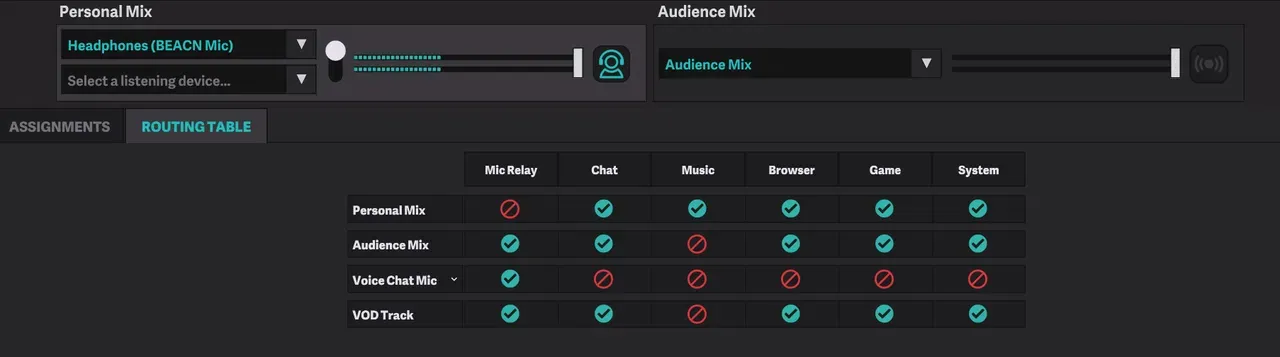
After adding your second track to mute music for VODs, go into the BEACN App and double check that "Music" is muted to your Audience Mix as shown in the image above. This will allow you to still use BEACN App or the Mix Create to control your personal mix, without creating any duplicated sounds.
With that, you're all set to start creating your visual scenes and taking advantage of all the cool features Meld has to offer!
We hope you found this guide helpful in maximizing your Meld Studio setup.
Got questions? Tag us on our social media pages to get involved in the conversation or join our official Discord server.