Background effects remove or blur the background of a camera feed inside Meld Studio, with no green screen and no second app in the chain. Processing happens on your own machine: on Apple silicon Macs through Apple's Vision person segmentation, and on Windows through NVIDIA's Video Effects package.
Turn on background effects
Section titled “Turn on background effects”- Select your Video device layer.
- In the Inspector panel, find the Background section.
- Turn the Background switch on.
- Choose Remove or Blur.
The same controls are available in the Background tab of the Video device settings dialog. Every change applies to the live feed immediately, so you can tune the result while watching the canvas.
Remove
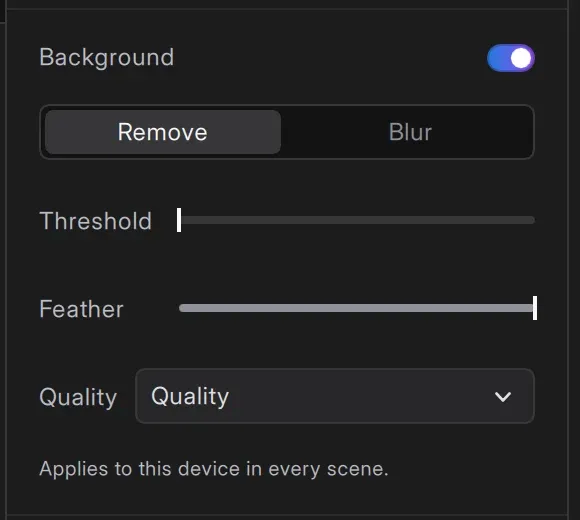
Section titled “Remove”Remove cuts the background away and leaves you on a transparent feed. Anything lower in the layer stack shows through, so you can place an image, a gradient, a game capture, or an entire scene behind your camera.
Two sliders control the edge of the cutout:
- Threshold: how confident the match has to be before a pixel counts as part of you. Raise it to cut away background that leaks through, lower it to stop losing hair and shoulders.
- Feather: how soft the transition is at the edge. Raise it for a gentler blend into the layer behind, lower it for a crisper cutout.
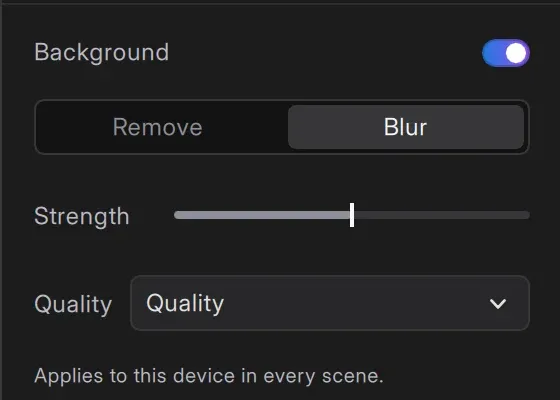
Blur keeps your background visible but out of focus, which is useful when a transparent cutout would look out of place or when the room behind you only needs softening. The Strength slider sets how heavy the blur is.
Quality
Section titled “Quality”Quality selects which segmentation model runs:
- Quality: the most accurate edge, at the highest cost.
- Balanced: a middle model, available on macOS.
- Performance: the lightest option, for leaving more headroom to the rest of your scene.
If your render frame rate drops after turning the effect on, lower the quality tier before changing anything else.
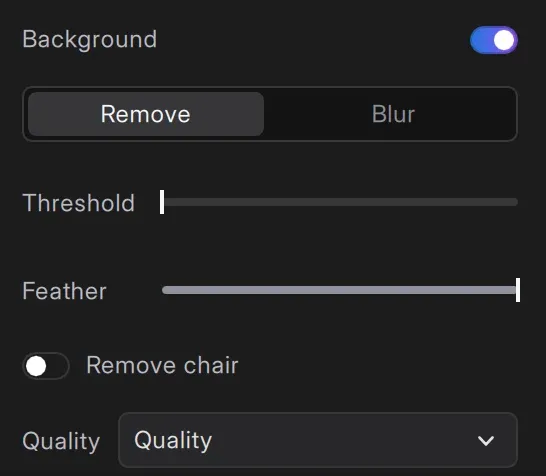
Remove chair
Section titled “Remove chair”On Windows, Remove chair also cuts away the chair behind you, which helps when a tall gaming chair frames your shoulders. The macOS model segments people only, so this option does not appear there.
Windows setup
Section titled “Windows setup”The first time you open the Background tab on a supported Windows PC, Meld Studio downloads and installs NVIDIA's Video Effects package. The download is around 1 GB and runs in the background, so you can keep working and close the dialog while it finishes. The controls become available as soon as setup is done.
If setup fails, the tab offers a Retry button. If it keeps failing, update your NVIDIA graphics driver and restart Meld Studio.
Troubleshooting
Section titled “Troubleshooting”- The Background section or tab is missing: your hardware does not meet the requirements above, or Meld Studio is rendering on a graphics card other than the NVIDIA RTX one.
- The controls are visible but greyed out: the camera is not connected, or the Windows package is still installing.
- Your frame rate dropped: lower the quality tier, or reduce the camera resolution and framerate in the Format tab of the Video device settings dialog.