After the stream output and encoder settings are configured, you can start streaming.
Starting the Stream
Section titled “Starting the Stream”- Navigate to the Outputs panel.
- Ensure that the output listed in the panel is enabled.
- Click Go live.
- Confirm your stream details in the Go Live Review window.
Go Live Review
Section titled “Go Live Review”The Go Live Review window is a pop-up that appears when you click Go live. It is one last checkpoint before the stream starts: a single screen to confirm everything is correct, instead of digging through settings menus.
Before the stream starts, review and update:
- Stream title
- Category
- Tags
- The platforms you are streaming to
If a title is out of date or a platform toggle is off, you catch it here instead of after you are already live. The review window also prevents you from going live by accident when you meant to click Record.
Managing Active Streams
Section titled “Managing Active Streams”Meld Studio allows you to start or stop individual streams independently. This flexibility enables you to:
- Begin streaming on one platform and add others later
- End a stream on one output while continuing on others
- Quickly restart individual streams if needed
Going Offline
Section titled “Going Offline”Once you start streaming, the Go Live button changes to a Go Offline button.
End All Streams
Section titled “End All Streams”- Click the Go Offline button to end all active streams and stop the broadcast on all connected platforms.
End Stream Individually
Section titled “End Stream Individually”- To stop streams individually, disable specific outputs using the toggles in the Outputs panel. The live state will remain active, so you can restart streaming on any platform when ready.
Output Connection Issues
Section titled “Output Connection Issues”Automatic Reconnection Attempt
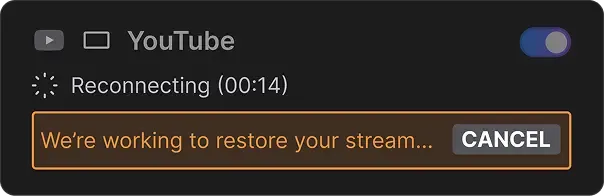
Section titled “Automatic Reconnection Attempt”If an output disconnects, Meld Studio automatically attempts to reconnect. You can track the attempt in the Reconnection status, which shows how long Meld Studio has been retrying.
Stop the reconnection at any time by clicking the Cancel button.
Error Notification
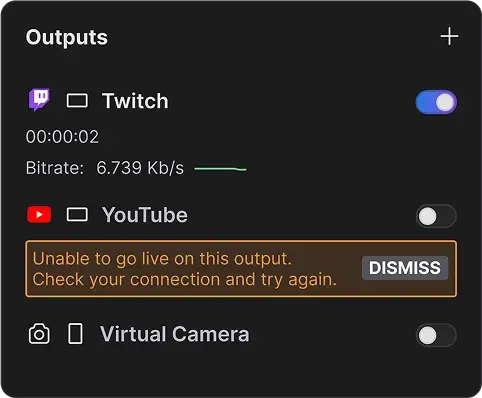
Section titled “Error Notification”If a reconnection is canceled or an output fails to connect, Meld Studio displays an orange feedback banner. Dismiss the message and retry later using the toggle switch in the Outputs panel.
Common Causes of Errors When Going Live
Section titled “Common Causes of Errors When Going Live”Network Issues
Section titled “Network Issues”Although Meld Studio is designed to handle challenging network conditions, network issues can still cause errors when going live.
Missing Output Information
Section titled “Missing Output Information”Errors can occur if essential stream output details are missing or incorrect. This includes leaving fields like the Stream Server URL or Stream Key empty or entering invalid information.
Incorrect Stream URL or Stream Key
Section titled “Incorrect Stream URL or Stream Key”The stream key entered in the Stream Key field is invalid or does not match the one provided by the streaming platform. Double-check the stream key to ensure accuracy.
Avoid Pasting {stream-key} in the URL Field
Section titled “Avoid Pasting {stream-key} in the URL Field”Pasting the {stream-key} portion of the URL into the Stream Server field may result in an error. Ensure you copy only the Stream Server URL, excluding the {stream-key} part.

Tips for Resolving Errors
Section titled “Tips for Resolving Errors”- Double-check all stream information fields for accuracy.
- Ensure your internet connection is stable.
- Verify the status of your streaming platform for outages or restrictions.
- Use the Warning Icon in Meld Studio to view specific error messages and troubleshoot accordingly.
Monitoring Stream Health
Section titled “Monitoring Stream Health”Monitor stream performance via:
- The Outputs Panel in the top-right corner of the UI
- Under the output name when live
- At the top within the Stats bar
What is the Go Live Review window?
Section titled “What is the Go Live Review window?”The Go Live Review window is a pop-up that appears before you go live. It lets you review and edit your stream title, category, tags, and platform toggles in one place, so you can confirm everything is correct before your stream starts.
Is the Go Live Review window available to all users?
Section titled “Is the Go Live Review window available to all users?”Yes. The Go Live Review window is included for all Meld Studio users, regardless of subscription tier.
Can I turn off the Go Live Review window?
Section titled “Can I turn off the Go Live Review window?”No. This is a feature that cannot be turned off at this time.
How does Meld Studio handle disconnections?
Section titled “How does Meld Studio handle disconnections?”Meld Studio attempts to reconnect automatically if a disconnection occurs. If reconnection attempts fail, a message will prompt you to check your network connection and try to go live again.
Can I start streaming to platforms at different times?
Section titled “Can I start streaming to platforms at different times?”Yes! You can start streaming on one platform first, then add others later by enabling their toggles in the Outputs panel.
What happens if one stream fails while others are live?
Section titled “What happens if one stream fails while others are live?”Other streams will continue unaffected. You can troubleshoot and restart the failed stream independently.