Scene templates give you a ready-made layout with editable Spark elements.
Add a Template
Section titled “Add a Template”- Open Templates beside Scenes.
- Choose a style, then select a scene to preview it.
- Click Use template.
Meld adds the scene, or fills your only scene if it is empty. You can then add your camera, captures, and other layers.
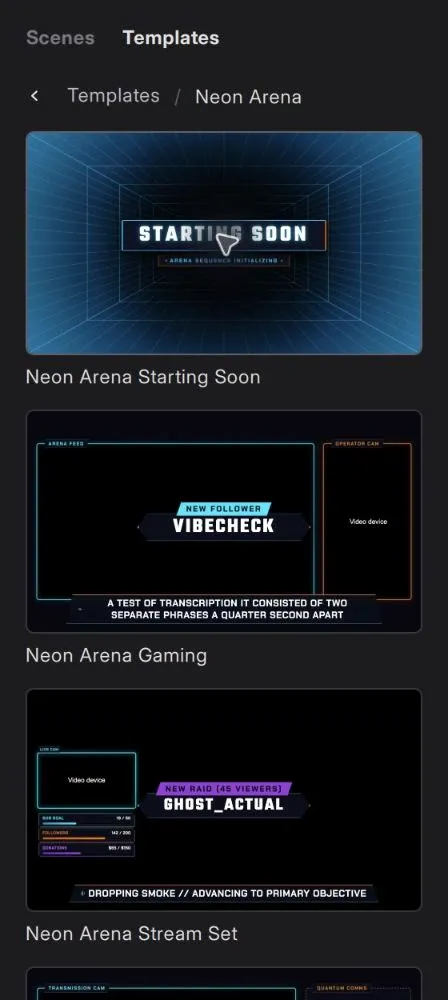
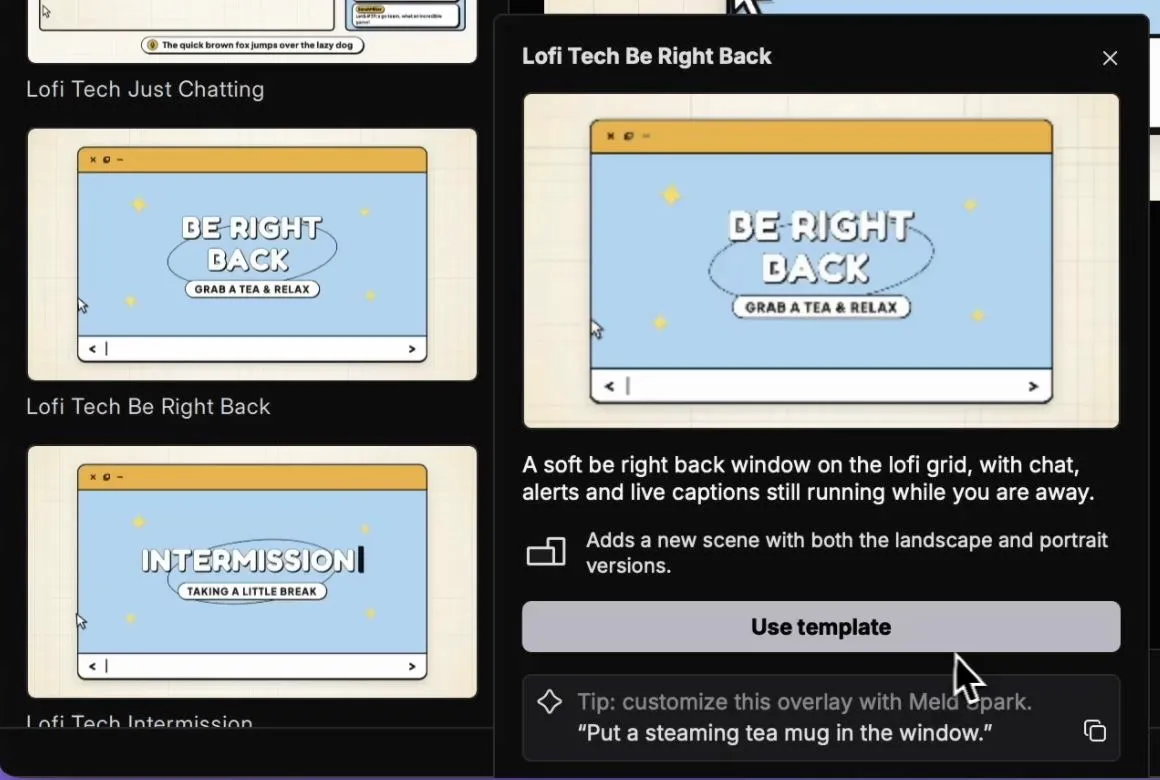
Customize with Spark
Section titled “Customize with Spark”Open Meld Spark and name the scene or element you want to change. For example:
"Change the colors in my Starting Soon scene to purple and white."
Landscape and Portrait
Section titled “Landscape and Portrait”Templates can include landscape and portrait versions. With Multi Canvas enabled, Meld adds both when available. Otherwise, the portrait version is kept for when you enable it.
If a portrait template needs Multi Canvas, choose Enable Multi Canvas and add. Stop streaming, recording, and the virtual camera before enabling it.
Adding While Live
Section titled “Adding While Live”While streaming, recording, or using the virtual camera, Meld adds the template without switching away from your current scene. Review the new scene before switching to it.
If Templates Do Not Load
Section titled “If Templates Do Not Load”Check your internet connection and use Retry in the Templates panel.