Meld Studio integrates directly with X (formerly Twitter) as a streaming destination. Adding X as a stream output connects your X account so you can go live from Meld Studio.
Add X as an Output
Section titled “Add X as an Output”- Open the Outputs panel, or navigate to
Settings → General → Streaming Outputs. - Click the ╋ Add output button and select X from the list of available outputs.
- Log in to your X account to connect it to Meld Studio.
After you log in, open the X output settings to choose your source and set your broadcast details. You can open them from Settings → General → Streaming Outputs → X, or by clicking the X output in the Outputs panel.
Choose a Source
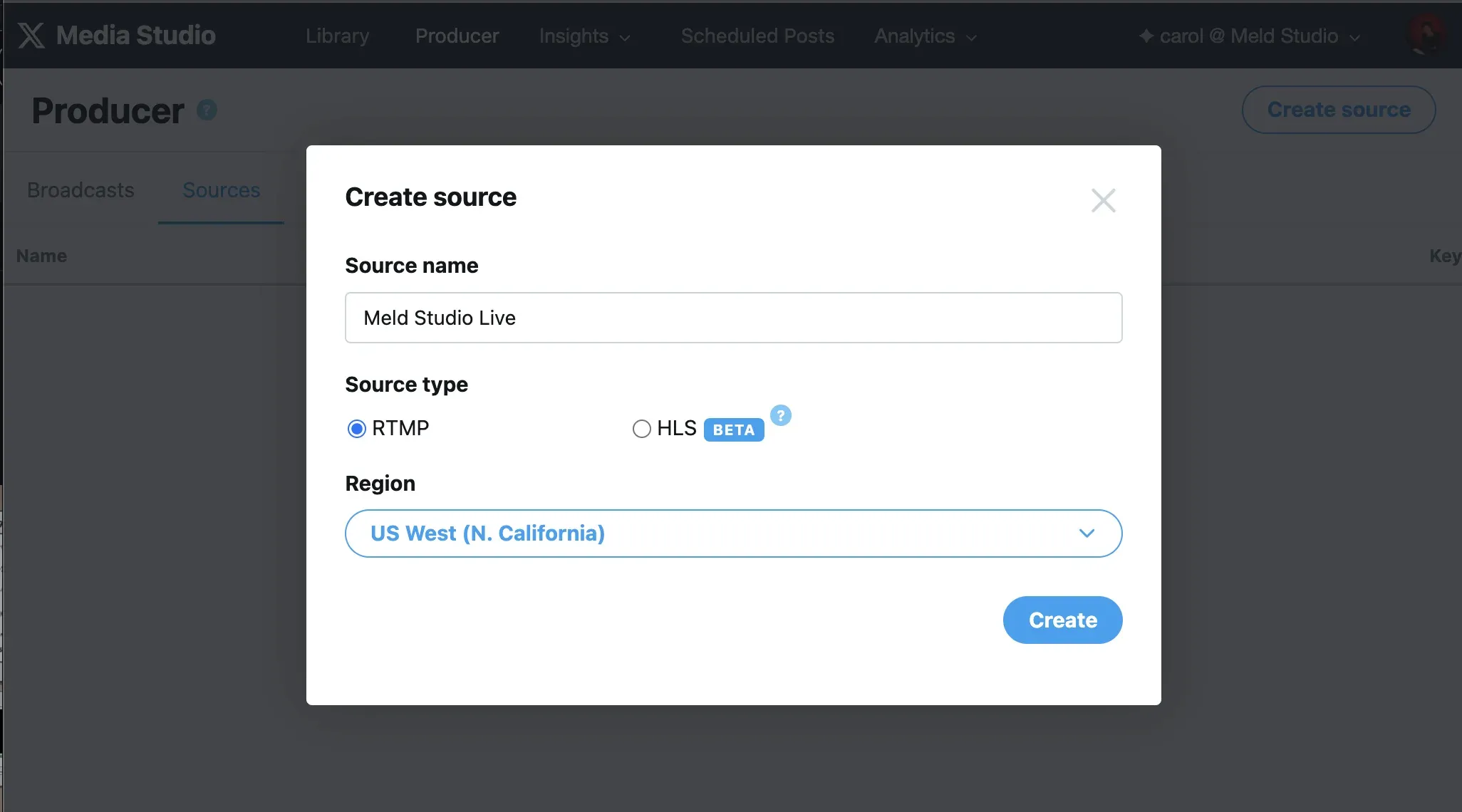
Section titled “Choose a Source”A source is required to stream to X. It defines your Stream URL and Stream Key. You can select a source you already created in X Media Studio, or create a new one in Meld Studio.
To create a source in Meld Studio:
- Enter a Broadcast Name.
- Select your Region.
- Click Create Source.
Meld Studio reuses this source for your future X broadcasts, so you only set it up once.
You can also create a source in X Media Studio under Producer → Sources, then select it from the list in Meld Studio.
Set Your Broadcast Details
Section titled “Set Your Broadcast Details”You do not have to set broadcast details to go live. If you go live without creating a broadcast, X automatically creates one for your source.
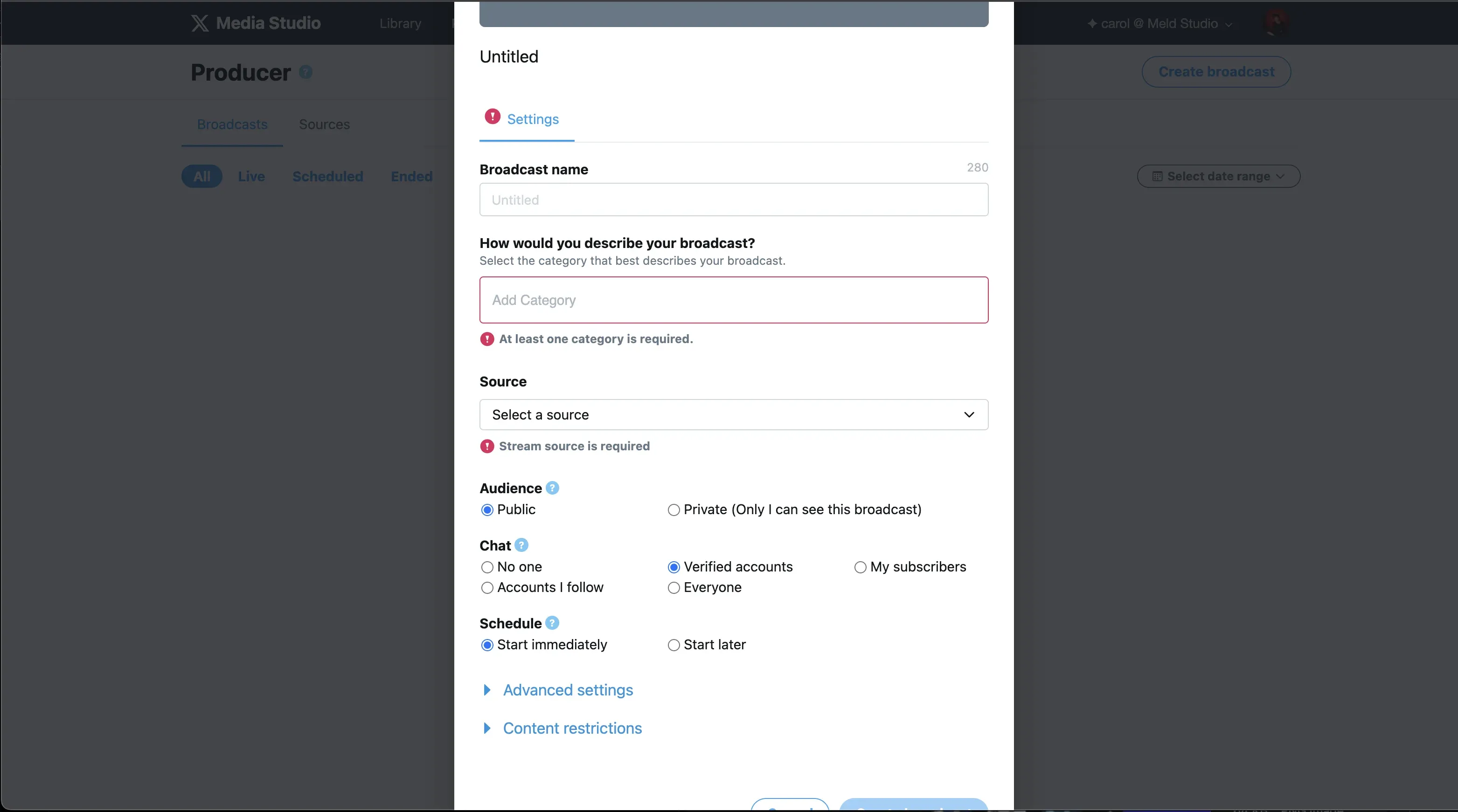
To name and customize your broadcast first, create one in X Media Studio under Producer → Broadcasts. Click Create broadcast and set:
- Broadcast name: the title shown on your X broadcast.
- Category: at least one category is required.
- Source: select the source you are streaming from Meld Studio.
- Audience: make the broadcast public, or private so only you can see it.
- Chat: choose who can chat, such as everyone, verified accounts, or your subscribers.
- Schedule: start immediately, or schedule the broadcast to start later.
Go Live
Section titled “Go Live”- Make sure your source is selected in the X output settings.
- Click Go Live in Meld Studio to start streaming to X.
Do I need X Premium to stream to X?
Section titled “Do I need X Premium to stream to X?”Yes. Live video on X requires an active X Premium subscription. Confirm your X account has X Premium before you add it as an output.
Do I need to enter a stream key manually?
Section titled “Do I need to enter a stream key manually?”No. Logging in to X connects your account, and your source defines the Stream URL and Stream Key for you. You can create a source in Meld Studio or use one from X Media Studio.
Do I have to set broadcast details before going live?
Section titled “Do I have to set broadcast details before going live?”No. Setting broadcast details is optional. If you go live without creating a broadcast, X automatically creates one for your source. To control the name, category, audience, chat, and schedule, create a broadcast in X Media Studio under Producer → Broadcasts before you go live.
Can I stream to X and other platforms at the same time?
Section titled “Can I stream to X and other platforms at the same time?”Yes. Meld Studio supports streaming to more than one platform at once. See Multistream for details.