Free X-Style Chat Feed Widget for Live Streams
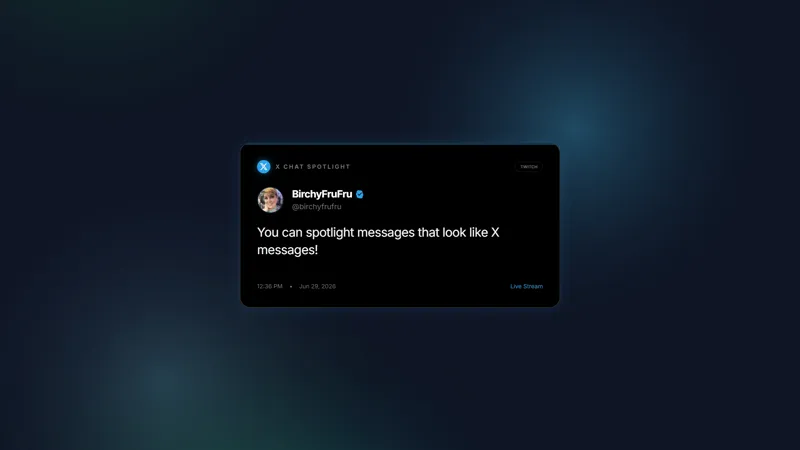
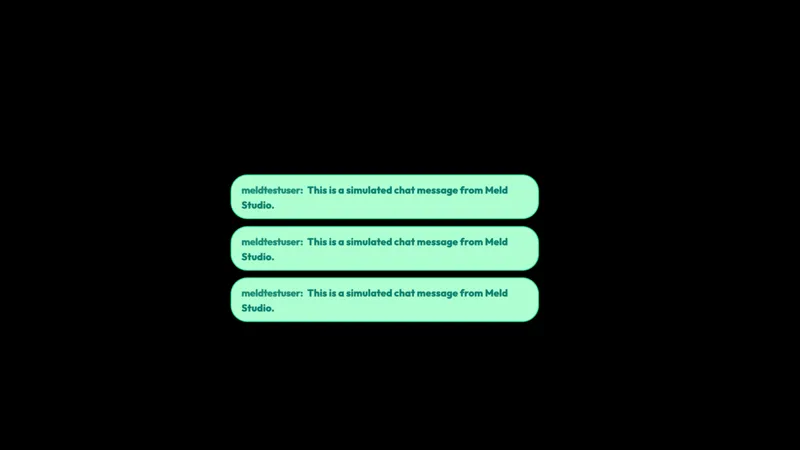
A vertical wall of chat messages that feels more like a social feed than a standard chat box. It has an X style that is great for Just Chatting, Podcasts, product updates, creator Q&As, and streams where the creator wants X chat to feel visible and important.
By Meld
Get X Chat Feed free
Included with Meld Studio. Or stay in OBS with Spark Plug.
Chat becomes part of the show when it looks like something viewers already know how to read. X Chat Feed turns live messages into a vertical social-style wall, giving each comment more weight than a tiny line in a standard chat box.
It is free with Meld Studio and built for creators who want conversation to feel visible.
What the feed adds
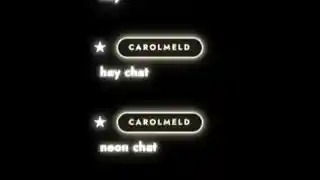
The widget displays incoming chat in a stacked feed that feels closer to a social timeline than a utility overlay. That format is useful when you are hosting a podcast, reacting to product feedback, running a creator Q&A, or talking through updates where chat comments deserve screen presence.
Instead of pushing every message through a narrow scroll box, the feed gives the conversation room to breathe. A viewer comment can land as a distinct card, making it easier for the audience to follow what people are saying while you talk. It also helps streams on X, YouTube Live, Twitch, Kick, and TikTok Live feel more connected because messages from your live audience can share one visual surface.
There are no chat commands to teach. Add the widget, connect your chat, and the feed starts working as messages arrive.
Where it fits
X Chat Feed works well for creator-led streams where discussion is the content: product launches, town halls, podcasts, AMA prep, reaction streams, and Just Chatting sessions. It can sit beside a camera, anchor a side panel, or fill a section of a layout where you would normally place live social posts.
The design is especially useful when you want audience participation to feel important without interrupting the main topic. Viewers see their messages appear in a familiar social-feed rhythm, and that visible feedback can encourage more people to join the conversation.
Download Meld Studio and add X Chat Feed to a scene. If your production already lives in OBS, the free Spark Plug for OBS plugin can load the same overlay as a browser source while keeping your existing setup intact.
Use cases
-
Podcast and interview streams
A standard chat box can feel too small when viewer comments are part of the show. X Chat Feed gives messages a vertical social-feed layout, so questions and reactions look like part of the broadcast instead of a utility panel tucked into the corner.
-
Product updates and creator Q&As
When you are explaining a launch, reacting to community feedback, or taking audience questions, the feed keeps chat visible without making the screen feel messy. Viewers can see their messages appear in a familiar social format while you keep the main canvas focused.
Frequently asked questions
Is the X Chat Feed widget free?
Yes. X Chat Feed is included free with Meld Studio. There is no watermark, no paywall, and no usage cap, so you can add it to a scene and use it for live shows right away.
Which platforms does X Chat Feed support?
Twitch, YouTube Live, Kick, and TikTok Live are all supported. Meld signs you in once and pulls messages from every platform you stream to, so the same feed can carry your whole multi-platform chat.
Does X Chat Feed work in OBS Studio?
Yes. Spark Plug for OBS brings X Chat Feed into an existing OBS scene as a browser source, and Meld Spark can help customize overlays in seconds. Use Meld Studio for the fastest setup, or Spark Plug when you want to keep your current OBS workflow.
When should I use a social-feed chat layout?
Use it when viewer messages are part of the content, such as Just Chatting, podcasts, product updates, interviews, or community Q&As. The vertical feed makes chat feel intentional without needing command setup.