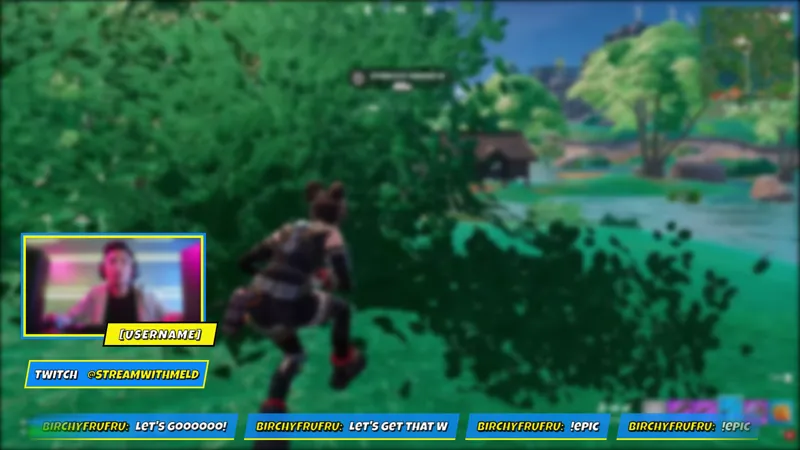
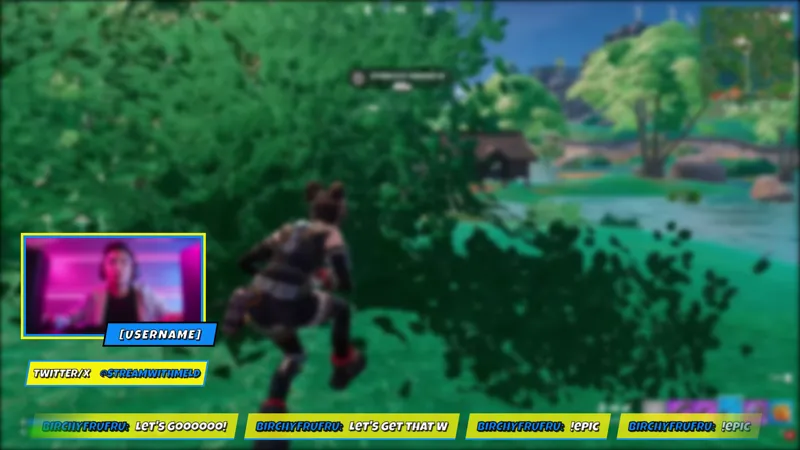
Free Valorant Camera Border with Glitch Effect and Your Channel Name
A free Valorant facecam border overlay with a glitch effect, custom name display, and vertical or horizontal camera support for a pro-level streaming look on Twitch, Kick, YouTube, and TikTok.
By Meld
Get Valorant Camera Border free
Included with Meld Studio. Or stay in OBS with Spark Plug.
A cam border with your channel name already in the layout is a different starting point than one you need to customize from scratch. Valorant Camera Border ships with a name display slot built into the frame, a glitch effect running along the edges, and support for both vertical and horizontal camera crops.
It is free with Meld Studio. No watermark, no setup fee, no subscription required.
What the frame puts on screen
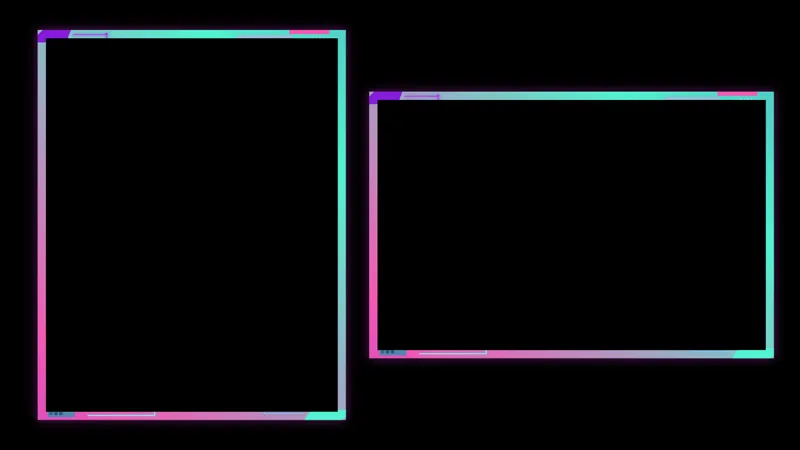
The border wraps your webcam source in a Valorant-styled frame: sharp angular geometry, a cool tactical palette, and a name display area that shows your channel name wherever you have placed the cam tile in your scene. Before adding the overlay, replace YOURNAME in the artifact URL with your actual channel name. From that point on, your name appears inside the border every session without further editing.
A glitch effect pulses through the edges of the frame at intervals, breaking the clean line for a fraction of a second before snapping back. The motion is deliberate rather than constant, so the cam stays readable during a fast-paced match when a viewer’s eye needs somewhere steady to land.
The frame stretches cleanly for both vertical and horizontal cam orientations. Streamers running TikTok Live in portrait mode use the same border as those running a standard widescreen Twitch or YouTube layout. The glitch treatment and the name display carry across both orientations without distortion.
The overlay broadcasts to Twitch, YouTube Live, Kick, and TikTok Live through a single Meld Studio sign-in, with no platform-specific setup involved.
Who this fits
Valorant streamers looking for a cam tile that matches the game’s visual language rather than competing with it are the core audience. The cool palette and angular geometry sit comfortably over a Valorant game feed without pulling the eye away from the action.
The border also works beyond Valorant. The aesthetic is close enough to a general tactical or cyberpunk look that it reads naturally alongside other FPS titles and high-contrast game feeds. New viewers arriving on the channel see a named, styled frame rather than a plain rectangular crop, which reads as a finished layout rather than a work in progress.
Adding it to your stream
Download Meld Studio, update the artifact URL with your channel name, and drop the overlay on top of your webcam source. The named Valorant border is live immediately, vertical or horizontal depending on your scene layout.
If you already run OBS and want to keep your existing scene structure, the free Spark Plug for OBS plugin loads the same animated frame as a browser source inside OBS. Add your channel name to the artifact URL before bringing it into the browser source, and the same glitch border appears in your OBS scene. Twitch, YouTube Live, Kick, and TikTok Live all receive the same feed with no additional configuration.
Use cases
-
Building a cohesive Valorant streaming layout
A Valorant session carries a specific visual identity: sharp geometry, a cool tactical palette, and a UI that reads as intentional rather than incidental. Placing a cam border that matches that language ties the layout together so the webcam tile feels like part of the scene rather than an element pasted on top of it. The name display slot in the frame reinforces your on-screen identity for new viewers landing mid-match.
-
Flexible setup for vertical and horizontal cam crops
The border accommodates both vertical and horizontal camera orientations, so streamers running TikTok Live portrait mode and those running a standard widescreen Twitch or YouTube layout use the same frame. The glitch effect and name display carry across both orientations without distortion or repositioning.
Frequently asked questions
Is the Valorant Camera Border free?
Yes. It is included free with Meld Studio. No watermark, no paywall, and no per-stream limit. Drop it on top of your webcam source and the Valorant-styled border with your channel name starts running immediately.
How do I get my channel name into the border?
Before adding the overlay to a scene, replace YOURNAME in the artifact URL with your actual channel name. The name then appears inside the border frame every stream without any additional editing between sessions.
Which platforms does it support?
Twitch, YouTube Live, Kick, and TikTok Live. The border is a purely visual overlay, so it broadcasts identically to every platform you stream to from a single Meld Studio sign-in. No platform-specific configuration is required.
Does this work with OBS Studio?
Yes. Spark Plug for OBS loads the Valorant border into your existing OBS scene as a browser source, and Meld Spark lets you adjust the styling from a plain-English prompt in seconds. Add your channel name to the artifact URL the same way before bringing it into OBS, and the named Valorant frame appears in your scene immediately.
Will the border work for a vertical TikTok Live cam?
Yes. The frame is built for both vertical and horizontal camera orientations. A portrait TikTok Live cam and a landscape Twitch or YouTube cam both get the glitch border and the name display without distortion or manual resizing.