Free Multiplayer Viewer Queue to Organize Your Community Game Nights
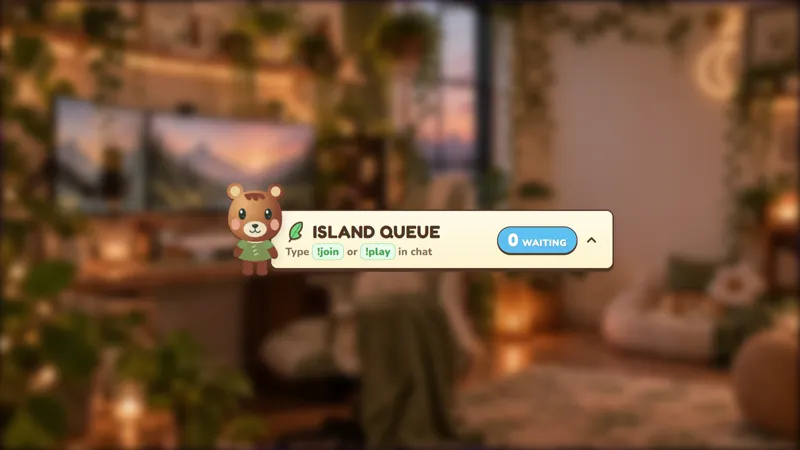
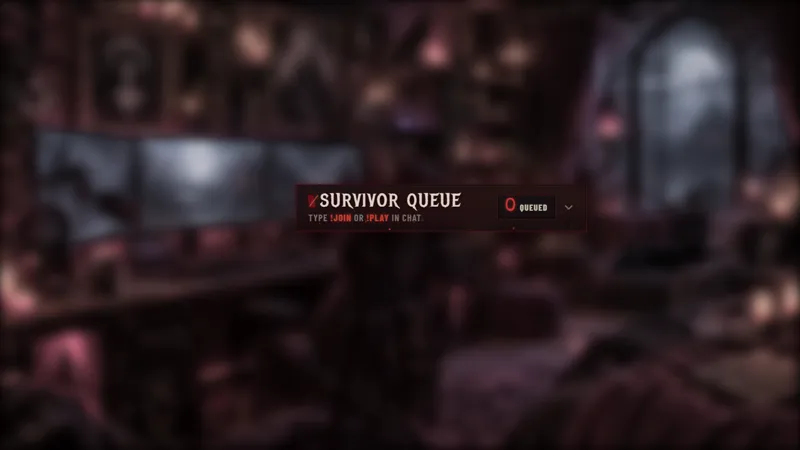
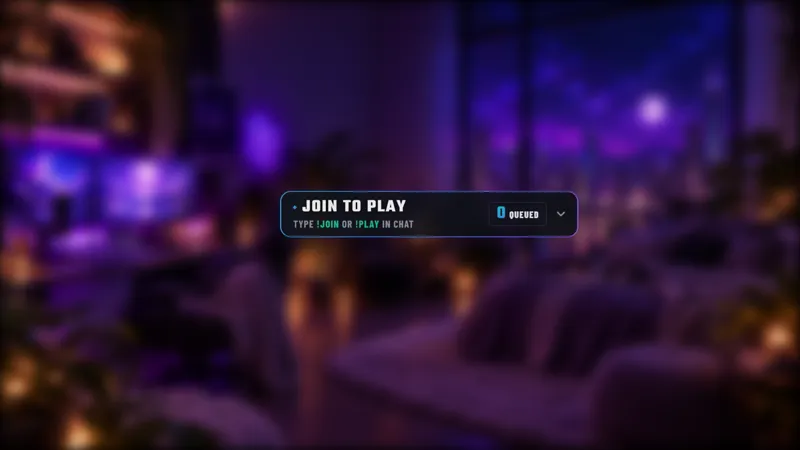
Make playing games with your community easier with this interactive viewer queue! Let chatters join the lineup to play with you while keeping your multiplayer lobbies organized. Perfect for streamers hosting community game nights, viewer games, custom matches, and multiplayer sessions. This customizable stream queue overlay makes managing your next group of players simple and stress-free.
Get Multiplayer Viewer Queue free
Included with Meld Studio. Or stay in OBS with Spark Plug.
Who asked to play next? Multiplayer Viewer Queue puts that question into an on-stream lineup instead of leaving it buried in a fast-moving conversation. Viewers join through chat, and you or your moderators manage the next participant with a small set of commands. It is a free widget for community game nights, custom matches, and multiplayer sessions.
The queue gives participation a clear place in your layout. Rather than asking the host to remember each request, chatters can enter the lineup themselves. You still decide how the game session works, but the joining process becomes something you can explain once and refer back to throughout the stream.
Joining, leaving, and moving the lineup
Viewers can use either !join or !play to queue for a game with the streamer. Both are joining commands, so introduce whichever is easiest for your community to remember while making clear that the other works too. A viewer who no longer wants to wait can use !leave to exit.
The management commands are for streamers and moderators. Use !next to pull the next viewer, and !remove to take a viewer out of the queue when needed. Having moderators help with those actions can keep you focused on the current match while the host team handles the waiting list.
Use !viponly to toggle VIP and subscriber-only access. That lets the host team decide whether a session is exclusive. Tell viewers which mode you are using before you invite them to join, so there is no confusion between an open community night and a session reserved for eligible supporters.
A practical place for community participation
Multiplayer Viewer Queue supports Twitch, YouTube Live, Kick, and TikTok Live. The same basic instructions apply wherever your audience watches, making the widget a useful addition to streams that host viewer games across different platforms.
A weekly multiplayer night is a natural fit: open the lineup, explain your session rules, and use the management commands as places become available. For custom matches, make clear what selected viewers should do next. The queue organizes the participants; your invitation process and game rules remain part of how you host the event.
Keep the lineup readable in your scene without covering the game or important information. Before starting, introduce the joining and leaving commands and let moderators know who will handle the next-player handoff. Clear expectations make the widget easier for both new arrivals and regular players to use.
Download Meld Studio and add Multiplayer Viewer Queue to your community-game layout. If you already produce your stream in OBS, Spark Plug for OBS is the alternative way to use the gallery widget without replacing your existing setup.
How it works
- 1 Viewers type !join or !play to enter the queue, or !leave to exit.
- 2 Streamers and moderators use !next to pull the next viewer and !remove to remove a viewer.
- 3 Use !viponly as the streamer or a moderator to toggle VIP and subscriber-only access.
Use cases
-
Weekly viewer games
Give returning players and new arrivals the same way to enter the lineup. Joining commands keep requests in the queue while you focus on playing with the current group.
-
Custom match sessions
Let moderators help manage the next viewer with !next and remove people with !remove when needed. Set expectations for each match before bringing the next participant into your lobby.
Chat commands
Frequently asked questions
How do viewers join or leave the queue?
Viewers type !join or !play to enter the lineup and !leave to exit. Streamers and moderators can pull the next viewer with !next or remove a viewer with !remove.
Can I restrict the queue to VIPs and subscribers?
The streamer or a moderator can use !viponly to toggle VIP and subscriber-only access. Tell your audience which mode is active before inviting them to join the session.
Is this viewer queue free, and which platforms work?
The widget is free with Meld Studio and supports Twitch, YouTube Live, Kick, and TikTok Live. Use it to organize viewer games on every platform you stream to.
Does this queue work in OBS Studio?
Yes. Download Meld Studio to add the queue to a scene, or use Spark Plug for OBS to keep your existing OBS setup. Spark Plug brings gallery overlays and Meld Spark's help with customization in seconds into OBS.