Free Horror Lobby Queue for Your Next Spooky Multiplayer Night
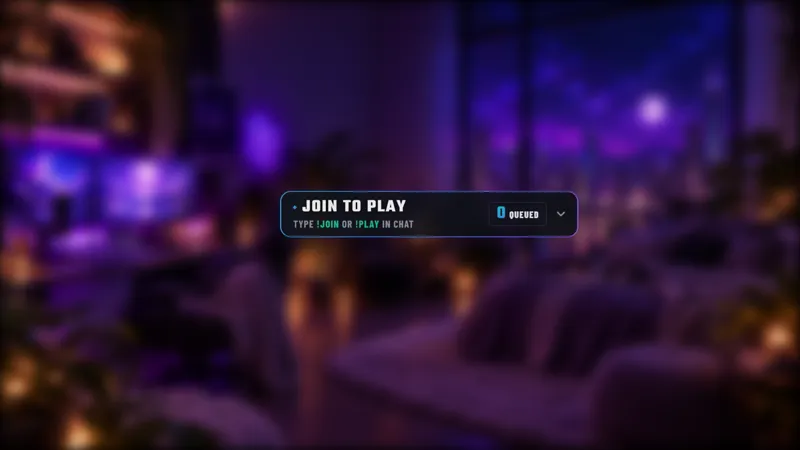
Let viewers line up to play with you in this horror-inspired queue widget. Perfect for spooky streams, community lobbies, and multiplayer nights, this dark and eerie overlay lets chat join, leave, and wait their turn in style.
Get Horror Lobby Queue free
Included with Meld Studio. Or stay in OBS with Spark Plug.
The next lobby should not be the scariest part of a community horror stream. Horror Lobby Queue gives viewers a dark, eerie place to wait their turn, with chat commands for entering and leaving and host controls for choosing who plays next. The free widget keeps the lineup visible without changing the spooky tone of your scene.
It fits multiplayer nights, community lobbies, and seasonal streams where audience participation is part of the show. The queue handles the waiting list; you decide how the session runs and how each group spends its time in the game.
Join the lobby from chat
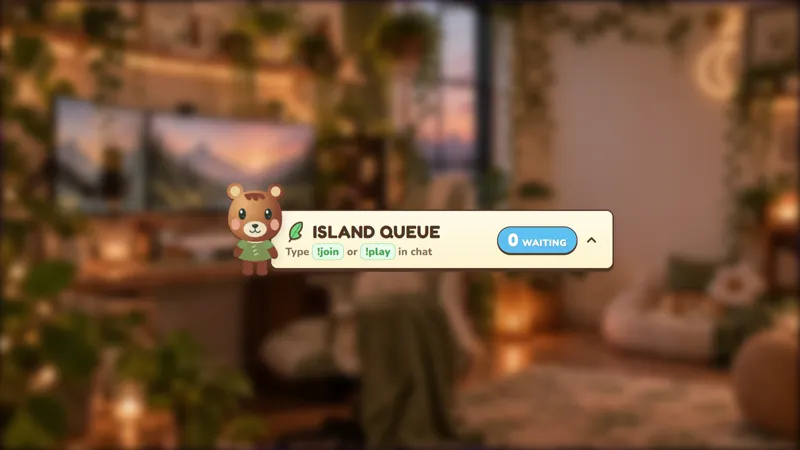
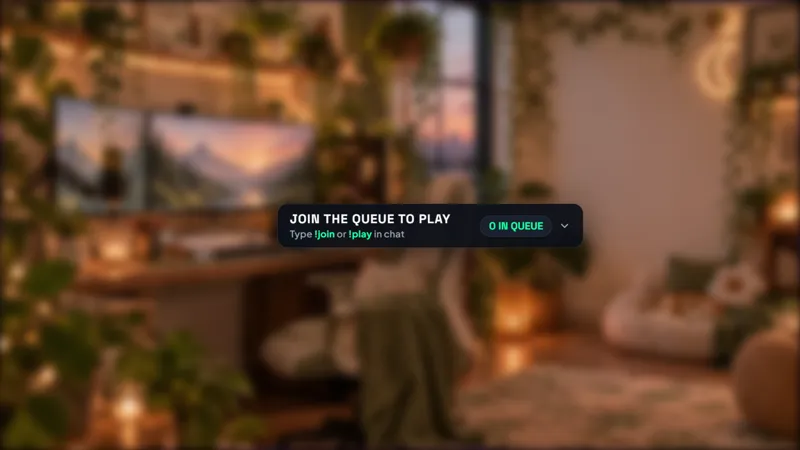
Viewers type !join or !play to enter the queue. If they need to step away, !leave takes them out of the lineup. Introduce these commands at the start of the stream so the audience has an obvious way to ask for a place without filling the conversation with repeated requests.
Streamers and moderators use !next to pull the next viewer and !remove to remove someone from the queue. This separates audience participation from host management: viewers manage their own decision to join, while your team manages the progression of the session.
The !viponly command toggles VIP and subscriber-only access. It is a host or moderator control, so you can decide when the lobby is open more broadly and when it is for an exclusive session. Explain the access rules before asking chat to join, especially if you change modes during the evening.
Keep the horror theme, simplify the handoff
Click directly on the widget to pull the next players, adjust how many viewers are selected, or clear the queue. Group-size controls are helpful when the available places change between rounds. Clearing the queue gives you a direct action for ending one lineup before moving to a different community activity.
The overlay supports Twitch, YouTube Live, Kick, and TikTok Live. Wherever your viewers watch, the same joining and leaving instructions give the audience a clear starting point. Keep your game invitations and session expectations clear alongside the queue so being selected is easy to understand.
Place the widget where viewers can read the lineup without it blocking important gameplay information. Its dark, eerie styling can sit naturally in a spooky scene, but the practical purpose remains the same: show the people waiting and give the host team control over the next group.
Download Meld Studio and add Horror Lobby Queue to your community-game scene. Streamers staying in OBS can use Spark Plug for OBS instead, keeping their existing production while adding the same horror-inspired queue.
How it works
- 1 Viewers type !join or !play to enter the queue, or !leave to exit.
- 2 Streamers and moderators use !next to pull the next viewer and !remove to remove a viewer.
- 3 Use !viponly as the streamer or a moderator to toggle VIP and subscriber-only access.
- 4 Click into the widget to choose how many viewers to pull next or clear the queue.
Use cases
-
Spooky multiplayer lobbies
Invite your audience into a horror-themed game night with a queue that matches the atmosphere. Viewers can join or leave through chat while moderators handle the next players.
-
Rotating groups between rounds
Use the clickable controls to adjust how many viewers are selected for the next group. Clear the queue when the current session is finished and you are ready for a fresh lineup.
Chat commands
Interactive controls
Click directly on the widget to select the next players, choose how many viewers to pull, or clear the queue.
Frequently asked questions
How do viewers join or leave the queue?
Viewers type !join or !play to enter the lineup and !leave to exit. Streamers and moderators can pull the next viewer with !next or remove a viewer with !remove.
Can I restrict the queue to VIPs and subscribers?
The streamer or a moderator can use !viponly to toggle VIP and subscriber-only access. Tell your audience which mode is active before inviting them to join the session.
Is this viewer queue free, and which platforms work?
The widget is free with Meld Studio and supports Twitch, YouTube Live, Kick, and TikTok Live. Use it to organize viewer games on every platform you stream to.
Does this queue work in OBS Studio?
Yes. Download Meld Studio to add the queue to a scene, or use Spark Plug for OBS to keep your existing OBS setup. Spark Plug brings gallery overlays and Meld Spark's help with customization in seconds into OBS.