Free Gradient Viewer Queue for Multiplayer Sessions with Your Community
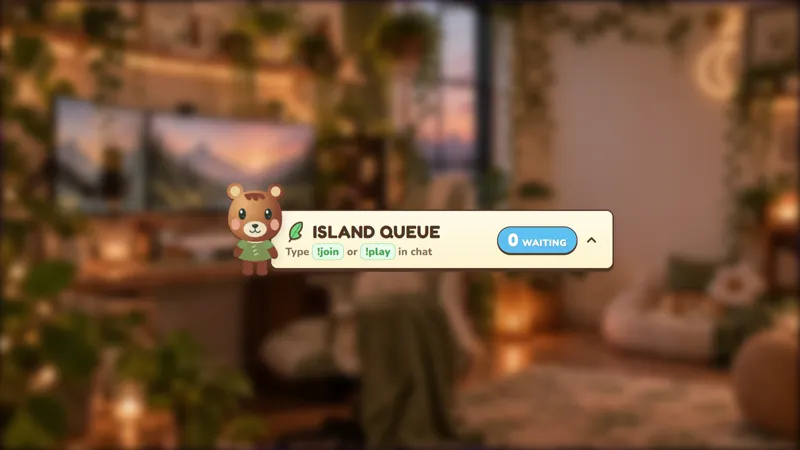
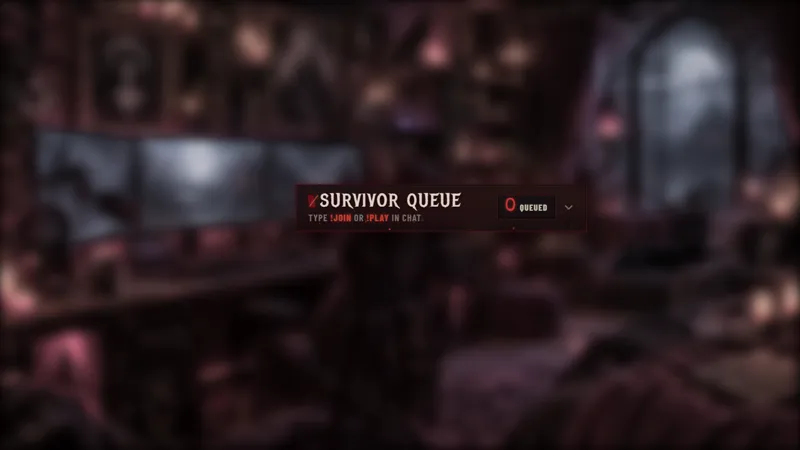
Make playing games with your community easier with this interactive viewer queue! Let chatters join the lineup to play with you while keeping your multiplayer lobbies organized. Perfect for streamers hosting community game nights, viewer games, custom matches, and multiplayer sessions. This customizable stream queue overlay makes managing your next group of players simple and stress-free.
Get Multiplayer Gradient Viewer Queue free
Included with Meld Studio. Or stay in OBS with Spark Plug.
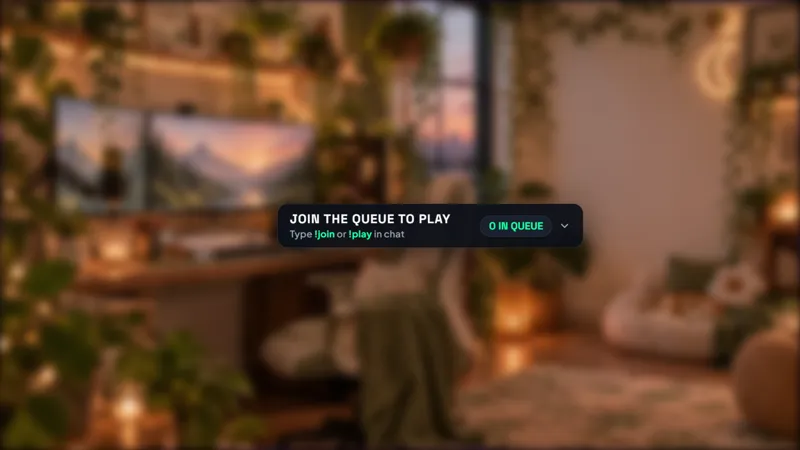
Bring a gradient-styled lineup into your multiplayer scene and give requests to play somewhere visible to land. Multiplayer Gradient Viewer Queue is a free community-game widget with joining and leaving commands for viewers and management commands for your host team. It keeps the practical business of the next participant alongside the game.
Choose this version when a gradient treatment fits your stream layout. It serves the same core need as a viewer-game signup list: let interested chatters enter the queue and give the streamer or moderators a way to move to the next person. The visual choice does not require your audience to learn a new set of rules.
Let viewers manage their place
Chatters use !join or !play to enter the queue for a game with the streamer. If they need to leave before their turn, !leave removes them from the lineup. A short introduction to those commands helps viewers participate without repeatedly asking the host how to get a place.
Streamers and moderators use !next to pull the next viewer and !remove to remove someone from the queue. Keep those roles clear when you introduce the widget: joining is for the audience, while advancing or managing the lineup belongs to the people running the stream.
The !viponly command toggles VIP and subscriber-only access. Use it when the session is intended for those viewers, and announce the access mode before asking people to queue. It is a useful distinction for channels that alternate between broad community nights and more exclusive multiplayer sessions.
Keep the session easy to follow
The widget supports Twitch, YouTube Live, Kick, and TikTok Live, so it can sit in the layouts you use for every platform you stream to. Explain how a selected player should join your game separately from the queue commands. A visible lineup helps organize interest, while the host still sets match rules and handles the game invitation.
For custom matches, decide who on the host team will manage !next and !remove before the stream begins. For recurring viewer nights, repeat the joining instructions when new people arrive. Those small hosting habits make the queue understandable even for someone seeing the scene for the first time.
Leave room for the gradient widget where the lineup can be read without covering gameplay. Test the composition at the size your audience watches, especially when the game has important information near the edges of the screen. The queue should support the session rather than pull attention away from it.
Download Meld Studio and add Multiplayer Gradient Viewer Queue to a scene. For streamers keeping an established OBS production, Spark Plug for OBS provides the alternative path to the same gallery element.
How it works
- 1 Viewers type !join or !play to enter the queue, or !leave to exit.
- 2 Streamers and moderators use !next to pull the next viewer and !remove to remove a viewer.
- 3 Use !viponly as the streamer or a moderator to toggle VIP and subscriber-only access.
Use cases
-
A queue for your multiplayer layout
Use the gradient version of the viewer queue when that visual direction suits your scene. Chatters join with !join or !play while the host team manages the next participant.
-
Supporter-focused game sessions
Toggle VIP and subscriber-only access with !viponly when you are hosting an exclusive session. Explain the current access mode before inviting viewers to enter the lineup.
Chat commands
Frequently asked questions
How do viewers join or leave the queue?
Viewers type !join or !play to enter the lineup and !leave to exit. Streamers and moderators can pull the next viewer with !next or remove a viewer with !remove.
Can I restrict the queue to VIPs and subscribers?
The streamer or a moderator can use !viponly to toggle VIP and subscriber-only access. Tell your audience which mode is active before inviting them to join the session.
Is this viewer queue free, and which platforms work?
The widget is free with Meld Studio and supports Twitch, YouTube Live, Kick, and TikTok Live. Use it to organize viewer games on every platform you stream to.
Does this queue work in OBS Studio?
Yes. Download Meld Studio to add the queue to a scene, or use Spark Plug for OBS to keep your existing OBS setup. Spark Plug brings gallery overlays and Meld Spark's help with customization in seconds into OBS.