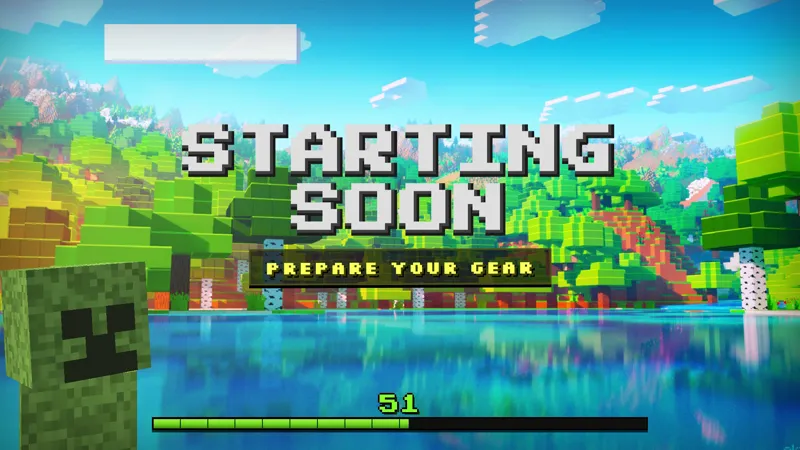
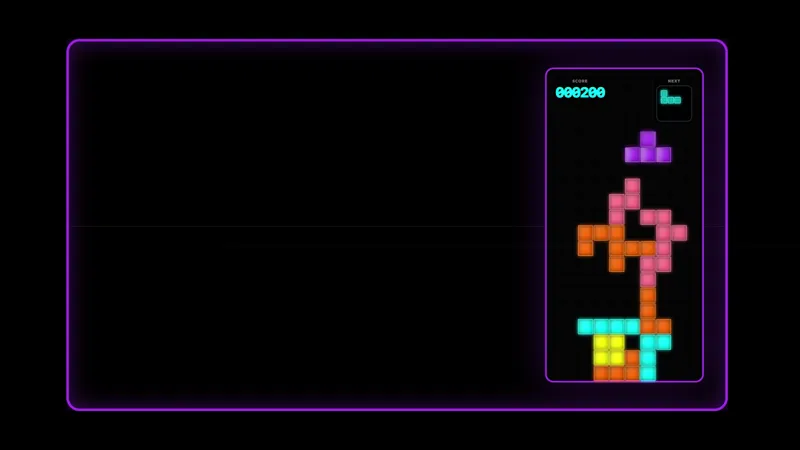
Free Minecraft Boss Tracker Overlay for Stream Boss Runs
Show your viewers what boss you're getting ready to battle, and which ones you've slain.
By Meld
Get Minecraft Boss Tracker free
Included with Meld Studio. Or stay in OBS with Spark Plug.
Boss runs are easier to follow when the goal is visible before the fight starts. Minecraft Boss Tracker gives your stream a compact checklist for the bosses you are preparing to battle and the ones you have already cleared, so viewers can understand the run without asking where you are in the plan.
It is free with Meld Studio and built for Minecraft streams where progression is part of the show.
How the tracker works
The overlay shows the current boss target on screen. When you defeat that boss, use !slain to mark it as cleared and move the tracker forward. If the run needs to start over, !bossreset returns the checklist to the beginning.
That simple command flow makes it useful for survival challenges, hardcore attempts, boss-rush streams, and community goal nights. Viewers can see what you are preparing for, then watch the tracker update when a fight is finished. The overlay turns progress into a visible part of the broadcast instead of something you explain repeatedly in chat.
Because the tracker is an overlay, it can sit beside a camera, near your inventory space, or in a corner of a gameplay scene. It gives the run a little structure without taking over the screen.
Where it fits
Minecraft Boss Tracker is strongest when your stream has a clear sequence of objectives. Use it when you are preparing for bosses, tracking cleared fights, or resetting after a failed attempt. It also gives returning viewers context when they arrive midstream, which matters during longer challenge runs.
Meld supports Twitch, YouTube Live, Kick, and TikTok Live, so the same tracker can stay in your layout no matter where your audience is watching.
Download Meld Studio and add the tracker to your scene. If you already produce in OBS, use Spark Plug for OBS to bring the same overlay into your existing scene collection as a browser source.
How it works
- 1 Show the current Minecraft boss you are preparing to fight
- 2 Use !slain once a boss has been defeated to move to the next boss
- 3 Use !bossreset when you need to restart the boss run
Use cases
-
Keeping boss-run progress visible
When a Minecraft stream is built around boss progression, viewers need a quick way to see what comes next. Minecraft Boss Tracker keeps the next target on screen and gives the run a clear structure from the first fight through the final checklist item.
-
Restarting after a failed attempt
Long boss runs can reset fast after a bad fight, a missed prep step, or a world-ending mistake. The !bossreset command gives you a clean way to start the checklist over without rebuilding the scene or hiding the tracker.
Chat commands
Frequently asked questions
Is Minecraft Boss Tracker free?
Yes. Minecraft Boss Tracker is included free with Meld Studio. Add it to a scene and use the chat commands to move through your boss checklist during a live run.
What commands does Minecraft Boss Tracker use?
Use !slain once the current boss has been defeated, and the tracker moves to the next boss. Use !bossreset when you need to restart the boss run from the beginning.
Does Minecraft Boss Tracker work in OBS Studio?
Yes. Spark Plug for OBS loads the tracker into your existing OBS scene as a browser source, and Meld Spark can help customize overlays in seconds. Meld Studio is the fastest setup, with Spark Plug available for OBS-first streams.
Which streaming platforms does it support?
Twitch, YouTube Live, Kick, and TikTok Live are all supported. Meld signs you in once and keeps the same overlay available across the platforms you stream to.