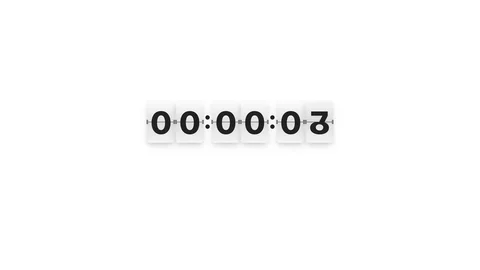
Free Celestial Pomodoro Timer for Co-Working Streams
A pomodoro timer built for co-working and focus streams. Auto-cycles between focus and break sessions, with customizable durations via chat.
By Meld
Get Celestial Pomodoro Timer free
Included with Meld Studio. Or stay in OBS with Spark Plug.
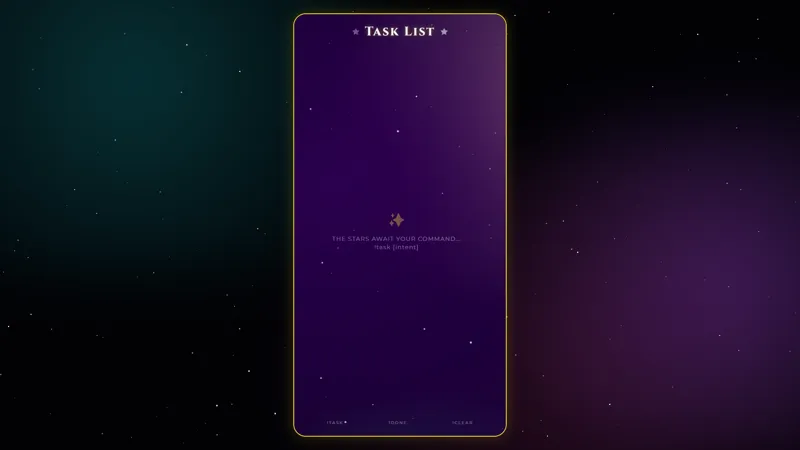
A pomodoro timer earns its place on a co-working stream by being unambiguous: a viewer should be able to glance at the canvas at any moment and know whether the room is in a focus block or a break. Celestial Pomodoro Timer puts that state on screen against a slow-moving starfield, with auto-cycling sessions and chat commands that let everyone in the room adjust the rhythm together.
It is free with Meld Studio. No watermark, no subscription, no per-stream cap.
How the cycles run
The timer auto-rolls between focus, short break, and long break sessions. !start begins the cycle, !pause holds the current session, and !skip jumps to the next one without breaking the rotation. Three commands set the durations: !setfocus, !setbreak, and !setlong each take a number of minutes. That gives the streamer and chat a way to retune the session length without restarting the timer or opening a settings panel.
The celestial panel sits cleanly on top of any background. The countdown reads at a glance, the current state is labeled, and the starfield underneath ties the timer into a celestial-themed scene without competing with whatever else is on the canvas.
Why it fits co-working
Co-working streams live or die on the timer. Viewers tabbing in to body-double their own work need to know how long is left in the current focus block, when the next break starts, and whether the room paused while you stepped away. Putting all of that on a single legible widget changes a study-with-me scene from “ambient music with a webcam” into a structured shared session.
Chat-driven adjustments matter for the same reason. If today is a long-form writing day, !setfocus 50 reshapes the rhythm without disrupting the stream. If a viewer asks for a longer break, you can hand them a tweak in real time.
Customizing with Meld Spark
Meld Spark, the AI overlay editor inside Meld Studio, takes plain-English prompts. A prompt like “default to 50-minute focus sessions and 10-minute breaks, and play a soft chime when cycles switch” applies the change immediately. You can also restyle the starfield, recolor the typography, or add a celebration when a long break begins. Changes persist between sessions, so the same setup loads every time you go live.
Adding it to your stream
Download Meld Studio and the timer drops into a scene with no configuration. If you already run OBS, the free Spark Plug for OBS plugin loads the same timer as a browser source inside your existing OBS layout, with the same chat commands across Twitch, YouTube Live, Kick, and TikTok.
Use cases
-
Study with me and body-doubling streams
For study-with-me, body-doubling, and focus streams, the timer is the single most important visual on the canvas. Viewers sync their own work to the cycles you run, so a clear celestial countdown that auto-rolls between focus and break sessions becomes the spine of the entire session.
-
Long work blocks with chat-driven adjustments
When a session needs different timings on different days, viewers can change the durations from chat with !setfocus, !setbreak, and !setlong. Skip and pause keep the timer in sync with what you are actually doing, so the cycle never feels like it is fighting you.
Chat commands
Frequently asked questions
How do viewers and I control the timer?
The timer takes a small set of chat commands. !start kicks it off, !pause holds the current session, and !skip jumps to the next one. !setfocus, !setbreak, and !setlong adjust focus, short break, and long break durations in minutes.
Is the Celestial Pomodoro Timer free?
Yes. It is included free with Meld Studio. There is no paywall, no watermark, and no per-session limit, so you can run it across every study-with-me or co-working stream you host.
Which platforms can run the chat commands?
Twitch, YouTube Live, Kick, and TikTok Live all support the timer commands. Meld signs you in once and the overlay listens to chat from every platform you stream to at the same time.
Does this work in OBS Studio?
Yes. Spark Plug for OBS drops the pomodoro into your existing OBS scene as a browser source, and Meld Spark lets you change the default session lengths, add a soft chime between cycles, or restyle the starfield from a plain-English prompt in seconds.
Can I change the default focus and break lengths?
Yes. Adjust them on the fly with !setfocus, !setbreak, and !setlong, or use Meld Spark to lock in new defaults. A prompt like "default to 50-minute focus sessions and 10-minute breaks, and play a soft chime when cycles switch" applies in seconds.