Free Light Theme Flip Clock Countdown Timer for Bright Stream Layouts
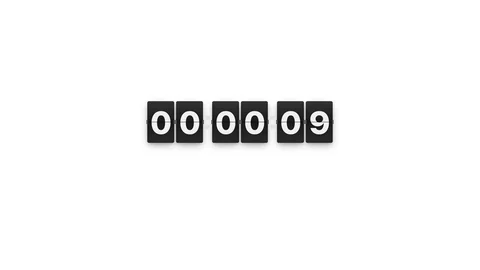
A retro flip clock countdown timer with a clean light theme. Same satisfying flip animation, designed for streams with brighter aesthetics or light-mode overlays.
By Meld
Get Flip Clock Timer Light free
Included with Meld Studio. Or stay in OBS with Spark Plug.
Same satisfying flip animation, same Pause and Reset controls, but rendered in a clean light theme designed for streams that run on brighter backgrounds. Flip Clock Timer Light is built for layouts where a dark panel would punch a hole in the composition: pastel starting soon scenes, cozy wind-down hours, bright camera setups, and any layout that leans into white space and light color.
It is free with Meld Studio. No watermark, no setup fee, no subscription required.
How the timer behaves
The clock counts down in hours, minutes, and seconds with each digit flipping individually as it changes. The split-flap motion has the same mechanical feel as the dark version, just delivered on a soft light surface that fits brighter scenes. The panel sits comfortably against pastel wallpapers, illustrated starting soon screens, white-walled camera layouts, and slice-of-life backgrounds without darkening the surrounding design.
Toggle interaction mode on your canvas to bring up hover controls directly on the overlay. Pause holds the count without canceling it, useful when a starting soon screen runs longer than planned or when a segment timer needs to wait. Reset returns the clock to its starting duration for repeat segments. The controls vanish when you exit interaction mode, so the live broadcast stays clean.
Customizing with Meld Spark
The clock ships ready to use, and Meld Spark, the AI overlay editor built into Meld Studio, lets you reshape it without touching code. The gallery tip ships with a ready example: ‘Add a “Stream starts in…” label above the timer in a soft gray.’ Run it and the label appears above the clock in the requested tone, fitting the lighter theme rather than fighting it.
You can take the prompt further. Change the accent color of the digits to match your channel palette, swap the label to a segment name like “Next break in,” soften the flip sound, or tie the timer’s zero state to an alert. Every change persists between sessions, so the timer looks exactly the same the next time you go live.
When to use the light theme
Pick the light version when your scene leans bright: pastel starting soon screens, cozy slice-of-life hours, daytime IRL streams, white-walled camera layouts, and any branding built around soft color. The dark theme covers darker aesthetics. Both share the same animation and the same Pause and Reset controls, so swapping themes does not change how the timer is operated during the broadcast.
Adding it to your stream
Download Meld Studio and the light flip clock drops into a scene with no configuration. If you already run OBS, the free Spark Plug for OBS plugin loads the same overlay as a browser source inside your existing OBS layout, with the same Pause and Reset controls and the same Meld Spark prompts available for tuning labels, accent colors, and zero-state behavior.
Use cases
-
Bright starting soon screens
When your starting soon scene runs on pastel backgrounds, white space, or bright illustration, a dark countdown drops a hard rectangle into the composition. The light flip clock matches those layouts so the timer feels designed in rather than dropped on top.
-
Cozy and slice-of-life streams
Knitting hours, journaling sessions, baking streams, and farming sim runs lean toward warm, lit rooms in their on-screen design. A clean light flip clock fits that softer palette and counts down to the next break or segment without breaking the warmth.
Interactive controls
Toggle interaction mode on your canvas to access controls on hover.
Frequently asked questions
Is the light flip clock timer free?
Yes. The Flip Clock Timer Light overlay ships free with Meld Studio. There is no watermark, no paywall, and no usage cap. Drop it into a scene and the countdown is ready to run immediately.
Which platforms does it work alongside?
Meld signs you in once across Twitch, YouTube Live, Kick, and TikTok Live, so the same light flip clock can power starting soon scenes, BRB screens, and segment timers regardless of which platforms you broadcast to.
Does this work in OBS Studio?
Yes. Spark Plug for OBS loads the light flip clock into your existing OBS scene as a browser source, and Meld Spark lets you change the accent color or add a custom label below the clock from a plain-English prompt in seconds.
How do I pause or reset the countdown?
Toggle interaction mode on your canvas to bring up hover controls directly on the overlay. From there you can pause the count or reset it to the starting duration. The controls hide automatically when you leave interaction mode, so they never appear in your live broadcast.
Can I add a label like 'Stream starts in...' under the clock?
Yes. The gallery tip is built around exactly this. A Meld Spark prompt like 'Add a "Stream starts in..." label above the timer in a soft gray' adds the text without touching code, and the label persists between sessions.