Setting Up YouTube in Meld Studio
Section titled “Setting Up YouTube in Meld Studio”- Navigate to
Settings → General → Streaming Outputs. - Click the
+ Add outputbutton and select YouTube from the available options.
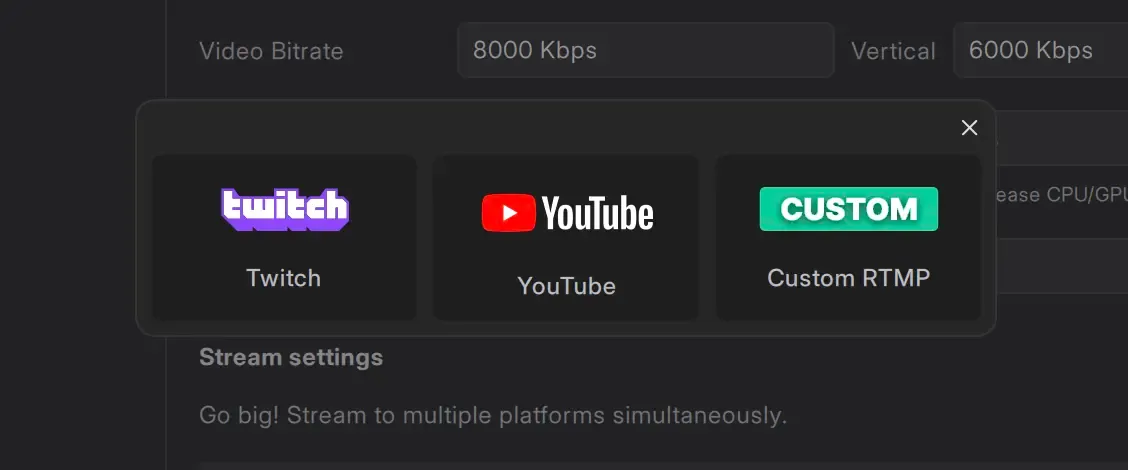
Log In
Section titled “Log In”- In the Stream Service section, click the Log In button.
- The YouTube login page will open in your default web browser.
- Enter your YouTube credentials and connect your YouTube account to Meld Studio.
Using a Stream Key Instead
Section titled “Using a Stream Key Instead”If you prefer to set up YouTube without logging in, you can use a stream key. Note that features like Stream Chat, Stream Manager, and event-based widgets will not be available with this method.
Open YouTube Studio
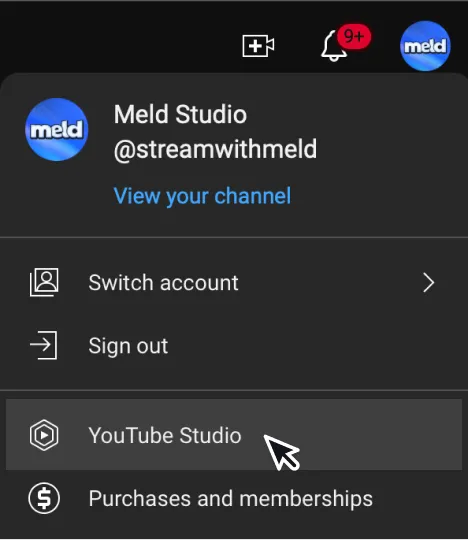
Section titled “Open YouTube Studio”- Go to YouTube Studio.
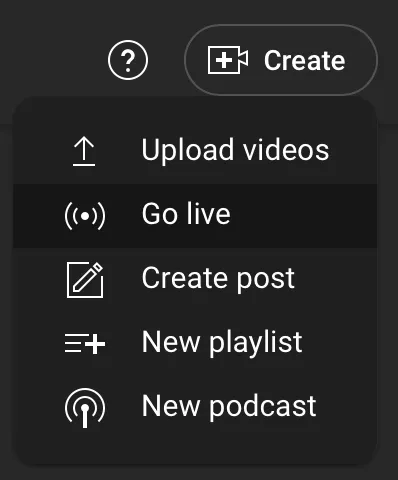
- Click Create in the top-right corner next to your profile icon, then select Go Live.
Copy Your Stream Key
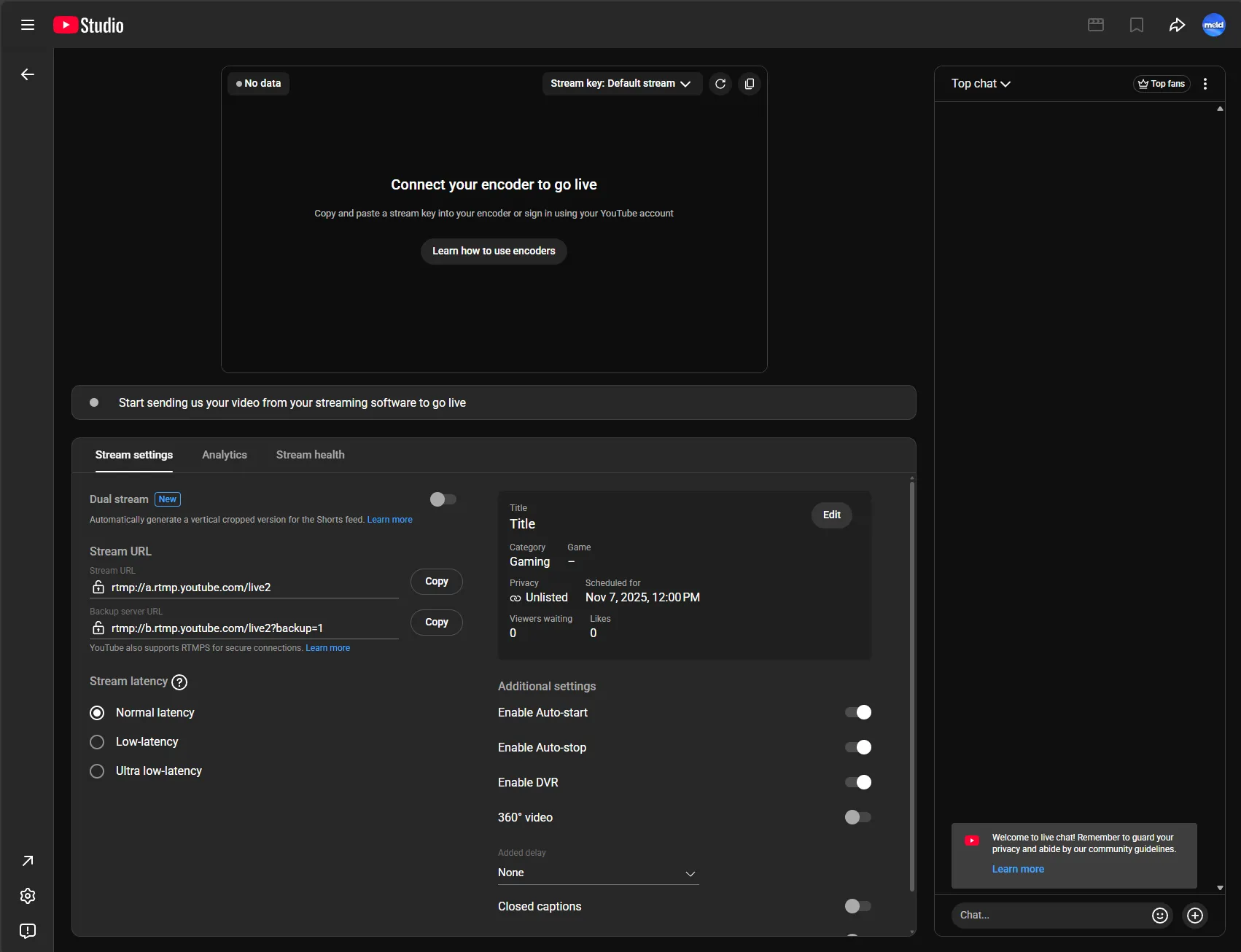
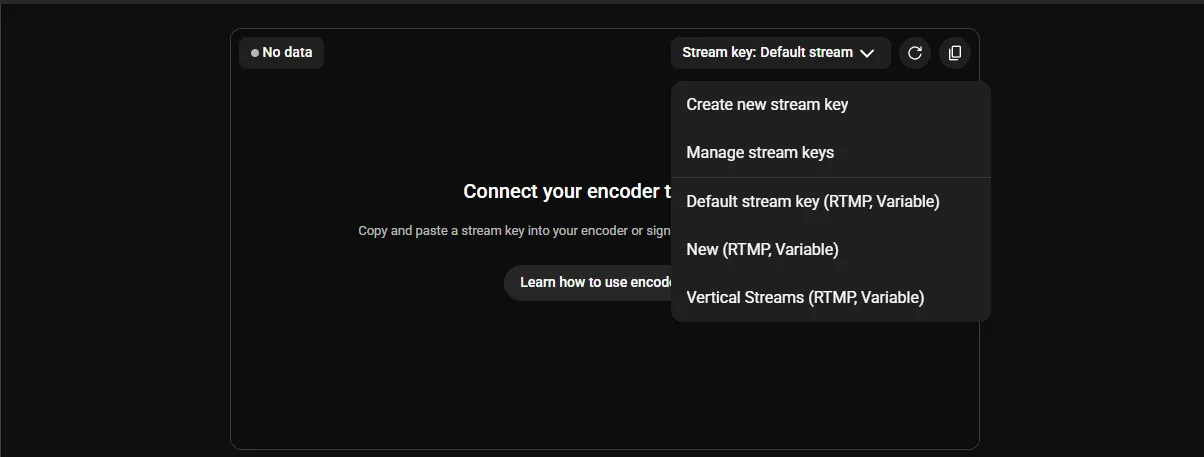
Section titled “Copy Your Stream Key”- In the YouTube Live Control Room, click the Stream key dropdown in the top-right corner of the video preview area.
- Select an existing stream key (e.g., Default stream key (RTMP, Variable)) or click Create new stream key.
- Click the copy icon next to the dropdown to copy the stream key.
- Paste it into the Stream Key field in Meld Studio.
Stream to YouTube and YouTube Shorts at the Same Time
Section titled “Stream to YouTube and YouTube Shorts at the Same Time”With Multi Canvas, you can broadcast a landscape stream to YouTube and a vertical stream to YouTube Shorts at the same time, from a single Meld Studio project. Your landscape feed goes out through your YouTube output, and your vertical feed goes out through a Custom RTMP output assigned to the Portrait canvas.
Before You Start
Section titled “Before You Start”Enable Multi Canvas so you have a Portrait canvas for your vertical layout. Navigate to Settings → General and select Multi Canvas. The Portrait canvas runs at 1080×1920 and matches your Main canvas framerate.
Create Two Streams in YouTube
Section titled “Create Two Streams in YouTube”- Go to YouTube Studio and select Create → Go Live.
- In the Live Control Room, open the Stream area.
- Create two stream keys: one for your main landscape (16:9) stream and one for your vertical (9:16) Shorts stream.
- Enable Auto-start and Auto-stop so YouTube starts and stops each broadcast automatically when Meld Studio begins and ends sending video.
Set Up the Landscape Output
Section titled “Set Up the Landscape Output”Use your standard YouTube output for the landscape stream. If you have not added it yet, follow Setting Up YouTube in Meld Studio above. This output uses your Main canvas.
Set Up the Vertical Shorts Output
Section titled “Set Up the Vertical Shorts Output”The vertical Shorts stream goes out through a Custom RTMP output assigned to the Portrait canvas.
- Make sure Multi Canvas is enabled.
- Navigate to
Settings → General → Streaming Outputs. - Click ╋ Add output and select Custom RTMP.
- Paste your vertical (9:16) stream key into the Stream Key field and the matching server URL into the Stream Server field.
- In the Canvas dropdown, select Portrait so this output streams your vertical layout.
For more on Custom RTMP outputs, see Custom RTMP.
Go Live on Both
Section titled “Go Live on Both”- Schedule your vertical Shorts broadcast in YouTube. Only the Custom RTMP stream needs to be scheduled.
- Start your outputs in Meld Studio. You can toggle each output on or off independently to control the landscape and vertical streams separately.
With Auto-start and Auto-stop enabled, YouTube begins broadcasting each stream as soon as Meld Studio starts sending it, so you do not need to keep YouTube Studio open while you stream.