Close Your Broadcast with a Free GTA 6-Inspired Ending Scene
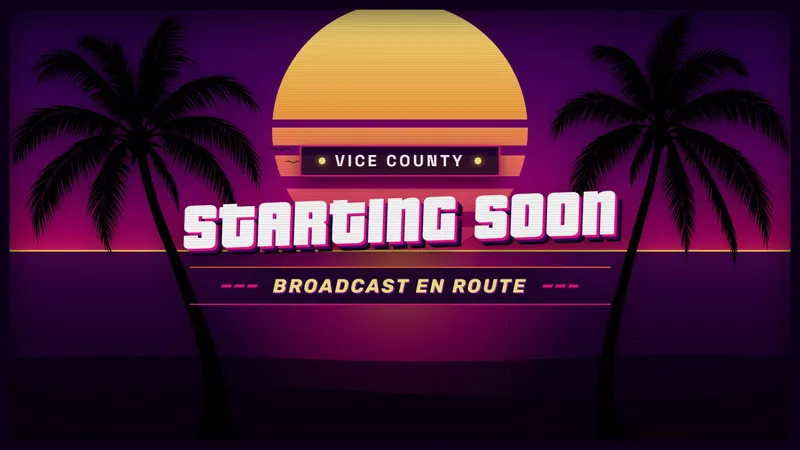
Mission complete. This GTA 6-inspired Ending scene wraps up your stream with Vice City style and leaves your viewers with a strong final impression.
By Meld
Get GTA 6 Ending Soon Scene free
Included with Meld Studio. Or stay in OBS with Spark Plug.
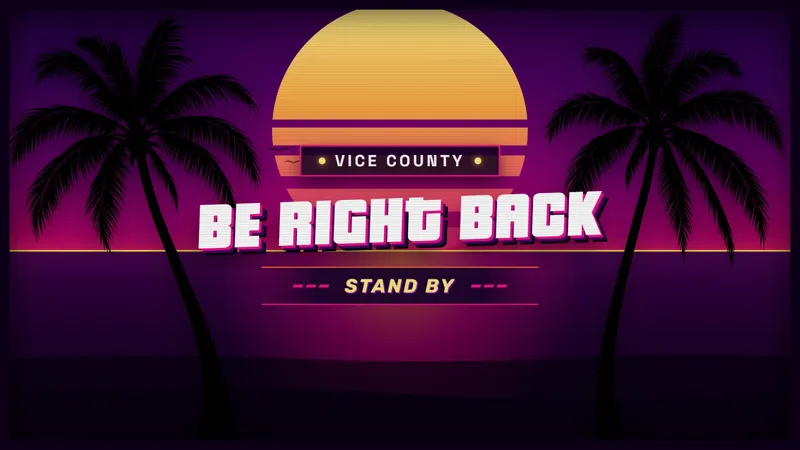
The last match is finished and the conversation is winding down. Give that part of the evening a deliberate screen with this free GTA 6-inspired Ending Soon scene. Its Vice City neon styling carries the visual theme through the sign-off instead of leaving viewers on a gameplay view that no longer reflects what the stream is doing.
An ending scene serves a different purpose from a break screen. You are bringing the session to a close, not asking viewers to wait for the next activity. Choosing a scene for that moment makes the change of pace visible while you decide how to finish hosting the show.
A neon finish for your broadcast
The GTA 6 inspiration is a visual direction: neon styling with a Vice City feel. It fits a GTA-focused evening naturally, but the choice can also be about the look you prefer for a variety stream. The scene is inspired by that world rather than presented as an official game product.
Use it when the broadcast is entering its closing portion. The ending screen gives that portion a defined appearance, separate from your camera layout, game border, or chat display. It is a scene for the finish, not another small decorative element that needs to share space with ongoing gameplay.
Twitch, YouTube Live, Kick, and TikTok Live are all supported. If your audience watches across several platforms, the same closing presentation can reach them wherever they are. Your spoken goodbye and the scene can work together to make the end of the session clear.
Choose the final moment viewers see
Think about when you want to leave your main content and move to the ending scene. That could be after the final round, after a conversation has reached a natural stopping point, or while you give your closing remarks. The timing is part of how you host the stream, rather than an extra control or automated behavior promised by this element.
A themed ending also gives you a way to connect the final minutes to the opening. You can pair it with other Vice City-inspired scenes, or use it on its own if the rest of the production already has an appearance you like. There is no need to change every element just to give the sign-off its own look.
Preview the scene before the show so you know how it fits into your closing routine. Download Meld Studio and add the Ending Soon scene to your broadcast. For an existing OBS production, Spark Plug for OBS is the alternative path to the same GTA 6-inspired finish.
Use cases
-
Signing off after a gaming session
Give the evening a distinct final screen after your last game. The Vice City-inspired neon style lets you close the broadcast with a scene chosen for the ending rather than the next activity.
-
A themed finish to a community show
Use the Ending Soon scene when the conversation is wrapping up. It keeps the neon visual direction in place as you bring the session to a close and say goodbye to viewers.
Frequently asked questions
When should I use the Ending Soon scene?
Use it when you are wrapping up the broadcast rather than taking a temporary break. Its GTA 6-inspired neon styling gives the closing portion of the stream its own presentation.
Which platforms does the ending scene support?
The scene works with Twitch, YouTube Live, Kick, and TikTok Live. It is free with Meld Studio, so the same themed finish can accompany your broadcast on every supported destination.
Can I use this ending scene with OBS Studio?
Yes. Download Meld Studio to add the scene, or use Spark Plug for OBS to keep streaming from OBS. Spark Plug brings gallery overlays and Meld Spark's help with customization in seconds into your existing OBS setup.