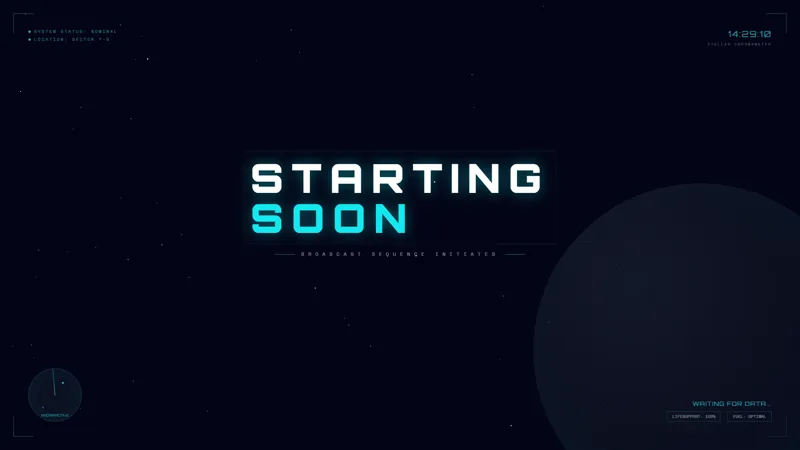
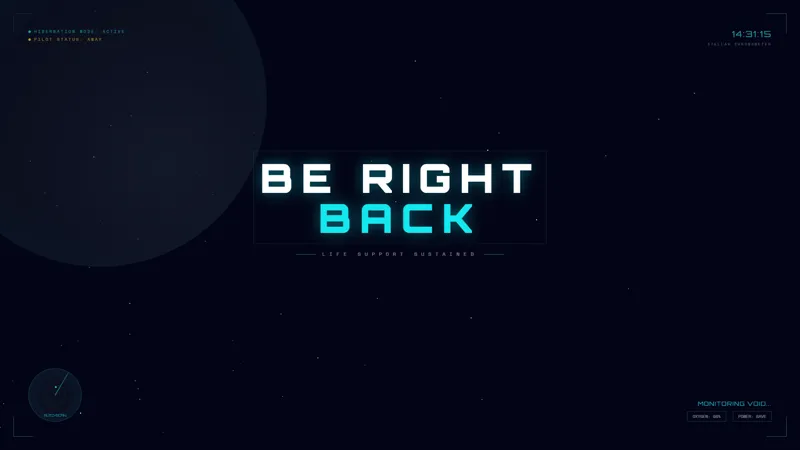
Frame Your Stream with a Free Dark Galaxy Border
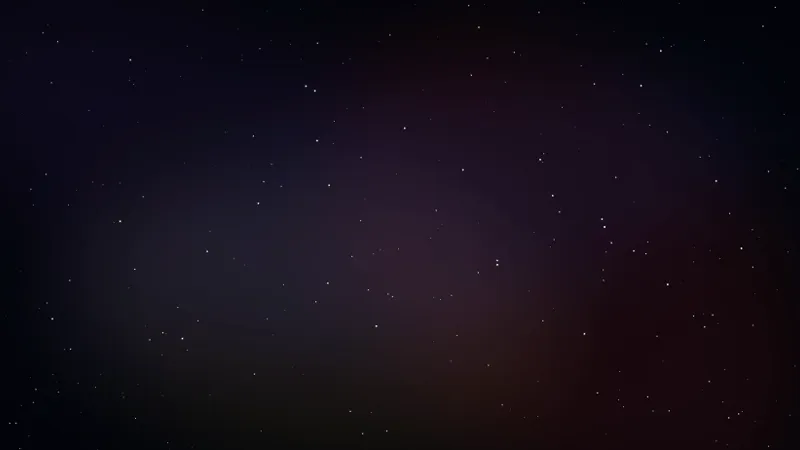
A dark galaxy-themed border to frame your stream.
By Meld
Use this element in Meld or OBS
Copy its link, then paste it where you stream.
-
Have Meld Studio or Spark Plug
Open Meld Studio, or OBS with the Spark Plug plugin installed. Elements need one of them to work.
-
Copy the link
Copy element puts the element's link on your clipboard.
-
Paste it
In Meld Studio, press ⌘V or Ctrl+V and it lands in your scene. In OBS, add a Browser source and paste the link as its URL.
A space-themed broadcast can start at the edges of the screen. Dark Galaxy Border gives your stream a dark galaxy frame, adding a recognizable setting around the content you want viewers to watch. It is a free overlay for creators who want a space theme without making an opening screen the main view of the show.
Think of the border as part of the composition. Your game, camera, or conversation still supplies the content; the surrounding frame gives that content a visual context. This is useful when you already have a working layout and want its outer treatment to reflect the subject of the evening.
Give the broadcast a space setting
The defining feature is straightforward: a dark galaxy-themed border that frames your stream. Choose it for that appearance, whether your channel regularly explores science fiction or you are planning a single space-focused session. The theme can support the subject without requiring every other part of your layout to match it.
For a space exploration game, the border gives the broadcast an appropriate surrounding design before viewers have settled into the action. It can also suit a discussion about astronomy, science fiction films, or the games your community wants to play next. Those are choices about presentation, not additional functions built into the overlay.
Twitch, YouTube Live, Kick, and TikTok Live are all supported. Keep the same galaxy framing across your destinations so the show has a consistent identity wherever people watch. You do not need to choose a different visual theme for each audience.
Make room for the main content
Before broadcasting, look at the whole scene rather than judging the border on its own. Check the position of your gameplay, camera, and any text you already use. A frame is most useful when it gives those elements a clear surrounding edge while leaving the important details easy to follow.
For a late-night community conversation, let the camera remain the center of attention and use the galaxy treatment as the setting around it. For a gameplay session, review the game interface at your usual viewing size. These simple production checks help you decide where the border belongs in your existing scene.
Download Meld Studio and add Dark Galaxy Border to your broadcast layout. If you are keeping your current OBS production, Spark Plug for OBS provides the alternative route to using the gallery overlay there.
Use cases
-
Space game evenings
Frame a space exploration session with a galaxy-themed border. Use the surrounding design to establish the theme while your game remains the reason viewers are watching.
-
Late-night community conversations
Give a camera-led evening a dark space theme without replacing the conversation with a full-screen waiting scene. The border provides a visual frame for the broadcast you already host.
Frequently asked questions
Is Dark Galaxy Border free to use?
Dark Galaxy Border is a free gallery overlay for Meld Studio. It frames your stream with a dark galaxy theme rather than serving as a separate Starting Soon scene.
Which platforms can I stream this border to?
Use it on Twitch, YouTube Live, Kick, and TikTok Live. The same border can accompany your broadcast on every platform you stream to.
Can I use the border in OBS Studio?
Download Meld Studio to add the overlay, or use Spark Plug for OBS with your existing OBS setup. Spark Plug brings gallery overlays and Meld Spark help with customization in seconds into OBS.