The easiest way to go live on Twitch is by connecting your Twitch account with Meld Studio. In just a few clicks you can securely connect your Twitch account as an output without the need to manually enter your Stream Server and Stream Key.
Twitch Direct Connection
Section titled “Twitch Direct Connection”Access The Stream Settings
Section titled “Access The Stream Settings”- Navigate to
Settings → General → Stream Settings - Click the
+ Add outputbutton and select Twitch from the available options.
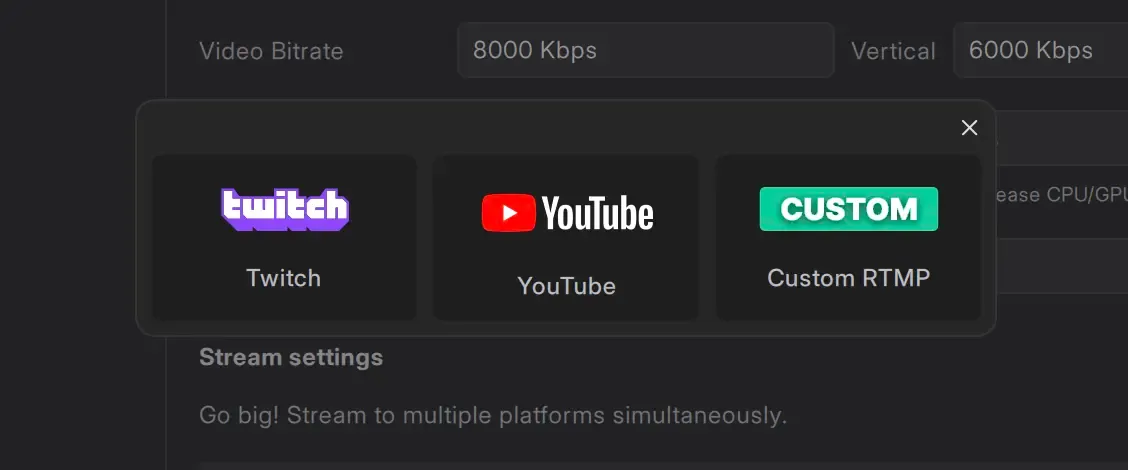
Log In
Section titled “Log In”- In the Stream Service section, click the Log In button.
- The Twitch login page will open in your default Web Browser.
Authorize Permissions
Section titled “Authorize Permissions”- Enter your Twitch credentials (username and password).
- Authorize Meld Studio to access your Twitch account's basic permissions.
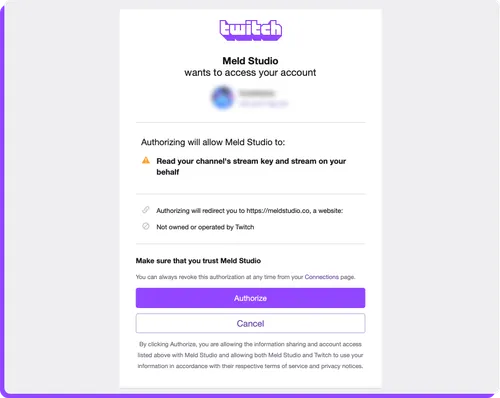
- After successfully logging in and granting permissions, you will be redirected back to Meld Studio.
- Your Twitch username will now appear in the Stream Service field, confirming a successful connection.
Your Stream Server and Stream Key will now be automatically configured.
You're now ready to go live on Twitch.
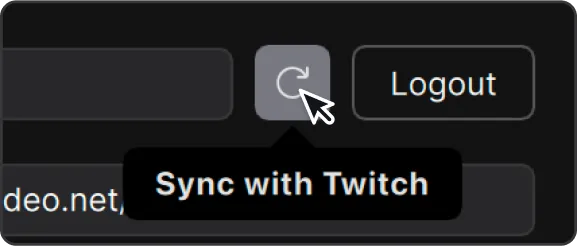
Sync with Twitch if necessary for stream information updates.
Manual Alternative
Section titled “Manual Alternative”An alternative to the direct connection is to set up your Twitch stream manually as you would with a Custom destination.
Find The Twitch Stream Server URL
Section titled “Find The Twitch Stream Server URL”- Go to the Twitch Ingest Recommendations.
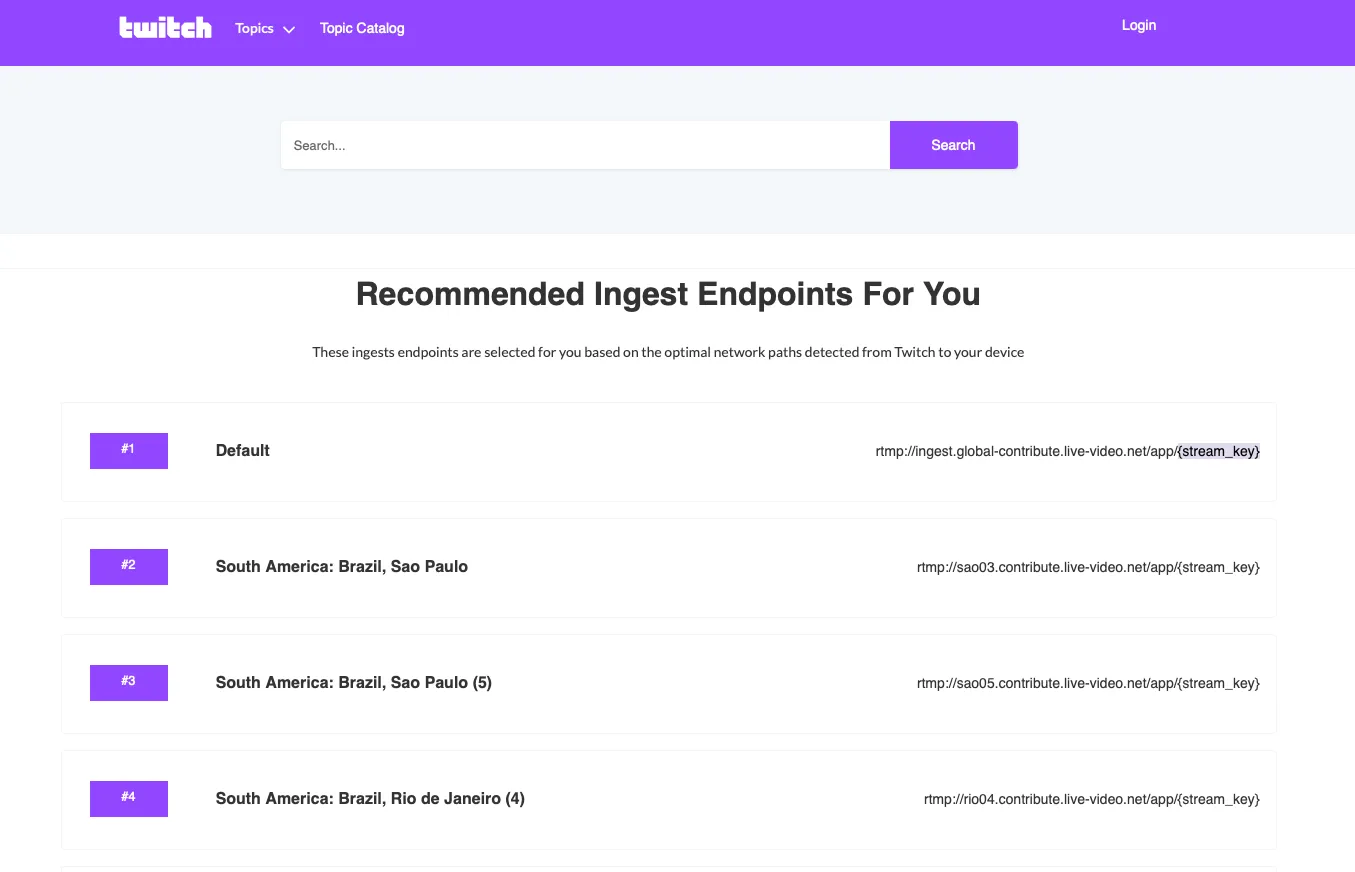
Find a list of Twitch's recommended ingest servers based on your location. Choose the server closest to your location and use its URL as your ingest server link.

Paste this URL into the Stream Server field in the output settings.
Find The Twitch Stream Key
Section titled “Find The Twitch Stream Key”Access the Creator Dashboard
Section titled “Access the Creator Dashboard”Access the Creator Dashboard by clicking your profile icon in the top-right corner.
Navigate to Settings → Stream in the left-hand menu.

- Under Stream Key & Preferences, find your Primary Stream Key.
- Copy and paste this key into the Stream Key field in Meld Studio.

Copy the Stream key and paste into the Stream key field in the output settings.
Twitch Enhanced Broadcasting Enhanced
Section titled “Twitch Enhanced Broadcasting Enhanced”Twitch Enhanced Broadcasting is a feature offered by Twitch that enables your system to encode multiple video tracks simultaneously using broadcast software and send them to Twitch. Twitch receives these tracks and uses them inside its own infrastructure for processing and distribution.
In Meld Studio, this feature is available as an option in the Twitch output settings.
How It Works
Section titled “How It Works”When you enable Twitch Enhanced Broadcasting in the Twitch output in Meld Studio:
- Your computer encodes multiple video tracks at different resolutions and bitrates.
- Meld Studio sends these encoded tracks to Twitch as part of the Twitch output.
- Twitch delivers the best track to your viewers based on their devices and network conditions.
System Impact
Section titled “System Impact”Enabling Enhanced Broadcasting changes how much work your system performs during streaming:
- Encoding of multiple tracks happens on your computer. This can increase GPU and CPU usage.
- Multiple tracks mean more data is sent to Twitch. This can increase upload bandwidth usage.
- Overall performance during streaming results from the combination of your hardware capabilities, your chosen settings, your network connection, and how Twitch handles the encoded tracks.
Setup in Meld Studio
Section titled “Setup in Meld Studio”Enable Twitch Enhanced Broadcasting in Meld Studio:
- Go to your current Twitch output settings.
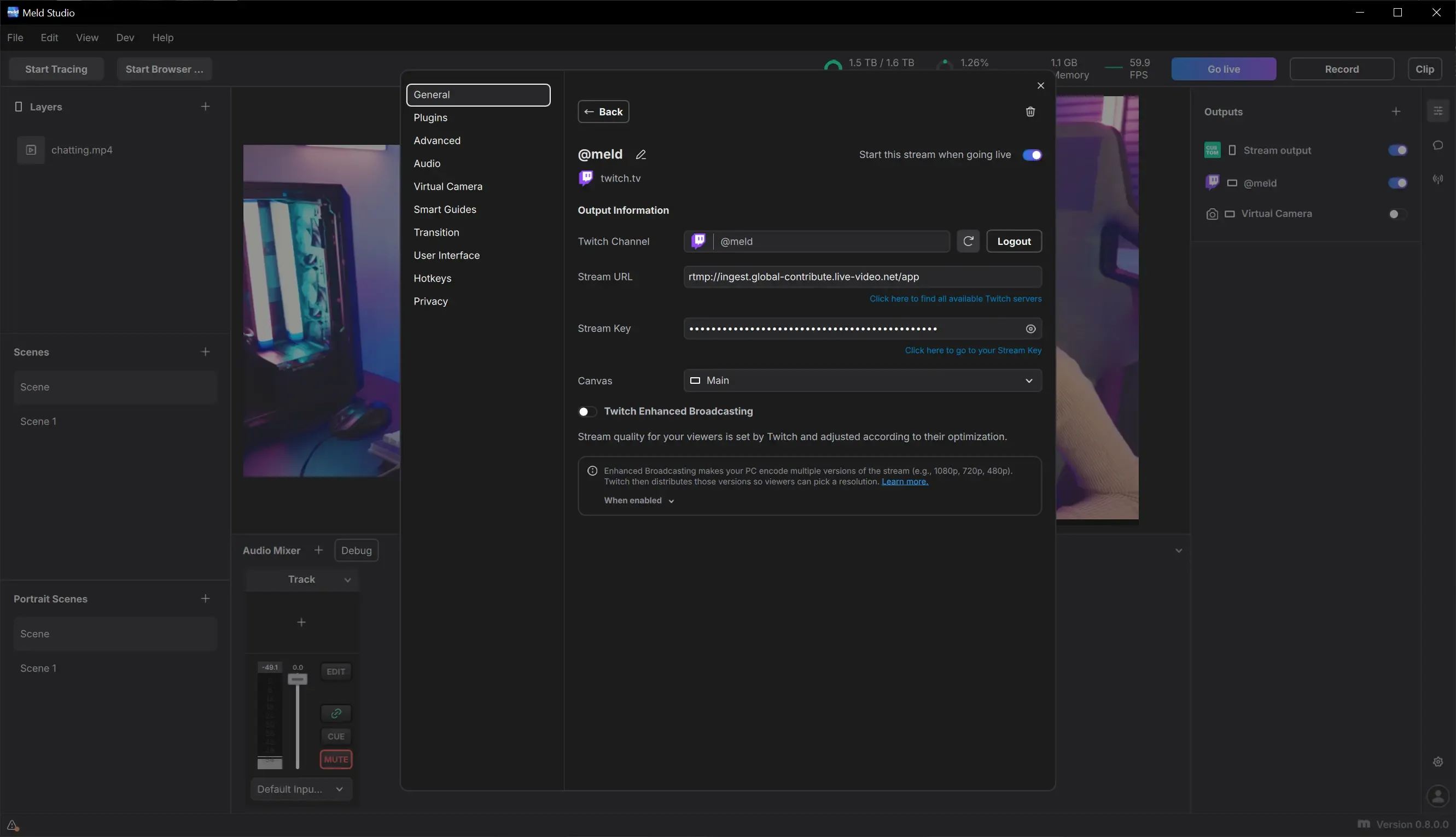
- Enable the Twitch Enhanced Broadcasting option in the Twitch output settings.
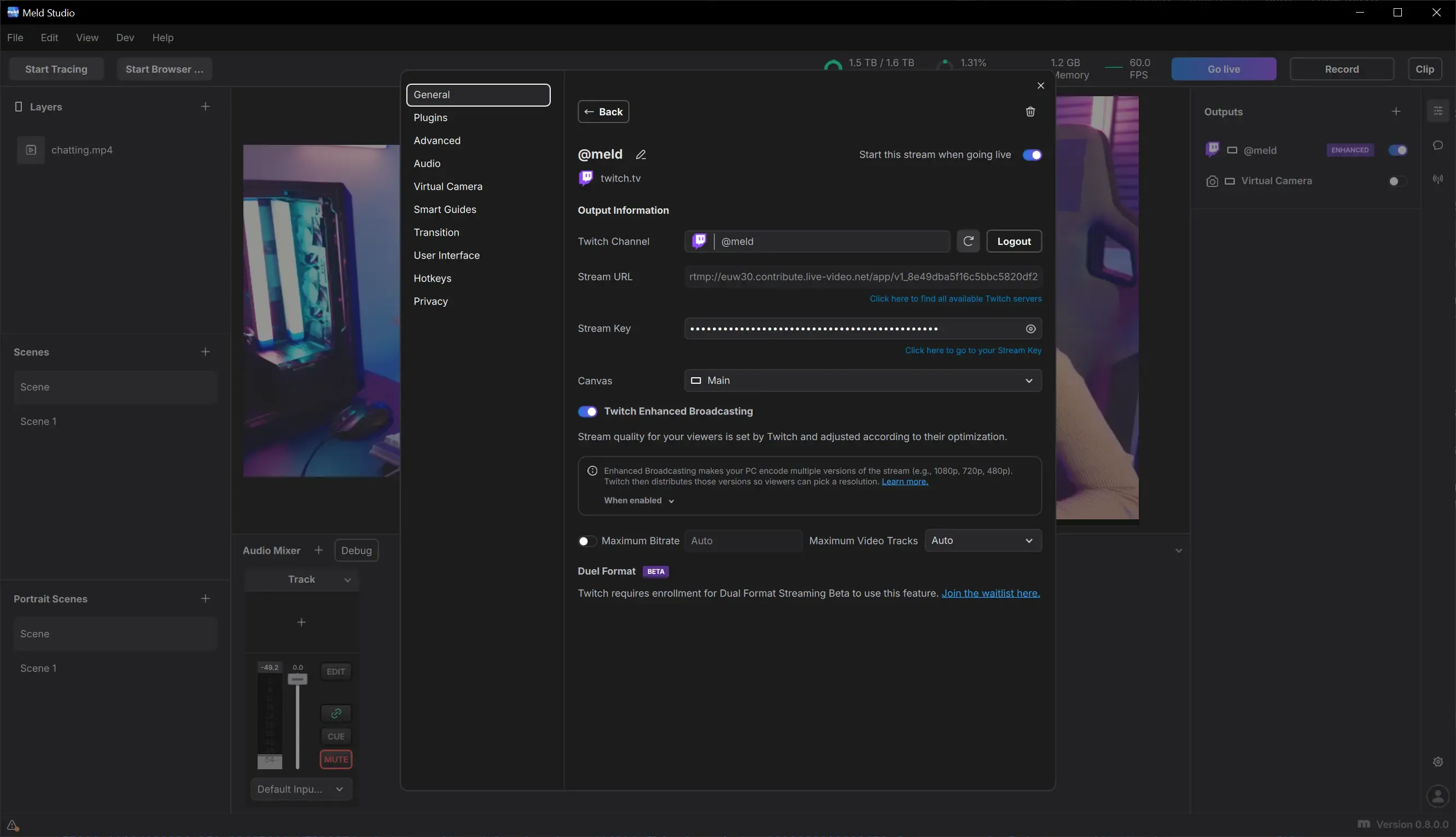
- Start your stream as usual.
Maximum Bitrate & Maximum Video Tracks
Section titled “Maximum Bitrate & Maximum Video Tracks”Twitch lets you set the maximum bitrate and the maximum number of video tracks that it will configure for your enhanced broadcasting. These options are limits and Twitch may configure a total bitrate/number of video tracks lower than what you've set. Unless you're running into issues, leaving these settings to 'Auto' is recommended.
Dual Format Streaming
Section titled “Dual Format Streaming”Dual Format Streaming is a Twitch feature that allows sending both a landscape and a portrait version of the stream. It is managed and controlled by Twitch and is available only to accounts that have access to this beta feature.
This option only becomes available when Twitch Enhanced Broadcasting is enabled in Meld Studio.
Twitch manages enrollment for the Dual Format Streaming beta. You can submit your request here.
Using Dual Format Streaming in Meld Studio
Section titled “Using Dual Format Streaming in Meld Studio”Make sure you have Multi Canvas enabled in Meld.
Go to Twitch Output Settings.
Enable Twitch Enhanced Broadcasting.
If your Twitch account is eligible for the beta, select the Dual Format canvas option.
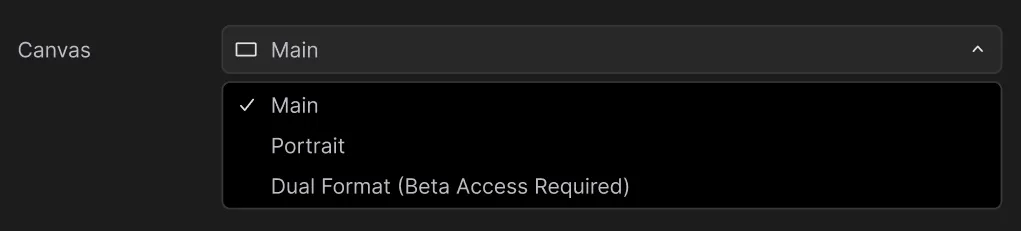
If your account doesn't have access to the Dual Format Streaming beta, you'll see an error and the previous canvas option will be automatically selected.
Visualizing Video Tracks in the Encoder View
Section titled “Visualizing Video Tracks in the Encoder View”Since Twitch configures all your encoder settings when using Enhanced Broadcasting mode, you can rely on the Encoder View to see what Twitch has configured for your system.
This view helps you understand exactly what your system is producing and how each track is routed.
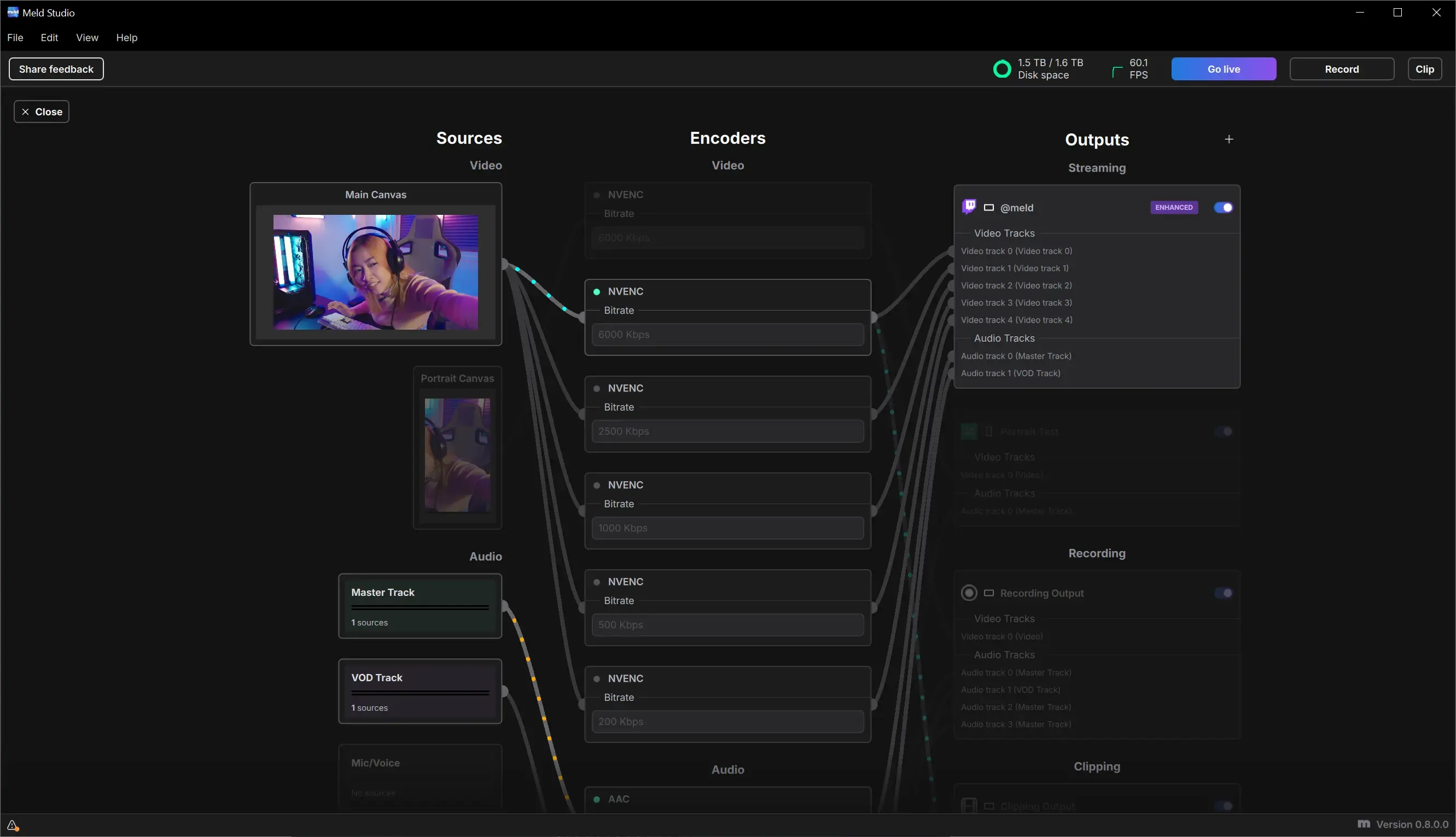
In the Encoder View you can see:
- Each video track encoded by your system.
- Audio tracks associated with the stream.
- Other stream and recording outputs.
This visualization is informational only. It reflects the encoding activity performed and the tracks delivered to Twitch through Meld Studio.
Enhanced Broadcasting Limitations
Section titled “Enhanced Broadcasting Limitations”When Twitch Enhanced Broadcasting is enabled, Twitch becomes responsible for deciding how your video and audio encoders are configured. Because of this, there are a few important limitations to be aware of in Meld Studio.
- Recording must start after streaming. When using Enhanced Broadcasting, start your stream first, then begin recording. Twitch reconfigures your encoder settings each time you go live. Starting a recording before streaming would force Meld to either interrupt your recording or exceed Twitch's recommended encoder limits when the configuration changes.
- Outputs can only use canvases that are also used by the Twitch Enhanced Broadcasting output. Otherwise the outputs will be disabled. This is expected behavior. If you want to stream both canvases you must be using the Dual Format settings as part of Twitch's Dual Format Streaming Beta. Outputs will be removed from the Outputs panel and have a dimmed appearance in the Settings and Encoder View.
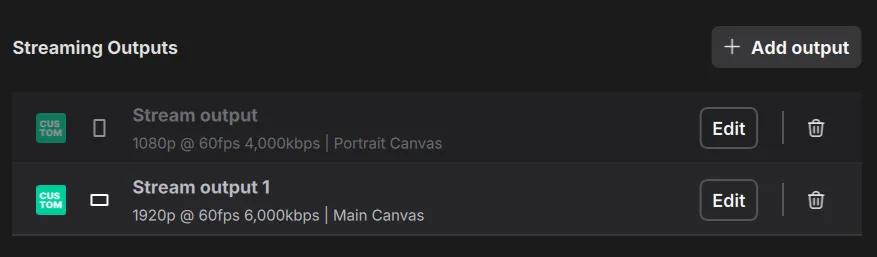
- Recording and clipping outputs inside Meld Studio will follow the highest quality track configured by Twitch at that moment. You won't be able to configure your recording outputs to have their own encoding settings.
Why This Happens
Section titled “Why This Happens”On configuring your Enhanced Broadcasting, Twitch will use a heuristic of what your system is capable of, to try and leave enough headroom for you to be able to stream performantly while running other applications (like playing intensive games).
Meld Studio only reuses encoders that Twitch has configured for your stream. This keeps Meld Studio aligned with the CPU and GPU usage Twitch expects, but it means you can't have separate recording settings from your stream.
Official Twitch Resources
Section titled “Official Twitch Resources”For complete and up-to-date information about Twitch Enhanced Broadcasting and related features, refer to Twitch official documentation:
You can always consult these resources to verify current requirements, supported hardware, and feature availability on Twitch.
Can I set up multiple Twitch accounts?
Section titled “Can I set up multiple Twitch accounts?”Meld Studio currently supports one Twitch account at a time for streaming. Reconfigure it anytime or add a Custom destination for a secondary Twitch channel.
How do I verify that my Stream Server and Stream Key are correctly set?
Section titled “How do I verify that my Stream Server and Stream Key are correctly set?”These settings are automatically configured when you log in. If needed, you can review them under the Stream Settings section.
What happens if I log out of Twitch in my browser?
Section titled “What happens if I log out of Twitch in my browser?”If you log out of Twitch in your browser, your connection in Meld Studio will remain active until manually removed or reconfigured.
What happens when I enable Twitch Enhanced Broadcasting?
Section titled “What happens when I enable Twitch Enhanced Broadcasting?”Your computer encodes one or more video tracks and sends those tracks to Twitch. Twitch decides how to use the incoming tracks, and Meld Studio only forwards what your system produces.
Does Meld Studio control which tracks Twitch Enhanced Broadcasting uses?
Section titled “Does Meld Studio control which tracks Twitch Enhanced Broadcasting uses?”No. Track selection, processing and distribution are fully managed by Twitch when Twitch Enhanced Broadcasting is enabled. Meld Studio does not influence these decisions.
Why do some of my outputs become disabled when Enhanced Broadcasting is on?
Section titled “Why do some of my outputs become disabled when Enhanced Broadcasting is on?”If your Twitch account does not have access to the Dual Format beta, any output that uses the portrait canvas is disabled automatically. Portrait streaming requires Twitch Dual Format support.
Can I stream Dual Format without Enhanced Broadcasting?
Section titled “Can I stream Dual Format without Enhanced Broadcasting?”No. Dual Format depends on Enhanced Broadcasting to send both the landscape and portrait canvases. Without Enhanced Broadcasting, Dual Format cannot be used.
Why are my recordings not using my recording resolution?
Section titled “Why are my recordings not using my recording resolution?”When Enhanced Broadcasting is active, Twitch determines which video track is considered the highest required track. Recording and clipping outputs follow that track, which may override your local recording resolution.
Can I customize the resolutions used by Enhanced Broadcasting?
Section titled “Can I customize the resolutions used by Enhanced Broadcasting?”No. Twitch defines how the tracks are interpreted. Your system encodes the tracks and Meld Studio forwards them, but Twitch decides how each track is used.
Why does CPU or GPU usage increase after enabling Enhanced Broadcasting?
Section titled “Why does CPU or GPU usage increase after enabling Enhanced Broadcasting?”Your computer is encoding multiple video tracks at the same time, which increases hardware usage and upload bandwidth. This workload happens locally before being sent to Twitch.
Why don't I see the Dual Format option?
Section titled “Why don't I see the Dual Format option?”The Dual Format feature is available only to Twitch accounts that have access to the beta. Meld Studio shows the option only when Twitch makes it available for your account.
How do I enroll in Dual Format?
Section titled “How do I enroll in Dual Format?”You can request access to the Twitch Dual Format beta through this form.
Why does my portrait canvas disappear or become unavailable?
Section titled “Why does my portrait canvas disappear or become unavailable?”If Enhanced Broadcasting is enabled and your account does not have Dual Format access, portrait streaming is disabled automatically. You can still design layouts on the portrait canvas inside Meld Studio, but it cannot be used as a Twitch output.
Does Twitch Enhanced Broadcasting change my audio tracks?
Section titled “Does Twitch Enhanced Broadcasting change my audio tracks?”Audio routing in Meld Studio does not change, but the audio track layout sent to Twitch follows the structure required by Enhanced Broadcasting. Twitch may process audio differently based on its internal logic.
Does Enhanced Broadcasting affect other platforms like YouTube or Kick?
Section titled “Does Enhanced Broadcasting affect other platforms like YouTube or Kick?”No. Twitch Enhanced Broadcasting is exclusive to Twitch. Other platforms continue to receive the standard encoded output from Meld Studio.
Is Meld responsible for how Twitch processes the tracks?
Section titled “Is Meld responsible for how Twitch processes the tracks?”No. Meld Studio sends the encoded tracks your system creates. All decisions about track handling, processing and distribution are managed by Twitch.