On this page
Our next feature just landed in Meld Studio, and we're excited to get it into your hands. This release brings a feature our community has been asking for: LUTs for cinematic color grading. Let's dig in!
LUTs: Cinematic Color, One Click Away
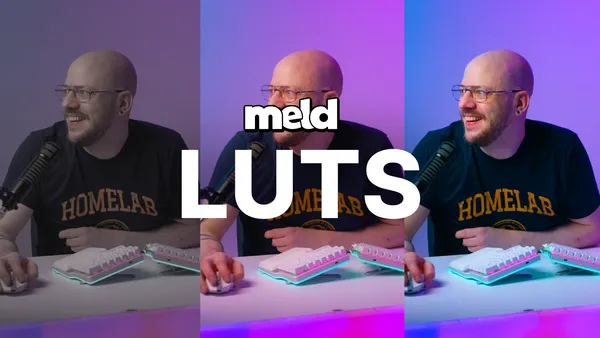
Want your stream to feel like a feature film instead of a webcam window? LUTs (Look-Up Tables) let you apply professional color grades to nearly any source in your production, from images, video clips, cameras, browser sources, and even games.
How to Add LUTs in Meld Studio
Adding your LUTs to your camera, browser sources, and any other layer is super simple:
- Click the layer you want to color grade.
- Go to Effects in the Inspector Panel.
- Add the LUT effect.
- Click the settings icon to the left of the word "LUT" and load your LUT file.
- Adjust the Intensity slider until the look feels right.
That's all you have to do! Five steps between you and a fully graded scene. Use different LUTs across different scenes and sources for a unique visual identity, or mix and match to make each layer pop in its own way. Whether you're going for moody and cinematic, warm and vintage, or crisp and modern, the control is entirely in your hands.
More Creative Control
This feature is all about giving you more creative control with less friction. LUTs can elevate the look of your production and make everything look cinematic. This feature can help you spend less time managing Meld Studio and more time creating great content.
To make it easier to start using LUTs, we now have the Meld LUT Lab where you can try your hand at making your own custom LUTs.
Conclusion
LUTs are available today in Meld Studio. Open up your Studio to the latest version and load up your favorite LUT and go live!
FAQ
What is a LUT?
LUT stands for Look Up Table. It's a file that tells your software how to translate one set of colors into another. In practical terms, a LUT is a color grading preset. Apply one, and your footage instantly shifts toward a specific mood, whether that's a warm cinematic tone, a cool blue look, or a high contrast film style.
Which sources can I apply a LUT to in Meld Studio?
Any source that you can add effects to. Images, video clips, cameras, browser sources, and games can all take a LUT. If it's a layer, it can be color graded.
How do I apply a LUT?
Click the layer, open Effects, and add the LUT effect. Then click the settings icon next to the word LUT to load your file, and use the Intensity slider to control how strong the effect looks.
Can I use the same LUT on multiple layers?
Yes. Many creators apply one LUT across their whole setup to keep a consistent look, then layer a second LUT on a single source like their camera for extra polish.
Can I stack more than one LUT on a single layer?
Yes. You can add multiple effects to a layer, so experimenting with combinations is part of the fun. Just keep an eye on the Intensity slider for each one so the look doesn't get too heavy.
Where do I get LUT files?
LUTs are widely available, rom free community packs to paid packs from colorists and camera manufacturers. You can also export custom LUTs from color grading tools like DaVinci Resolve if you want a fully original look.
Can I turn a LUT on and off without deleting it?
Yes. You can toggle the effect off within the layer's Effects panel at any time, so you can quickly compare your graded look against the original.