On this page
This release has a few things we're genuinely excited about. Scene Templates make it faster than ever to get a great-looking stream going, MacOS users finally get per-app audio capture, and Spark just got a lot smarter about answering your setup questions. Here's everything that's new.
Scene Templates
Getting a stream to look good from scratch takes time. You're building scenes, tweaking layouts, hunting for fonts, and hoping it all comes together before you go live. Templates fix that.
A new Templates tab sits right next to Scenes in the sidebar. Browse visual styles, preview how a scene looks before you commit, and add it to your project with one click. No fuss, no rebuild.
A few things worth knowing about how they work:
- Multi Canvas compatible. Templates work across both your landscape and portrait canvases, so your vertical clips look just as sharp as your main stream.
- Safe to add while live. You can drop in a new template mid-broadcast without interrupting your output.
- New users get a head start. When you first set up Meld, your onboarding answers now generate a starter set of scenes and a mixer tailored to your setup. You're not starting from a blank slate anymore.
If you've been putting off a visual refresh because it felt like too much work, this is the nudge to finally do it.
MacOS App Audio Capture
This one has been a long time coming for Mac users.
Meld now supports per-application audio capture on macOS 13 and later. Any app running on your machine shows up under Process Sources in the Audio Sources picker. Pick Spotify, your browser, your game, your video call app, whatever you need, and capture its audio independently.
Why does this matter? Because mixing audio properly means controlling each source separately. Before this, Mac users had to route everything through system audio or lean on third-party tools like BlackHole just to get clean separation between, say, their game audio and their Discord call. Now it's built right into Meld.
What you can do with it
- Capture game audio without picking up your voice chat
- Pull in music from Spotify or Apple Music as a dedicated track
- Record a browser tab's audio separately from everything else
- Mix each source at its own level in the Meld mixer
If you're on macOS 13 or later, open the Audio Sources picker and look for Process Sources. Your running apps will be right there.
Spark Can Now Answer Your Setup Questions
Spark just got a meaningful upgrade for anyone who's ever been mid-setup and not quite sure if their settings are right.
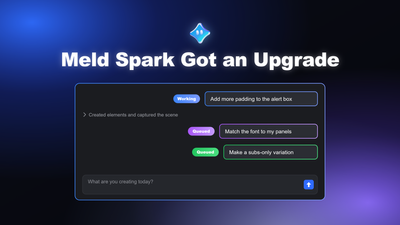
Spark can now read your actual preferences and output settings, which means when you ask it something like "why isn't my stream starting?" or "what bitrate should I be using?", it's not giving you a generic answer. It knows your streaming destination, your recording config, your clipping setup, and can give you a response that's specific to how you've got Meld configured.
Think of it as having someone who can actually look at your settings before answering, rather than walking you through a checklist blind.
This is especially useful if you're:
- Troubleshooting a stream that won't start
- Trying to understand why your recording quality looks off
- Setting up clipping for the first time and not sure what to configure
Spark is included with Meld Spark subscriptions. If you haven't tried it yet, this is a good reason to.
Also in This Release
A handful of quality-of-life improvements round out the update:
- Per-layer camera background effects. You can now apply background removal or blur to one camera layer while a different scene shows the same camera unmodified. Useful if you want a clean look in one scene and a raw feed in another.
- Large LUT support. CUBE LUTs up to 128 MB are now supported, opening the door to higher-quality color grading presets.
- Safer output settings. The add/remove track buttons are disabled while your output is running, with a tooltip explaining why. A small change that prevents a frustrating mistake.
- Browser source crash visibility. If a browser source stops responding, Meld now shows you on the layer itself instead of silently going blank. You'll know exactly what's wrong and where.
Ready to Try It?
This release is one of the more feature-dense updates we've shipped in a while. Scene Templates lower the bar for getting a polished stream going fast. macOS app audio capture closes a gap that's been frustrating Mac users for too long. And Spark's new ability to read your actual settings means you get help that's actually relevant to your setup, not just a generic walkthrough.
FAQ
Do Scene Templates work with existing projects?
Yes. You can add templates to an existing project at any time, including while you're live. They won't overwrite your current scenes; they add new ones alongside them.
Which macOS version do I need for per-app audio capture?
macOS 13 (Ventura) or later. If you're on an older version, the Process Sources option won't appear in the Audio Sources picker.
Does per-app audio capture work with every app?
Most apps are supported. A small number of apps use audio routing methods that prevent capture at the system level, but the vast majority, including browsers, games, Spotify, and communication apps, work without issues.
Do I need a Meld Spark subscription to use Scene Templates or macOS audio capture?
No. Both features are available to all Meld Studio users. Spark's context-aware setup help is a Spark subscription feature.
How do I update to get these features?
Open Meld Studio and it will automatically update. If it doesn't you can download the latest version directly from our website.