On this page
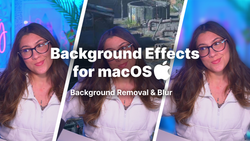
Meld Studio's latest release brings an important update to camera background effects: refreshed NVIDIA VFX libraries powering background blur and removal, now open for wider testing across users and GPU setups.
Here's everything that's new, and how to try it out.
NVIDIA Background Blur & Removal
Camera background blur and removal now run on updated NVIDIA VFX libraries, delivering improved performance and visual quality across a wide range of GPU configurations.
How to enable it
- On any camera layer, open the Background section below the camera device picker, or
- Use the camera settings window to turn on blur or removal
System requirements: On Windows, background blur and removal require a supported NVIDIA RTX 2000-series GPU or newer.
Try both effects, including while streaming or recording, and let the Meld Studio team know if you notice any visual glitches, performance changes, or crashes. When reporting an issue, please include your GPU model and driver version, this detail is critical for the engineering team to reproduce and fix problems quickly.
Ways to Use Background Removal and Blur on Stream
Put alerts behind you. Place your alert layer between your background and your camera so new subs, raids, and donations pop up over your shoulder instead of on top of your face. You can react to them like they are in the room with you. A full-screen confetti or explosion alert behind a cutout facecam looks like a set piece, not an overlay.
Show chat behind you. Run a chat layer as your backdrop, sized big enough to read. Viewers see their messages appear behind you in real time, which pulls them into the frame and gives you something to turn toward and react to.
Make yourself the scene transition. Place your cutout over a transition or intro animation. You walk in, wave, or point as the stream starts, so the opening is you rather than a countdown.
React to your own clips. Put a video layer behind you and play back a clip, a viewer submission, or a trailer at full size while you stay in front of it. It reads like a reaction video without the picture-in-picture box.
Give shoutouts with the raider behind you. During a raid or shoutout, put the other creator's channel art or clip behind you so they get a proper moment on screen instead of a name in chat.
Build a weather report. Green screen meteorologist energy. Point at a map of your game world, a tier list, a tournament bracket, or a chart of your sub goal, all placed behind you as a layer you can gesture at.
Run a game show. Trivia questions, viewer polls, or a spinning wheel behind you. Cut out your camera and stand next to it like a host, then reveal answers by swapping the layer.
Change your background with events. Use a different backdrop layer per scene so a hype train, a milestone, or a new sponsor segment swaps your setting behind you. Chat can watch your room change without you touching the camera.
Stack multiple cutouts. For co-streams and collabs, everyone removes their background and you arrange the cutouts side by side over one shared backdrop. It looks like you are all in the same room.
Do a picture-in-picture flip. Put yourself in the corner of your own screen share, then when it matters, swap so the screen share sits small behind you and you fill the frame. Great for reviews and reaction segments where the emphasis moves back and forth.
Play with scale. Shrink your cutout and place it inside the game world, on a car dashboard, or on your own overlay like a tiny commentator. Silly on purpose, and easy to switch in and out.
Go vertical. For a vertical canvas, your cutout takes up far less room than a boxed webcam, so the game or content stays legible on a phone while you stay in the frame.
Tips for the Cleanest Result
- Light your face, not your wall. Even front lighting gives the effect a clear edge to work with, especially around hair and headphones.
- Create some separation. A little distance between you and whatever is behind you helps, and so does wearing a color that contrasts with your background.
- Test before you go live. Try both effects while streaming or recording a short session alongside your usual game, so you know how your GPU handles the combined load.
FAQ
What's new in this Meld Studio release?
This release updates the NVIDIA VFX libraries powering camera background blur and removal in Meld Studio.
How do I turn on background blur or removal in Meld Studio?
Open a camera layer, then click Background below the camera device picker, or open the camera settings window, and enable blur or removal from there.
What GPU do I need for background effects?
On Windows, background blur and removal require a supported NVIDIA RTX 2000-series GPU or newer. These effects are not currently supported on older or non-RTX GPUs.
What should I do if I notice glitches, crashes, or performance drops?
Report the issue to the Meld Studio team and include your GPU model and driver version. This information helps engineers reproduce and fix the problem faster.
Does this work while I'm live streaming or recording?
Yes. Background blur and removal are designed to work while you're actively streaming or recording.
Where do I send feedback or bug reports?
Report any background effects issues, including your GPU model and driver version, directly to the Meld Studio team through your usual feedback channel.