On this page
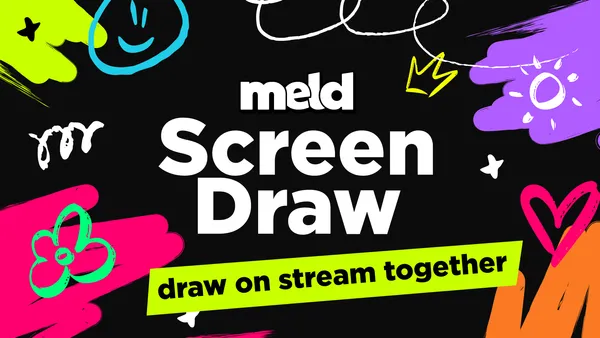
Screen Draw is a new tool in Meld Studio that lets you draw directly on your canvas while you're live. It includes a highlighter marker, freehand drawing, and one-click stamps for arrows, circles, squares and X marks, all rendered in real time. It works inside Meld Studio and, because it runs as a browser source, it works in OBS too. On Meld Pro and Meld Max, you can also hand drawing access to trusted viewers so they can annotate your stream from a link, with no software install required on their end.
If you've ever wanted to circle a play during an esports broadcast, sketch a rotation on a game map, play a round of tic-tac-toe with chat, or just doodle on your own face for a laugh, Screen Draw is built for exactly that.
What is Screen Draw?
Screen Draw is a real-time annotation layer for your stream canvas. Instead of installing a separate plugin, switching windows, or exporting to editing software after the fact, you draw directly on top of whatever your viewers are already watching, whether that's gameplay, a shared screen, a web, or a full scene, and it shows up live.
It ships with three core tools:
- Highlighter marker: semi-transparent strokes for calling attention to something on screen without covering it up completely.
- Drawing tools: freehand pen and calligraphy tool for sketching plays, routes, diagrams, or just messing around.
- Stamp tool: one-click shapes you can drop anywhere on the canvas, including arrows, circles, squares, and X marks.
Everything renders instantly on the canvas, so what you draw is what your audience sees, live, frame by frame.
How to Draw on Screen in Meld Studio
Getting Screen Draw onto your canvas in Meld Studio takes one click:
- Open the Screen Draw page and click the Add button.
- Meld Studio will add the Screen Draw widget to your current scene with no manual setup required.
- Click the Reaction mouse icon above the canvas with the layer selected and move your mouse to the upper-left corner of the canvas to bring up the drawing toolbar.
- Pick the highlighter, pen, or a stamp and start drawing directly on your canvas.
Because Screen Draw lives natively in Meld Studio, there's nothing extra to configure. It behaves like any other layer in your scene.
How to Draw on Screen in OBS Studio
Screen Draw also works in OBS as a browser source, which makes it a plugin-free way to get drawing tools into an OBS scene:
- Copy the Screen Draw link from Meld Studio.
- In OBS, add the new Browser Source to your scene.
- Paste the link into the URL field.
- Set the resolution to 1920x1080.
- Click on the browser source layer, then click Interact to enable drawing input.
- Move your mouse to the upper-left corner to open the toolbar, and draw.
That last step trips people up the first time: in OBS, a browser source only accepts your mouse and keyboard input when you've explicitly clicked Interact not hat source. Forget that step and your clicks will pass through to whatever's underneath instead of the drawing canvas.
Draw on Stream with Your Viewers
On Meld Pro and Meld Max, Screen Draw goes a step further: you can generate a link and hand it to trusted viewers, letting them draw on your stream canvas in real time, right alongside you.
This turns Screen Draw from a broadcaster tool into a shared, interactive canvas, with no download or account requires on the viewer's side, just the link.
Ways to Use Collaborative Screen Draw
Here are a few ways that you can utilize Screen Draw in your streams.
Esports and Sports Breakdowns
Circle a rotation, draw a passing lane, or mark up a replay the moment it happens. It's the same kind of live telestrator work you see in broadcast sports coverage but built into your stream. Works for any game or sport where you're breaking down plays on screen: VALORANT and CS2 round reviews, League of Legends map calls, football or basketball film review streams, and more.
Games with Your Chat
Hand a viewer the drawing link and play tic-tac-toe on screen, or run a round of Pictionary where chat guesses what a viewer is sketching in real time. Because drawing happens directly on the stream canvas, everyone watching sees the game unfold live, with no separate app and no screen-share juggling.
Silly Low-Stakes Viewer Interactions
Let a subscriber doodle a mustache on your webcam feed, draw a hat on your head, or leave a stamp trail across the screen during a raid. It's a lightweight way to make chat feel like part of the broadcast instead of just watching it.
Screen Draw vs. the OBS Draw Plugin
If you're currently using the OBS Draw plugin, Screen Draw covers the same core job, real-time annotation on your canvas, with a couple of practical differences worth knowing:
- No plugin installation. Screen Draw runs as a browser source link rather than a native OBS plugin, so there's nothing to install, update, or troubleshoot across OBS versions.
- Works in Meld Studio natively, and in OBS as a browser source. One tool, two workflows: add it with one click in Meld Studio, or drop the same link into OBS.
- Viewer collaboration. On Meld Pro and Meld Max, you can extend drawing access to trusted viewers via a shareable link, turning the canvas into a shared space rather than a broadcaster-only tool.
If you're happy with your current OBS Draw setup, there's no need to switch. But if you're looking for a plugin-free option hat also works in Meld Studio, or you want your viewers to be able to draw with you, Screen Draw is build for that.
Getting Started
- Meld Studio users: Open Screen Draw and click Add to Meld Studio. You're drawing in seconds.
- OBS users: Copy the Screen Draw link, add it as a Browser Source at 1920x1080, click the source, hit Interact, and start drawing.
- Meld Pro / Meld Max users: Generate a shareable link from Screen Draw and send it to a trusted viewer so they can draw on your canvas with you.
Try It Live
Screen Draw is available now in Meld Studio, and viewer collaboration is live on Meld Pro and Meld Max. If you want your audience to be able to pick up the marker with you, for game nights, play breakdowns, or just chaos in the best way, upgrading to Pro or Max unlocks shareable drawing links for trusted viewers.
FAQ
How do I draw on my stream while live?
Add Screen Draw to your scene in Meld Studio (one click), or add it as a 1920x1080 browser source in OBS. Move your mouse tot he upper-left corner of the canvas to open the toolbar, then use the highlighter, pen, or stamp tools to draw directly on your stream in real time.
Does Screen Draw work in OBS?
Yes. Add the Screen Draw link as a Browser Source set to 1920x1080, click the source, select Interact, and the drawing toolbar becomes available from the upper-left corner of the canvas.
Why can't I draw on my browser source in OBS?
You need to click the browser source layer and select Interact first. Without that, OBS won't route your mouse input to the Screen Draw canvas.
Can my viewers draw on my stream?
Yes, on Meld Pro and Meld Max. You can generate a Screen Draw link and share it with trusted viewers, who can then draw on your canvas from their own browser, no software installation needed.
What drawing tools does Screen Draw include?
A highlighter marker, a freehand drawing/pen tool, and a stamp tool with preset arrow, circle, square, and X shapes.
Is Screen Draw a plugin?
No. Screen Draw runs as a web-based widget/browser source. It adds automatically as a scene layer in Meld Studio, or as a Browser Source in OBS, with nothing to install or keep updated.
What resolution should I use for Screen Draw in OBS?
Set the Browser Source to 1920x1080 to match a standard full-HD canvas.