On this page
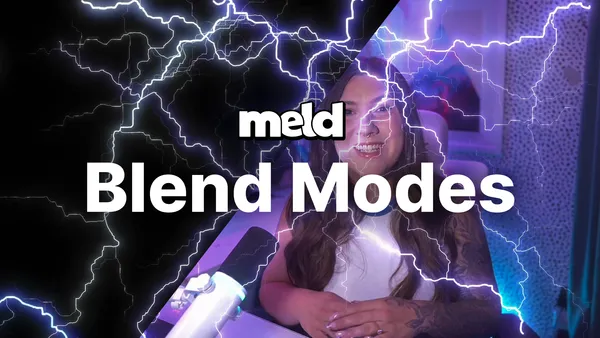
If you have ever wanted your camera feed to melt into your gameplay, your logo to glow against your background, or your media layers to interact with each other instead of just sitting flatly on top, we have exciting news. Blend Modes are now live in Meld Studio.
This update gives creators, streamers, and video producers a professional compositing tool that was previously locked behind expensive editing software. Now it lives right inside your live production and recording workflow.
What Are Blend Modes?
Blend modes are a set of mathematical formulas that determine how the pixels of one layer combine with the pixels of the layers beneath it. Instead of a layer simply covering what is underneath, a blend mode tells that layer how to interact with the colors, light, and contrast of everything below it.
This is the same technology used in Photoshop, After Effects, and other professional compositing tools, and it is now built directly into Meld Studio's live layer system.
How Blend Modes Work in Meld Studio
Using blend modes in Meld Studio is simple and immediate, with no plugins or external software required.
- Select any visual layer in your scene. This includes camera layers, media layers, game capture layers, images, and more.
- Go to the Inspector panel.
- Find the new Blend Mode dropdown, located just below Fill Mode in the property editor.
- Choose a blend mode from the list and watch it apply in real time.
Because the preview updates instantly, you can experiment freely until you find the exact look your scene needs.
Blend Modes Available in Meld Studio
Meld Studio ships with a full set of essential, industry standard blend modes, including:
- Multiply - darkens your composite by multiplying color values, create for adding shadows or moody overlays
- Screen - brightens your composite and is perfect for glows, light leaks, and highlight effects
- Overlay - increases contrast by combining Multiply and Screen depending on the base layer
- Soft Light - a gentler version of Overlay that adds subtle depth without harsh contrast
- Color Dodge - brightens dramatically for intense highlight and light streak effects
- Difference - inverts colors based on contrast between layers for bold, high energy visuals
- Hue - applies the hue of your top layer while keeping the underlying luminance and saturation intact
- Luminosity - blends the brightness of your top layer while preserving the colors of the layers beneath
Each of these blend modes can be applied to any visual layer in Meld Studio, including camera layers, game capture layers, images, video clips, and text.
Why Blend Modes Matter for Streaming and Recording
Live streaming and recorded content have become more visually competitive than ever, and blend modes give creators a fast way to stand out.
Cinematic camera overlays - use Screen or Soft Light on your webcam layer to blend your face naturally into a background scene without the flat, pasted on look of a basic chroma key.
Reactive gameplay effects - apply Multiply or Overlay to gameplay capture layers to add stylized color grading live, without needing to render or edit after the fact.
Glowing logos and alerts - Color Dodge and Screen are ideal for making logos, badges, and alert graphics pop against any background.
Mood and branding consistency - Luminosity and Hue blend modes let you apply a consistent color identity across every layer in your scene, helping your stream or recording feel polished and intentional.
Because Meld Studio applies these blend modes in real time, there is no need for post production software just to get a professional composited look. What you see in your scene is what your viewers see live.
Conclusion
Blend Modes turn Meld Studio into an even more powerful live production tool, giving you the same compositing control found in professional editing software, but live, in real time, and built right into your workflow.
Open your project, select a layer, and try out Multiply, Screen, Overlay, Soft Light, Color Dodge, Difference, Hue, and Luminosity for yourself. Your scenes are about to look better than ever.
FAQ
What are blend modes used for in live streaming?
Blend modes are used to composite layers such as camera feeds, game capture, images, and media clips so they visually interact with each other. This creates effects like glows, color grading, shadow overlays, and cinematic blending that a simple layer stack cannot achieve on its own.
Where do I find Blend Mode in Meld Studio?
Select any visual layer, open the Inspector panel, and look for the Blend Mode dropdown located below Fill Mode in the property editor.
Which layers support blend modes in Meld Studio?
Any visual layer supports blend modes, including camera layers, media layers, game capture layers, images, and video clips.
What is the difference between Multiply and Screen blend modes?
Multiply darkens a composite by combining color values, making it useful for shadows and moody effects. Screen brightens a composite, making it useful for glows, highlights, and light based effects.
Do I need editing software to use blend modes in Meld Studio?
No. Blend modes in Meld Studio apply live to your scene, so the composited look you create is visible in real time during recording or streaming, without needing external editing software.