On this page
Meld Studio just got two updates that make streaming easier to manage and easier to trust: Speech to Text and the Go Live Review window. One helps your stream react to what you're saying. The other helps you catch mistakes before you're live in front of an audience.
Here's what's new, how each feature works, and how to start using them today.
Speech to Text
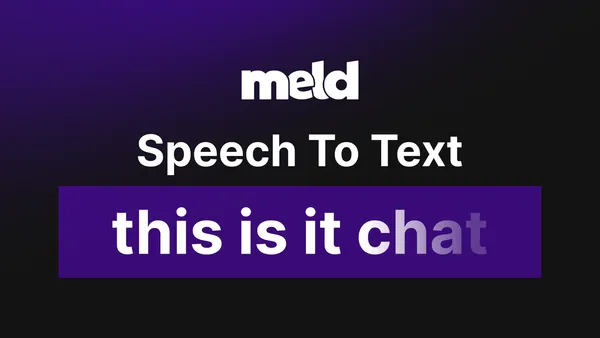
Speech to Text is a new feature for Meld Pro and Meld Max subscribers. It lets Meld Studio listen to what you say during a stream and use that in real time.
In practical terms, this means Meld can:
- Trigger Spark elements based on specific words or phrases you say
- Generate closed captions automatically as you talk
- React to your voice without any manual input, hotkeys, or delay
How to Turn on Speech to Text
There's no complicated setup involved. Once it's turned on, Meld starts listening and responding as you speak.
- Go to Settings
- Under Audio toggle on Speech to Text
- Select the audio track that is your Microphone
This is useful for streamers who want their overlays and alerts to feel alive, not static. Instead of manually triggering an animation or sound effect, you can just say the word, and Meld handles the rest.
Using Speech to Text with the Closed Captioning Widget
One of our most accessibility-friendly pairings in this update is Speech to Text combined with a new Closed Captioning widget. You can find this in the Widgets list when you add a new layer.
When you turn both on together, Meld converts your speech into live, on screen captions automatically. There's no need to type anything out or manage a separate captioning tool. As you talk, the words appear.
This combination is worth setting up if you care about:
- Accessibility. Viewers who are deaf, hard of hearing, or watching without sound can still follow along with what you're saying.
- Retention. A lot of viewers scroll with the sound off, especially on mobile. Captions keep them engaged even in silent mode.
- Clarity. Fast talkers, technical topics, or streams with background noise all benefit from having captions to fall back on.
To use it, simply add the Closed Captioning widget to your scene and make sure Speech to Text is enabled. From there, captions will populate automatically as you speak. Want to customize how your captions look? Select the widget's layer in your scene and then make adjustments to font, size, color, and more in the Inspector Panel.
Go Live Review
The Go Live Review window is a new pop-up that gives you one last checkpoint before you go live. Think of it as the stream manager panel built directly into your pre-stream routine.
Before your stream starts, the review window lets you check and update items such as your stream title, category, tags, and which platforms you're streaming to.
Instead of digging through settings menus or trusting that everything is already correct you get one clear screen to confirm it all. If a title is out of date or you forgot to toggle a platform on, you'll catch it here instead of after you've already gone live.
This also helps to prevent you from accidentally going live when you meant to hit the 'Record' button.
Get Started Today
Speech to Text is available now for Meld Pro and Meld Max subscribers. The Go Live Review window is included for all users in this update.
Open Meld Studio to start using both features.
FAQ
What is Speech to Text in Meld Studio?
Speech to Text is a feature available for Meld Pro and Meld Max subscribers that lets Meld Studio listen to your voice during a stream. It can trigger Spark elements and generate closed captions in real time based on what you say.
Do I need a Meld Pro or Meld Max subscription to use Speech to Text?
Yes. Speech to Text is available exclusively to Meld Pro and Meld Max subscribers.
How do I get automatic closed captions on my stream?
Turn on Speech to Text and add a Closed Captioning widget to your scene. Once both are active, Meld will generate captions automatically as you speak, with no manual typing required.
What is the Go Live Review window?
The Go Live Review window is a pop-up that appears before you go live. It lets you review and edit your stream title, category, tags, and platform toggles in one place, so you can confirm everything is correct before your stream starts.
Is the Go Live Review window available to all users?
Yes. Unlike Speech to Text, the Go Live Review window is included for all Meld Studio users with this update, regardless of subscription tier.
Can I turn off the Go Live Review window if I don't want to use it?
No, this is a feature that cannot be turned off at this time.
Does Speech to Text work with multiple languages?
Yes! Speech to Text is multilingual and will work with other languages.