On this page
v0.10.9.0 is out, and it's a big one. Source Recording gives you clean, separate video files for each layer alongside your main recording. There are also new gradient controls, a YouTube connection fix, and 40 performance and crash improvements under the hood.
Source Recording
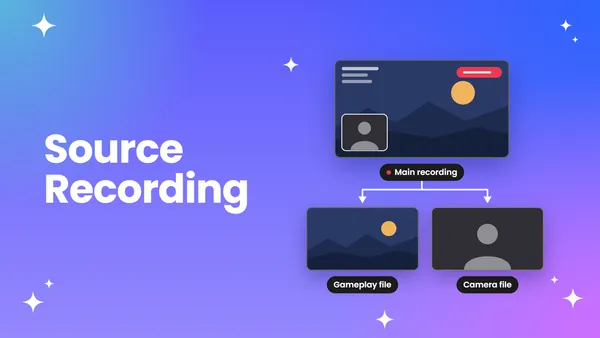
You can now record up to 3 layers as separate video files, running alongside your main recording. Stop the recording and you have individual files for your gameplay, your camera, or any other capture layer, each one synced to your main file and saved in the same folder.
Think of it like separating audio tracks, but for video. Instead of one flattened recording with everything baked together, your editor gets clean pieces to work with from the start.
What you actually get out of it:
- Raw gameplay footage with no overlays, alerts, or camera on top, ready to upload to YouTube as-is
- A full-size camera file for shorts, TikToks, and reaction edits
- No more stripping down your scene before you hit record, and no cleanup in the edit later
How to use Source Recording
Step 1: Mark the layers you want to record
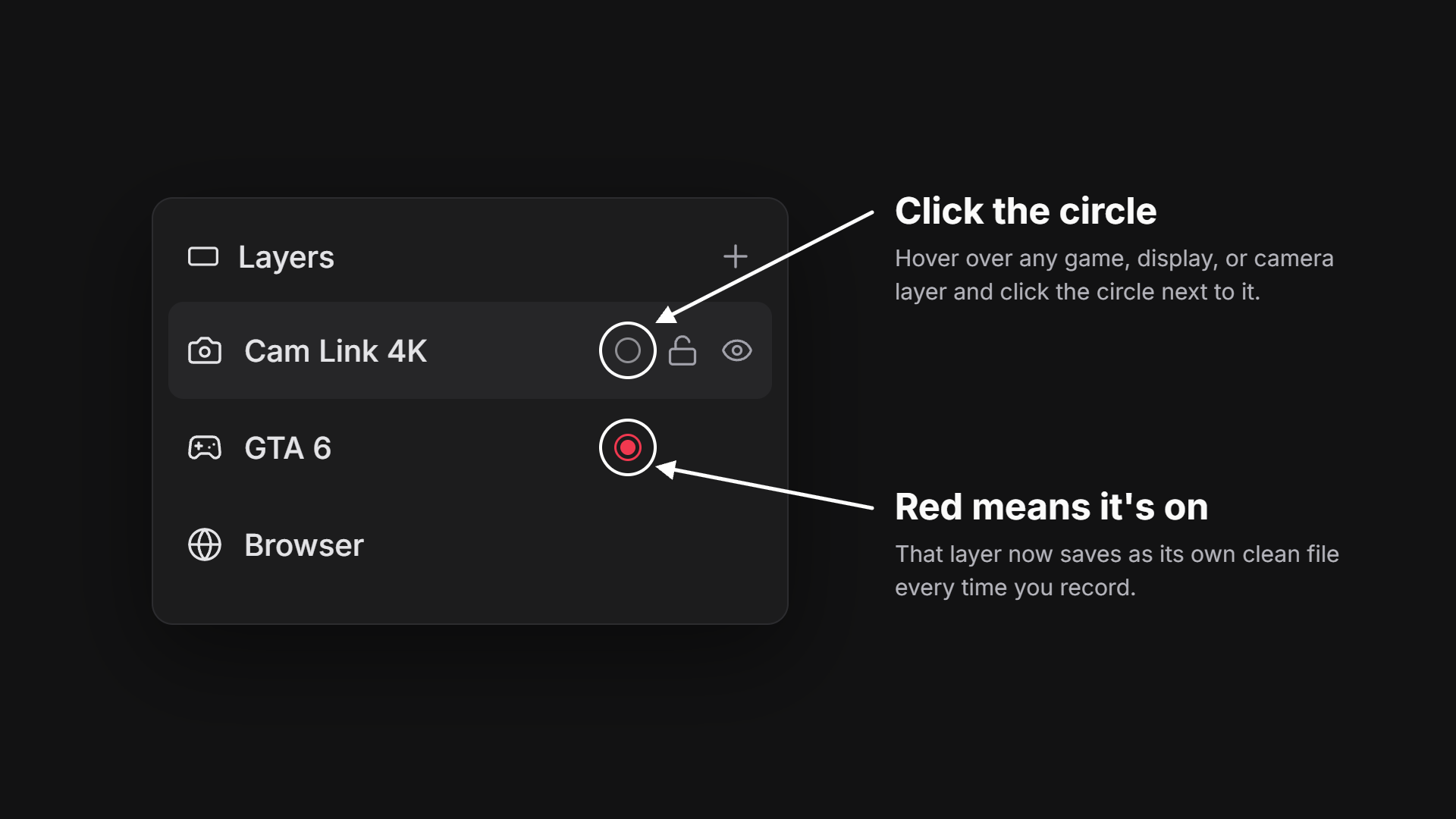
In your layer list, hover over any game, display, or camera capture layer and click the circle next to it. When the circle turns red, that layer will be recorded separately.
You can also right-click the layer and choose Record Separately. You can do this for up to three layers, so you can record your gameplay and your camera as separate files at the same time.
Step 2: Pick your settings
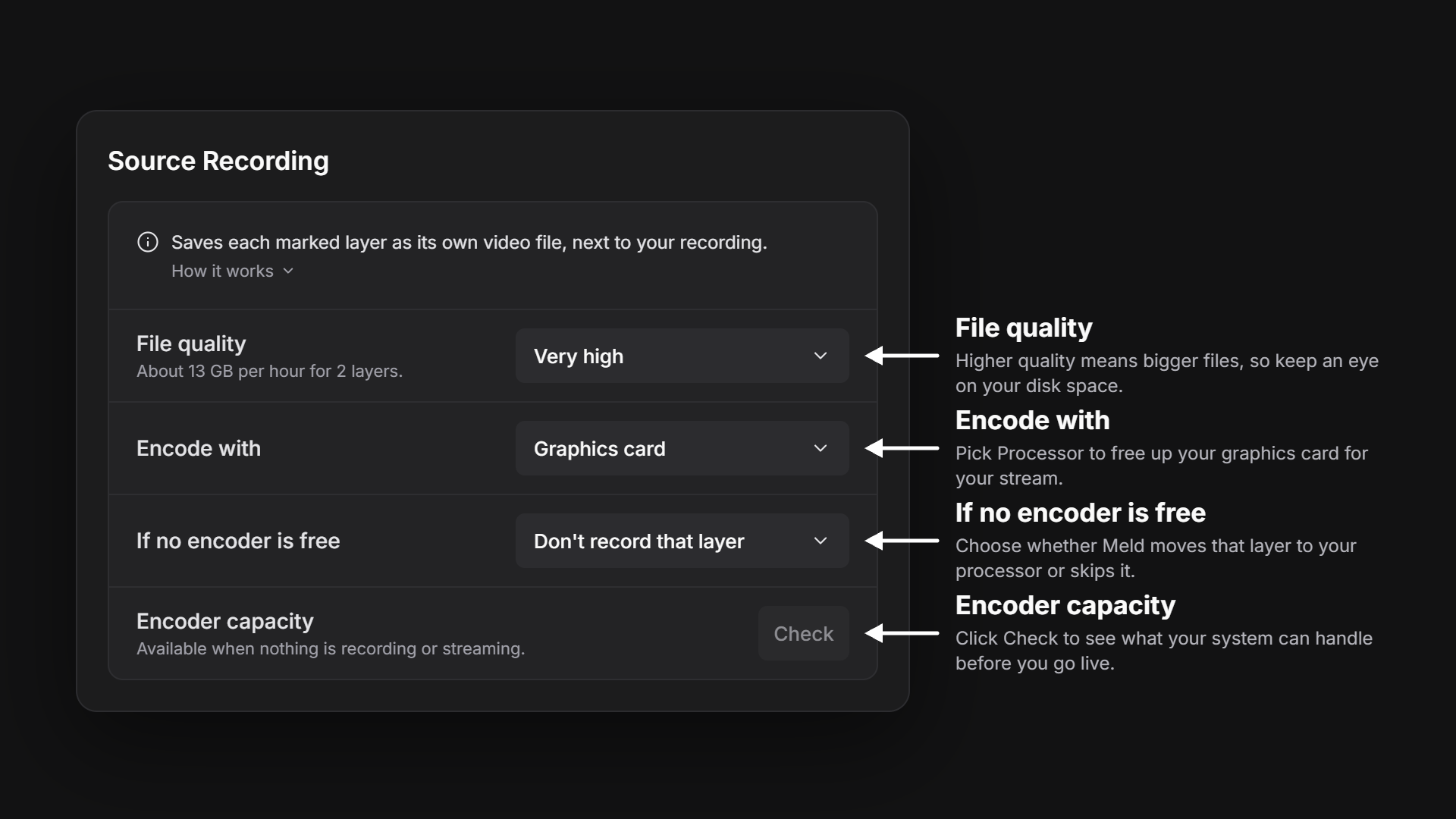
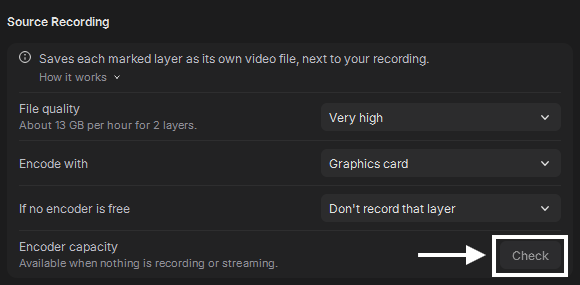
Open the Source Recording settings to choose your file quality and whether your graphics card or processor handles the recording. If you're streaming and recording at the same time, choosing your processor takes some load off your graphics card. Not sure what your system can handle? Click Check to see your encoder capacity. This only works when you're not live or recording.
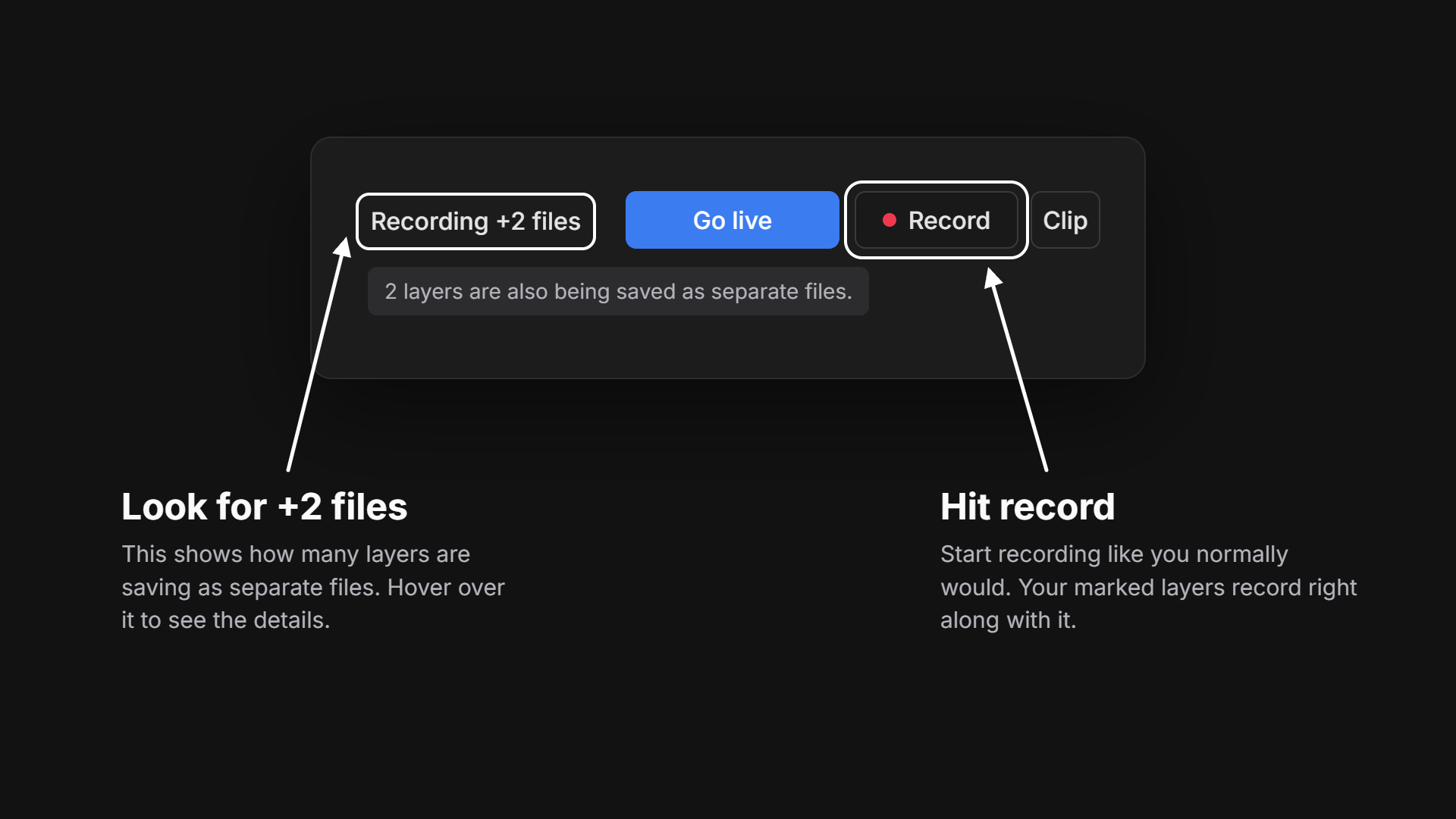
Step 3: Hit record
Start recording like you normally would. Every layer you marked is saved as its own file, synced to your main recording, every time you record.
Step 5: Review your files
When you stop recording, you'll find your layer files in the same folder as your main recording. Each one is full size, with no crop or effects, even if the layer is cropped or styled in your scene. That means you get your raw gameplay and your full camera, ready to edit.
A tip for single-GPU setups
If you're streaming and recording on one graphics card, it's worth checking your encoder capacity before you go live. Hit the Check button in the Source Recording section to see how much encoder room your system has. It only runs when you're not actively recording or streaming, so check it while you're still in setup.
If you're running tight on GPU encoders, switching Source Recording to use the processor is the easiest way to avoid a layer getting dropped.
Gradient Effect: New Controls
The Gradient effect got a proper overhaul. You can now shape gradients directly on the canvas by dragging the start and end points over your layer, so what you see is what you get while you're working. The controls panel has also been redesigned and stays open while you edit, which means you can fine-tune colors and stops without constantly reopening it. We have plans to rework more of the effects so stay tuned!
YouTube Connection Fix
If YouTube has been giving you trouble in Meld lately, the good news is it should be fixed now.
YouTube limits how much any one app can connect to it each day, and every Meld streamer shares that limit. As more of you started streaming to YouTube with Meld, we kept running into it. That's why some of our streamers had connection issues.
We've had that limit raised to 6 million, so there's room for every Meld streamer, even when everyone's live at the same time. Now you can go live when your viewers are online and know Meld will connect.
40 Performance and Crash Fixes
This release also includes 40 performance and crash fixes. A lot of these came directly from bug reports in the Meld Discord, so a genuine thank you to everyone who took the time to report what they were seeing.
If you run into anything, keep those reports coming. Every one of them helps.
Try it Today
Source Recording is already in Meld v0.10.9.0. Meld updates automatically, so all you have to do is open it, click the circle next to a layer, and hit record. We'd love to see what you make with those clean files, whether that's YouTube uploads, shorts, reaction videos, or something we haven't thought of yet. Share it with us in the Meld Discord. If anything isn't working right, let us know there too. A lot of the fixes in this release came straight from your reports.