On this page
If you are getting ready to stream GTA 6, the last thing you want is a stream that falls apart the moment the action gets busy. Encoder overload and dropped frames usually show up at the worst time, right when your game is packed with motion, traffic, weather, and fast camera movement.
Since GTA 6 is only available on PS5 and Xbox Series X|S, every stream runs through a capture card. That actually simplifies some things, but it also means your setup needs to be dialed in correctly from the start. Your console handles the game, your capture card pulls the signal, and Meld Studio on your PC handles everything else. Here is how to make sure all three parts of that chain are working together so you go into launch day with a clean, stable stream.
Why GTA 6 is Hard on a Stream
GTA 6 is the kind of game that punishes weak streaming settings. Dense city scenes, reflections, night lighting, driving, combat, and constant movement all make the encoder work harder because every frame changes fast.
That matters because a stream can fail in two different ways:
- Encoder overload means your encoder does not have enough room to compress the video cleanly.
- Dropped frames usually mean your system or connection cannot keep up with the bitrate or overall load.
In practice, the fix is to give the encoder more breathing room. Lower the output resolution if needed, keep your upload headroom open, and use hardware encoding on your streaming PC instead of asking the CPU to do all the work. Since the console is handling the game entirely, your streaming PC can focus solely on encoding and broadcasting.
My Recommended Meld Studio Setup
If I were setting this up in Meld Studio for a GTA 6 stream, I would start with stability first and quality second.
Core Settings
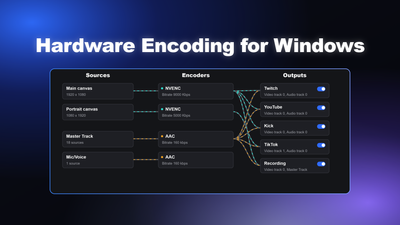
- Encoder: Use hardware encoding on your streaming PC. Since your console is running the game, your PC's GPU is free to focus entirely on encoding.
- Resolution: Start at 1080p. If the stream looks blocky during heavy action, drop to 900p before you try to force a higher bitrate.
- Frame rate: Match your capture card output. If your card is capturing at 60 fps, set your output to 60 fps. A stable stream is always better than a stuttering one.
- Bitrate: Set your bitrate based on your actual upload speed, not the number your ISP advertises.
- Keyframe interval: Use 2 seconds for standard live streaming behavior.
In Meld Studio
- Add a Video Capture Device source and select your capture card from the dropdown instead of using a game or desktop capture.
- Keep your scene layout simple so you are not stacking unnecessary sources.
- Use a clean webcam and alert setup, but do not overload the canvas with extra browser layers.
- Test the stream during a busy in-game scene, because that is where encoding problems show up first.
The goal is simple: your console handles GTA 6, your capture card passes the signal cleanly, and Meld Studio handles the broadcast.
The Settings I Would Use on Launch Day
Here is the launch-day setup I would actually trust:
- Console to capture card setup: use GPU encoding on your streaming PC, and keep your stream at 1080p60 or 900p60 depending on your upload speed and capture card quality.
- If your capture card only does 1080p30: match your output to 30 fps rather than forcing 60 and getting a choppy result.
- If your upload is shaky: lower bitrate before you do anything else.
- If the stream looks soft or compressed: increase bitrate first, then consider whether your capture card is the bottleneck on signal quality.
This is the part people skip. They keep changing ten settings at once and never know which one fixed the issue. I would change one variable at a time and run a 10-minute test in the busiest part of the game I can find.
Quick Troubleshooting Checklist
If you still see encoder overload or dropped frames, I would check these in order:
- GPU usage: If your GPU is maxed out, the encoder has no cushion.
- Bitrate: If your bitrate is too high for your real upload speed, frames will drop.
- Resolution: If 1080p is too much, step down to 900p.
- Scene complexity: Too many layers, browser sources, and animations can add load.
- Game capture method: Use the lightest capture option available inside Meld Studio.
- Running apps: Close background software you do not need while streaming.
If you fix those in order, you will solve most of the problems people blame on the game itself. Most of the time, the stream was already too close to the edge before GTA 6 even opened.
The Capture Card Chain: How GTA 6 Streaming Actually Works
Since GTA 6 is console-only, every stream runs through a three-part chain: your console, your capture card, and your streaming PC running Meld Studio. Understanding where things can go wrong in that chain is the key to fixing them.
Your console
The PS5 and Xbox Series X|S handle the game entirely. You are not sharing resources with an encoder, which is actually a big advantage over single-PC PC streaming setups. The console outputs a clean HDMI signal to your capture card at whatever resolution and frame rate the game runs at.
Your capture card
This is where signal quality is set. A 4K60 capture card is worth it even if you stream at 1080p because it gives Meld Studio a high-quality signal to work with before downscaling. If your capture card tops out at 1080p30, your stream will be capped there regardless of what you set in Meld Studio.
The main bottlenecks at this stage are:
- Capture card throughput (can it handle the signal the console is sending?)
- USB vs. PCIe connection (PCIe cards are generally more stable under sustained load)
- Driver stability (keep capture card drivers updated before launch day)
Meld Studio on your streaming PC
This is where encoding happens. Because your PC is not running the game, your GPU is free to focus entirely on encoding the capture card signal and broadcasting it. That means encoder overload is much less of a risk than it would be on a single-PC gaming setup, but it is still possible if your settings are too aggressive for your hardware or upload speed.
Bitrate Settings by Platform
One of the most common reasons streamers get dropped frames has nothing to do with their encoder. It is because their bitrate is too high for their actual upload speed, or they are pushing the platform ceiling without realizing it.
Here is what I would use for GTA 6 on each major platform:
Platform | Resolution | FPS | Bitrate |
|---|---|---|---|
Twitch | 1080p | 60 | 6,000 Kbps |
Twitch | 900p | 60 | 6,000 Kbps (if 1080p looks blocky) |
YouTube | 1080p | 60 | 12,000 Kbps |
YouTube | 1440p | 60 | 15,000-18,000 Kbps |
Kick | 1080p | 60 | 7,000-8,000 Kbps |
A few things worth knowing before you set these numbers:
- Twitch caps most streamers at 6,000 Kbps. GTA 6 needs every bit of that headroom. If your stream still looks blocky during high-motion scenes, dropping to 900p at the same bitrate will actually look cleaner than starved 1080p.
- YouTube has no practical ceiling. Run 12,000 Kbps or higher and let the platform's generous limits do the work.
- Keep your bitrate under 75-80% of your real upload speed. Not the speed your ISP advertises. Your actual tested upload. If GTA 6's chaotic scenes are dropping frames and you cannot figure out why, this is usually the culprit.
You can set all of these inside Meld Studio's stream settings without needing any third-party tools or plugins.
How to Set Up Meld Studio for a Clean GTA 6 Stream
Here is the full step-by-step setup I would use inside Meld Studio before going live for GTA 6.
Step 1: Choose your encoder
Open Meld Studio and go to Settings > Output. Under the encoder dropdown, select your hardware encoder:
- NVENC if you are on an NVIDIA GPU (RTX 30 series or newer is ideal; RTX 40/50 series supports AV1 which gives roughly 30% better quality per bit than H.264)
- AMF for AMD GPUs (RDNA 3 and newer)
- QSV for Intel Arc
Since your PC is not running GTA 6, x264 (CPU encoding) is actually a viable option here if you have a powerful processor. That said, hardware encoding is still the safer and more efficient choice for sustained streaming sessions.
Step 2: Set your output resolution and frame rate
In Settings > Video, set:
- Base resolution: match your monitor resolution
- Output resolution: 1080p as a starting point (drop to 900p if you see quality issues during heavy action)
- Frame rate: 60 fps if your system can hold it cleanly; a steady 48-50 fps is better than a stuttering 60
- Downscale filter: Lanczos for the sharpest result when base and output resolution differ
Step 3: Configure your bitrate
Back in Settings > Output, set:
- Rate control: CBR (Constant Bitrate) for all live streaming
- Bitrate: use the platform table above as your guide, and cap it at 75-80% of your real upload speed
- Keyframe interval: 2 seconds, every time
Step 4: Add your capture card source
In your scene, add a Video Capture Device source and select your capture card from the dropdown. This pulls the HDMI signal directly from your PS5 or Xbox into Meld Studio. Make sure the resolution and frame rate in the source settings match what your capture card is actually outputting, not what you want it to output.
Step 5: Keep your scene layout simple
This is the part people underestimate. Every browser source, animated overlay, and widget you add to your scene costs resources. For a demanding game like GTA 6, I would keep the scene lean:
- One game capture or video capture device
- One webcam source
- Chat widget if needed
- Alerts (but keep animated alert layers minimal)
If you want to add more production elements, Meld Studio's multi-canvas feature lets you build a separate vertical layout for clips without adding weight to your main stream canvas. That way you get the content without the overhead.
Step 6: Test before launch day
Do not wait until November 19 to find out your settings are wrong. Run a 10-15 minute test stream in whatever game you are currently playing, specifically in the most demanding scenes you can find. Check your Meld Studio stats panel for any encoder overload warnings or dropped frame percentages.
If you are seeing more than 0.5% dropped frames during a test, something in your chain needs adjusting before you go live for GTA 6.
Conclusion
If you want a clean GTA 6 stream, the real goal is not perfection. It is headroom. Leave enough room for the game, enough room for the encoder, and enough room for the connection so the stream does not collapse the second the action gets intense.
That is why I would build around Meld Studio with simple scenes, hardware encoding, sensible bitrate, and a capped game frame rate. Do that before launch day, and you will be ready when everyone else is still fighting with their settings.
FAQ
What causes encoder overload when streaming GTA 6?
Encoder overload happens when your encoder cannot process and compress frames fast enough to keep up with your output settings. For GTA 6 specifically, the risk is highest during scenes with heavy motion: car chases, combat, weather effects, and dense city areas where nearly every pixel changes between frames. Since GTA 6 is console-only, your streaming PC is not running the game, which reduces the risk significantly. Encoder overload in a capture card setup is usually caused by a bitrate or resolution setting that is too high for your streaming PC's hardware. The fix is switching to hardware encoding in Meld Studio output settings and making sure your settings match what your capture card can actually deliver.
What is the best encoder to use for streaming GTA 6?
Since GTA 6 is console-only and your streaming PC is not running the game, you have more flexibility here than a typical PC gaming setup. NVENCE on an NVIDIA GPU is still the best default choice because it is efficient and produces great quality. RTX 40 and 50 series cards support NVENC AV1, which delivers roughly 30% better quality per bit compared to H.264. AMD users should use AMF, and Intel Arc users should use QSV. Unlike a single-PC gaming setup, x264 is also a reasonable option if you have a strong CPU, since it is not competing with a game for resources.
Why am I dropping frames even with a good encoder?
Dropped frames are not always an encoder problem. The two most common causes are:
1. Bitrate too high for your upload speed. If your real upload speed cannot sustain your set bitrate, frames will drop even if the encoder is working perfectly. Keep your bitrate at 75-80% of your actual tested upload, not what your ISP advertises.
2. GPU maxed out. If your GPU is running at 99-100% on the game, the encoder has no headroom. Cap your in-game frame rate to leave room for the encoder.
What resolution should I stream GTA 6 at?
Start at 1080p60. If you see compression artifacts or blocky visuals during high-motion scenes, drop to 900p at the same bitrate before you try anything else. A cleaner 900p image often looks better than a starved 1080p one. On YouTube, where bitrate ceilings are much higher, 1440p60 at 15,000+ kbps is a strong option if your setup can handle it.
Does Meld Studio support multistreaming for GTA 6 launch?
Yes. Meld Studio has built-in multistreaming! If your internet cannot handle native multistreaming then you can use Meld Multi, which lets you go live to Twitch, YouTube, Kick, and other platforms simultaneously through Meld's Cloud servers. For a big launch like GTA 6, streaming to multiple platforms at once is worth considering since viewer traffic will be spread across platforms. Just be aware that multistreaming increases your upload demand, so test your connection under that load before launch day.
Do I need a 4K capture card to stream GTA 6?
Not necessarily, but it helps. A 4K60 capture card gives Meld Studio a higher-quality signal to work with before it downscales to your stream resolution. Even if you are streaming at 1080p, starting with a 4K signal means the downscaled result looks sharper and cleaner. If budget is a concern, a 1080p60 capture card is perfectly workable for streaming at 1080p. Just make sure your card can handle 60fps, not just 30.
How do I know if my stream is ready for GTA 6 before launch?
Run a test stream for at least 10-15 minutes in the most demanding game you currently have. Monitor Meld Studio's stats panel during the test. You are looking for:
- Dropped frames below 0.5%
- No encoder overload warnings
- Stable bitrate with no spikes
If all three look clean during a stress test, your setup is ready for GTA 6.