On this page
If you've ever tried to play a game with your viewers, you know how fast it falls apart. Someone asks to join in the comments, three other people pile on, you lose track of who said it first, and by the time you actually invite someone to the lobby, half the chat is arguing about whether it's their turn.
The idea is great. The execution, without any structure, is a mess.
That's the thing about viewer game sessions: the chaos isn't a reason to skip them, it's just a problem that needs solving. Because when they work, they're some of the best content you can make.
Viewer game nights consistently generate some of the highest engagement and most memorable moments on any stream. Chat stops scrolling and starts paying attention when one of their own is on screen. Regulars root for each other. New viewers stick around longer because there's something personal happening. It turns a broadcast into a shared experience, and that's what keeps people coming back.
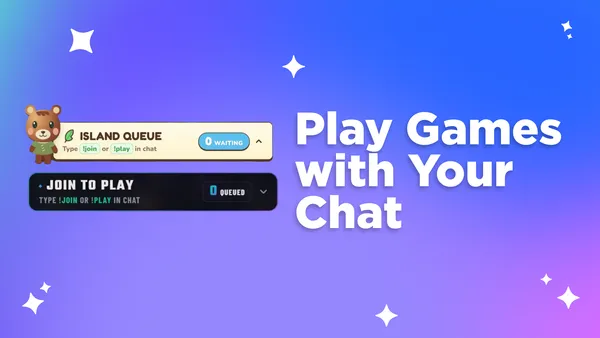
We just added four new viewer queue elements to the Meld Studio gallery to help you run those sessions without the chaos. Here's why it's worth doing, and how each one works.
The Real Reason Viewer Game Nights Work
Most streaming advice focuses on what you do on screen. Better overlays, tighter editing, more consistent schedules. All of that matters, but community growth often comes down to something simpler: making people feel like they're part of something, not just watching it.
Playing games with your viewers does that directly. When a chatter goes from typing in the chat box to actually being in your lobby, the whole dynamic shifts. They're not an audience member anymore. They're a participant. And everyone else in chat watches that happen, which makes them want in too.
A few things that tend to happen when you run viewer game sessions regularly:
- Retention goes up. When viewers know they might get picked, they stick around longer. There's a reason to stay.
- Regulars form faster. People who've played with you have a shared memory with your channel. They come back and they bring friends.
- Clip-worthy moments multiply. The unexpected stuff, a viewer clutching a round, a hilarious wipeout, a surprise win, almost always involves another person. Solo gameplay rarely produces those moments the same way.
- Chat gets more active. Even viewers who never join the queue get invested in watching the ones who do. Participation is contagious.
The barrier has never really been the idea. It's been the logistics. That's exactly what a viewer queue solves.
How a Viewer Queue Actually Works
A viewer queue is a live overlay that sits in your scene and manages a visible lineup of chatters who want to play with you. Instead of you tracking requests manually, the widget does it. Viewers join through simple chat commands, you or your mods advance the queue, and the next player is always visible on screen.
The core commands are the same across all four of our new elements:
| Command | Who uses it | What it does |
|---|---|---|
!join or !play | Viewers | Enter the queue |
!leave | Viewers | Remove themselves |
!next | Streamer / Mods | Pull the next viewer |
!remove | Streamer / Mods | Remove a specific viewer |
!viponly | Streamer / Mods | Toggle VIP/sub-only access |
That last one is worth calling out. !viponly lets you flip between open community nights and exclusive sessions for your subscribers or VIPs, without any extra setup. Announce which mode you're in, and viewers know exactly what to expect.
The queue handles the list. You handle the game. That's the whole idea.
The 4 New Viewer Queue Elements
All four are free, work on Twitch, YouTube, Kick, and TikTok, and are available right now in the Meld Studio gallery. You can add them directly in Meld Studio or bring them into OBS through Spark Plug.
Multiplayer Viewer Queue
The clean, no-frills option. If you want a viewer queue that works with any stream layout and doesn't pull visual attention away from the game, this is the one to reach for first. It's built for community game nights and custom match sessions, with a straightforward design that lets the queue speak for itself.
Good fit for: weekly viewer nights, custom lobbies, any game where you want the queue to blend into your existing scene.
Multiplayer Gradient Viewer Queue
Same functionality as the standard multiplayer queue, with a gradient visual treatment for streams that have a more styled aesthetic. If your layout already uses a gradient color scheme or you just want something with a bit more visual personality, this version fits without needing any customization.
Good fit for: streamers with a branded or colorful scene layout who don't want to redesign around a plain widget.
Horror Lobby Queue
Dark, eerie styling built specifically for horror game streams and spooky community nights. Beyond the look, this one adds clickable controls directly on the widget, so you can manage the next group, adjust how many players to pull, or clear the queue without typing a chat command. Useful when you're mid-game and don't want to break focus to type.
Good fit for: horror game streams, Halloween events, seasonal community nights where atmosphere matters as much as function.
Cozy Viewer Queue
Animal Crossing-inspired styling for cozy game streams, island hangouts, and chill multiplayer evenings. Like the Horror Lobby Queue, it also includes clickable controls for managing group size and clearing the queue directly from the widget. The soft visual design fits naturally alongside games like Animal Crossing, Stardew Valley, or any cozy multiplayer title.
Good fit for: cozy game streamers, community hangout sessions, play-along nights where the vibe is relaxed and friendly.
Tips for Running a Smooth Viewer Game Session
The widget handles the lineup. A few hosting habits make the whole session feel polished.
Introduce the commands early and repeat them. New viewers show up throughout your stream. Say the joining commands out loud when you open the queue, put them in your chat rules or commands list, and mention them again when you pull the next player. Viewers who arrived 20 minutes late shouldn't have to guess.
Decide who manages !next and !remove before you go live. If you have active mods, hand off the queue management so you can stay focused on the game. If you're running solo, the clickable controls on the Horror Lobby Queue and Cozy Viewer Queue make this easier since you don't have to type while you're playing.
Set your session rules separately from the queue rules. The widget tells people how to get in line. You still need to tell them how long each group plays, what game mode you're running, and how to actually join your lobby once they're selected. Keep those two things distinct so chat isn't confused about which commands do what.
Use !viponly for exclusive sessions, and say so clearly. If you're doing a sub-only game night, toggle the mode before you open the queue and announce it. Viewers who try to join and can't will be frustrated if they didn't know the session was restricted.
Position the queue where it can actually be read. Test your layout before going live. The queue should be visible without covering health bars, minimaps, or other important game information. A lineup no one can read doesn't help anyone.
Ready to Start?
All four viewer queue elements are free and waiting in the Meld Studio gallery. Pick the one that fits your stream's style, add it to your scene, and you're ready to run your first organized viewer game night.
If you're already in Meld Studio, just grab the element URL from the gallery page and paste it into a new element. If you're still on OBS, Spark Plug gets you access to the same gallery without changing your whole setup.
The queue is ready when you are.
FAQ
Can a viewer join the queue more than once?
No. Each viewer can only hold one spot in the queue at a time. If they try to join again while they're already in line, the widget ignores the second request. They can use !leave to remove themselves and rejoin later if they want to change their mind.
Do the viewer queue elements cost anything?
All four elements are completely free. You can grab any of them from the Meld Studio gallery without a paid plan. If you're using OBS instead of Meld Studio, you can access them through Spark Plug, which is also free.
What platforms do these elements work on?
All four viewer queue elements work on Twitch, YouTube, Kick, and TikTok. The chat commands (!join, !next, !leave, etc.) function the same way across all four platforms.
Can my mods manage the queue so I can focus on the game?
Yes, and this is actually the recommended setup. The !next and !remove commands are available to mods, not just the streamer. Handing queue management off to a trusted mod means you can stay focused on the game while someone else keeps the lineup moving. The Horror Lobby Queue and Cozy Viewer Queue also include clickable on-widget controls as an alternative to typing commands.
How do I limit the queue to subscribers or VIPs only?
Use the !viponly command to toggle between open and restricted access. When VIP-only mode is active, only your subscribers or VIPs can join the queue. Toggle it off to open the queue back up to everyone. Just make sure you announce which mode you're in so viewers know what to expect.
Can a viewer check their position in the queue?
The queue widget displays the current lineup visibly on screen, so viewers watching the stream can see where they stand. This is one of the core advantages of a visual queue overlay versus just tracking requests in chat.
What happens to the queue if I end the stream?
The queue resets when the stream session ends. There's no persistent memory carried over to your next stream, so each session starts with a fresh, empty queue. If you want to carry a lineup over, you'd need to note it manually before going offline.
Do I need Meld Studio to use these elements, or will they work in OBS?
Both work. If you're already using Meld Studio, just copy the element URL from the gallery page and paste it into a new browser source element in your scene. If you're on OBS, install Spark Plug and you'll get access to the full Meld gallery, including all four viewer queue elements, without switching your whole setup.