On this page
Streaming at 1080p60 while running a game, a browser, and a multi-track audio session is a CPU-intensive proposition. When software encoding handles the video compression, your processor is doing two demanding jobs at once: rendering the game and converting every frame into a compressed bitstream fast enough to keep up with the stream. On mid-range hardware, that trade-off is painfully visible in dropped frames, stuttering gameplay, or both.
Meld Studio automatically detects your GPU on Windows and routes encoding to the right hardware encoder without any manual configuration. This guide explains how that detection works, which GPUs are supported, how to enable and fine-tune the encoder, and when the x264 software fallback is the better choice.
Hardware encoding solves this by offloading video compression to a dedicated silicon block built directly into your GPU. The GPU's shader cores keep rendering your game uninterrupted while a completely separate encoder unit handles the bitstream. The performance cost on modern hardware is typically 1-3% of game FPS, often within benchmark noise.
What Hardware Encoding Actually Does
Video encoding is computationally expensive. Every frame captured from your game or camera needs to be analyzed, compressed using a codec like H.264 or H.265, and packaged into a bitstream that gets transmitted to a streaming platform or saved to disk. At 1080p60, that means processing 60 full frames per second continuously, with no room for latency spikes.
Software encoders like x264 do this work on the CPU using general-purpose processor cores. The quality ceiling is high, but the CPU cost is severe. Running x264 at its "slow" preset can consume 60-80% of a 12-core CPU, leaving little headroom for anything else running on the machine.
The Fixed-Function Encoder Block
Modern GPUs ship with a dedicated hardware encoder that is physically separate from the shader array that renders graphics. NVIDIA calls theirs NVENC (NVIDIA Video Encoder). AMD's implementation is called AMF (Advanced Media Framework), which drives the underlying VCN (Video Core Next) engine on Radeon GPUs. Intel's equivalent is Quick Sync Video, built into their iGPU media engine.
These blocks are fixed-function silicon: they do one job (encode video) and do it extremely fast with minimal power draw. Encoding a 1080p60 stream at 6 Mbps on an RTX 4070 consumes roughly 10-15% of the NVENC block's capacity and takes 0% of the shader resources being used to render the game.
The practical result: your game frame rate is essentially unchanged whether or not you are streaming.
What Hardware Encoding Trades Off
Hardware encoding is not without compromise. x264 at its "slow" or "slower" presets still produces better H.264 quality at equivalent bitrates than any hardware encoder. The gap, however, has narrowed significantly. On RTX 40-series hardware, the quality difference between NVENC and x264 Medium has shrunk to near-imperceptible at 1080p60 and 6 Mbps, and most viewers cannot reliably tell them apart in blind tests.
The decisive advantage of hardware encoding is not image quality. It is that hardware encoding uses none of your CPU, returning 25-40% of processor capacity back to your game or other applications.
For single-PC setups, that CPU headroom is the entire argument.
How Meld Studio Detects and Uses Your GPU on Windows
When Hardware Encoding is toggled on in Meld Studio's settings, the application probes the system for available hardware encoders and selects the appropriate one automatically. On Windows, the detection priority follows the GPU installed in the machine.
NVIDIA GPUs: NVENC
When a compatible NVIDIA GPU is present, Meld Studio automatically routes encoding through NVENC. This is the primary hardware encoder for Windows users and is available on every NVIDIA GeForce GPU from the Kepler generation (2012) onward, though encoding quality improves substantially with each NVENC generation.
NVENC runs entirely independently from the GPU's shader cores. The encoder block has its own clock, its own memory path, and its own processing pipeline. From the game's perspective, NVENC simply does not exist as a resource competitor.
Meld Studio supports 7 quality presets for NVENC, ranging from maximum speed (lowest CPU/GPU overhead, slightly lower quality) to maximum quality (highest quality output with marginally more encoder block usage). For most streaming use cases, the Quality or Balanced preset is the right default.
Codec support by NVENC generation:
| GPU Architecture | H.264 | H.265 (HEVC) | AV1 |
|---|---|---|---|
| Kepler / Maxwell (GTX 700-900) | Yes | No | No |
| Pascal (GTX 10-series) | Yes | Yes | No |
| Turing (RTX 20-series) | Yes | Yes | No |
| Ampere (RTX 30-series) | Yes | Yes | No |
| Ada Lovelace (RTX 40-series) | Yes | Yes | Yes |
AV1 encoding via NVENC is exclusive to RTX 40-series and newer. AV1 delivers near-HEVC compression efficiency with broad platform support and is now the preferred codec for YouTube and Twitch Enhanced Broadcasting.
AMD GPUs: AMF and the VCN Engine
Meld Studio added AMD hardware encoding support in version 0.9.9.6. When an AMD Radeon GPU is detected, encoding is routed through AMD's Advanced Media Framework (AMF), which interfaces with the Video Core Next (VCN) engine built into the GPU.
VCN generation determines codec support and encoding quality:
| VCN Version | GPU Series | H.264 | AV1 |
|---|---|---|---|
| VCN 2.0 | RX 5000 (RX 5300-5700) | Yes | No |
| VCN 3.0 | RX 6000 (RX 6600-6900) | Yes | No |
| VCN 4.0 | RX 7000 (RX 7600-7900) | Yes | Yes |
| VCN 4.0+ | RX 9000 (RX 9060-9070 XT) | Yes | Yes |
Modern AMD GPUs with VCN 4.0 deliver encoding quality that is competitive with NVENC for live streaming. Independent VMAF benchmarks have placed AMF within half a point of NVENC on H.264 quality scores, making either GPU brand a viable choice for content creators.
x264: The Software Fallback
When no compatible hardware encoder is detected, or when Hardware Encoding is manually disabled, Meld Studio falls back to x264, the industry-standard open-source H.264 software encoder. Meld supports the same 7 quality presets for x264 as it does for NVENC.
x264 is the right choice in two specific scenarios:
- Dedicated streaming PCs with 12 or more CPU cores that are not running games or other GPU-intensive workloads. In this configuration, the CPU headroom argument disappears and x264's quality ceiling becomes the deciding factor.
- Older GPUs (pre-2016 NVIDIA, pre-RX 5000 AMD) where the hardware encoder quality lags far enough behind x264 to be noticeable at typical streaming bitrates.
For everyone else on a modern single-PC setup, hardware encoding is the correct default.
How to Enable Hardware Encoding in Meld Studio
Enabling hardware encoding in Meld Studio takes less than a minute. The toggle is in the same settings panel as resolution, framerate, and bitrate.
Steps to Enable
- Open Meld Studio and navigate to Settings (gear icon or top menu).
- Select the General tab.
- Under the Stream Settings section, locate the Hardware Encoder toggle.
- Switch the toggle to ON.
- Click out of settings. The change takes effect immediately for your next stream or recording.
Note: Stream settings cannot be adjusted while you are live. Make this change before starting your broadcast.
Once enabled, Meld Studio automatically routes encoding to NVENC (NVIDIA GPU) or AMF (AMD GPU) based on what it detects. No additional driver installation is required beyond keeping your GPU drivers current.
Driver Requirements
Hardware encoding depends on up-to-date GPU drivers. Outdated drivers can cause the hardware encoder to be unavailable or to produce degraded output.
- NVIDIA users: Update via GeForce Experience or download directly from NVIDIA's driver portal.
- AMD users: Update via AMD Adrenalin Software. AMD hardware encoding in Meld Studio requires the latest Adrenalin drivers for full VCN compatibility.
Verifying the Encoder Is Active
Meld Studio includes an Encoder View that shows the live encoding pipeline in real time. To access it:
- Navigate to the View menu in the top bar.
- Select Encoder View.
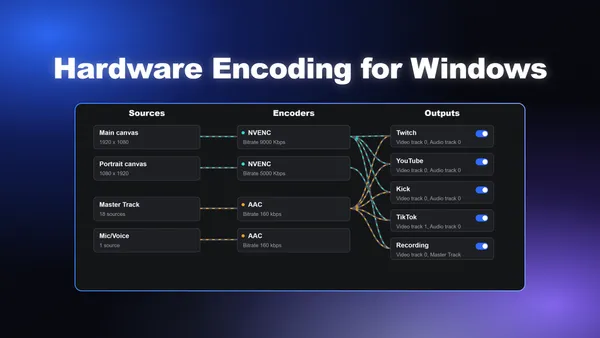
The Encoder View displays three columns: Sources (canvases and audio inputs), Encoders (the active video and audio encoding pipeline), and Outputs (Twitch, YouTube, recording, etc.). When hardware encoding is active, the encoder column will reflect the hardware encoder in use. Press Escape or click the close button to exit the view.
This is the fastest way to confirm that NVENC or AMF is actually handling the encode, rather than x264 silently taking over due to a driver issue or compatibility problem.
Recommended Settings for Hardware Encoding on Windows
Hardware encoding performs well across a wide range of configurations, but the right bitrate and preset depend on your target platform, resolution, and framerate. The following settings are starting points based on Meld Studio's own documentation and platform ingestion limits.
Streaming Settings
| Resolution | Framerate | Recommended Bitrate | Encoder Preset |
|---|---|---|---|
| 1080p | 60 FPS | 6,000 Kbps | Quality / Balanced |
| 1080p | 30 FPS | 4,500-5,000 Kbps | Quality |
| 720p | 60 FPS | 4,000-4,500 Kbps | Quality |
| 720p | 30 FPS | 3,000-3,500 Kbps | Quality |
Platform bitrate caps to keep in mind:
- Twitch: 3,000-6,000 Kbps (hard cap at 6,000 Kbps for most partners)
- YouTube: 3,000-40,000 Kbps (accepts higher bitrates and HEVC)
- Kick: 1,000-8,000 Kbps
- Facebook: 600-15,000 Kbps
Always keep your stream bitrate at or below 75% of your verified upload speed. This leaves headroom for retransmissions and prevents dropped frames caused by network fluctuation.
Local Recording Settings
For local recordings, the platform bitrate caps do not apply. Since the output goes directly to disk, you can push significantly higher bitrates for archival-quality files.
- 1080p60 recording: 15,000-25,000 Kbps for maximum quality
- 4K recording: 40,000-80,000 Kbps depending on content complexity
Use the Quality or higher preset for recordings. The encoder block overhead at these settings is still minimal compared to what x264 would require at equivalent quality.
Quality Preset Guide
Meld Studio exposes 7 quality presets for both NVENC and x264. The naming maps to encoder speed/quality trade-offs:
- Faster presets (Speed, Fast): Lower encoder block usage, slightly less detail in fast-motion scenes. Useful if you are seeing any encoder-side performance issues.
- Balanced preset: The practical sweet spot for most 1080p60 streams. Minimal quality loss versus Quality, with slightly lower overhead.
- Quality preset: Best output for live streaming. Recommended for most users on RTX 30-series and newer, or RX 6000-series and newer.
- Higher quality presets: Marginally better output, but the difference is rarely visible at standard streaming bitrates. More meaningful for local recordings at high bitrates.
A note on codec selection for streaming:
H.264 remains the safest choice for Twitch and any platform where viewer device compatibility is uncertain. YouTube and Kick accept H.265 (HEVC), which provides roughly 40-50% better compression at equivalent quality. If you are on an RTX 40-series GPU or an RX 7000/9000-series AMD GPU, AV1 is the modern choice for YouTube, combining near-HEVC efficiency with broad platform support.
Troubleshooting: When the Hardware Encoder Is Unavailable
The most common hardware encoding issue in Meld Studio is the Hardware Encoder toggle appearing greyed out or the encoder silently falling back to x264. Here is how to diagnose and resolve each scenario.
The Hardware Encoder Toggle Is Greyed Out
This typically means Meld Studio could not detect a compatible hardware encoder on the system. Work through the following checks in order:
- Verify your GPU is supported. NVIDIA GPUs from the GTX 700 series onward support NVENC for H.264. AMD support requires RX 5000 series or newer. Integrated Intel graphics do not currently enable the hardware encoder toggle on Windows.
- Update your GPU drivers. An outdated driver is the most frequent cause of encoder detection failure. Install the latest Game Ready Driver (NVIDIA) or Adrenalin driver (AMD) and restart Meld Studio.
- Check that Meld Studio is using the discrete GPU. On laptops with both integrated and discrete graphics, Windows may route Meld Studio to the integrated GPU by default. Open Windows Settings > Display > Graphics, find Meld Studio in the app list, and set it to "High Performance" (discrete GPU).
- Restart the application after driver updates. Driver changes do not propagate to running applications; a full restart of Meld Studio is required.
Dropped Frames or Encoder Overload
If you are seeing dropped frames with hardware encoding enabled, the issue is almost always network-related rather than encoder-related. Hardware encoders are rarely the bottleneck at standard streaming bitrates.
- Confirm your stream bitrate is at or below 75% of your verified upload speed.
- Try lowering the encoder preset from Quality to Balanced, or reduce resolution from 1080p to 720p to reduce the output data rate.
- Use the Encoder View (View > Encoder View) to check whether the encoder pipeline shows any warnings.
Quality Looks Worse Than Expected
If output quality looks poor despite hardware encoding being active:
- Check the bitrate setting. Hardware encoders are more sensitive to low bitrates than x264. At 2,000 Kbps or below, H.264 artifacts become visible regardless of encoder. Raise the bitrate to the platform-recommended range.
- Switch from H.264 to H.265 or AV1 if your GPU supports it and your target platform accepts it. HEVC provides 40-50% better compression at equivalent quality, making a significant difference at constrained bitrates.
- Lower the encoder preset to a slower setting (higher quality). On NVENC, moving from Speed to Quality at the same bitrate produces noticeably cleaner output, particularly in fast-motion scenes.
For the full list of stream settings and configuration options, Meld Studio's documentation covers each field in detail.
Hardware Encoding and Meld Studio's Multi-Canvas Architecture
Meld Studio's multi-canvas feature lets creators stream landscape and portrait content simultaneously, a workflow that is increasingly common for creators publishing to YouTube and TikTok at the same time. Hardware encoding has a direct impact on how well this works on a single PC.
When Multi Canvas is active, Meld Studio manages separate bitrate settings for the Main Canvas (landscape) and the Portrait Canvas. The total upload bandwidth required is the sum of both output bitrates. On the encoding side, the GPU's hardware encoder handles both streams, which is where the fixed-function encoder block's efficiency becomes particularly valuable.
A single RTX 40-series GPU can comfortably encode two simultaneous streams (for example, a 1080p landscape stream at 6,000 Kbps and a 1080p portrait stream at 4,000 Kbps) with minimal system overhead. Attempting the same workload with x264 on a mid-range CPU would consume an unsustainable share of processor resources.
For multi-canvas setups, the Encoder View is especially useful. It shows each canvas as a separate source, the encoder pipeline handling both video tracks, and the individual output destinations. This makes it straightforward to verify that both streams are encoding correctly before going live.
Meld Studio's GPU-accelerated video effects also benefit from hardware encoding being active. When the GPU is handling encoding rather than the CPU, there is more system headroom for real-time effects like color grading, blur, and creative filters applied directly to the canvas, all without introducing latency.
Quick Reference: Encoder Selection on Windows
| GPU | Encoder | H.264 | H.265 | AV1 | Notes |
|---|---|---|---|---|---|
| NVIDIA RTX 40-series | NVENC (8th gen) | Yes | Yes | Yes | Best quality; AV1 for YouTube/Twitch EB |
| NVIDIA RTX 30-series | NVENC (7th gen) | Yes | Yes | No | Excellent quality; no AV1 |
| NVIDIA RTX 20-series | NVENC (6th gen) | Yes | Yes | No | Very good quality |
| NVIDIA GTX 10-series | NVENC (5th gen) | Yes | Yes | No | Good quality; adequate for 1080p |
| AMD RX 9000-series | AMF / VCN 4.0+ | Yes | Yes | Yes | AV1 support; competitive with NVENC |
| AMD RX 7000-series | AMF / VCN 4.0 | Yes | Yes | Yes | AV1 support; competitive with NVENC |
| AMD RX 6000-series | AMF / VCN 3.0 | Yes | No | No | Solid H.264 quality |
| AMD RX 5000-series | AMF / VCN 2.0 | Yes | No | No | Minimum supported AMD generation |
| No compatible GPU | x264 (software) | Yes | No | No | Highest quality; high CPU cost |
The bottom line: if you have a modern discrete GPU from NVIDIA or AMD, hardware encoding in Meld Studio is the right default. Enable it, set your bitrate to match your platform and upload speed, and use the Quality preset. The Encoder View confirms everything is routing correctly. For multi-canvas or 4K workflows, hardware encoding is not optional; it is what makes single-PC production viable.
Download Meld Studio and explore the full stream settings documentation to configure your setup.