
On this page
You spent hours perfecting your stream layout. The overlays are dialed in, your scenes are organized, your audio routing is exactly right. Then you decide to experiment with a new setup and suddenly that carefully built session is gone.
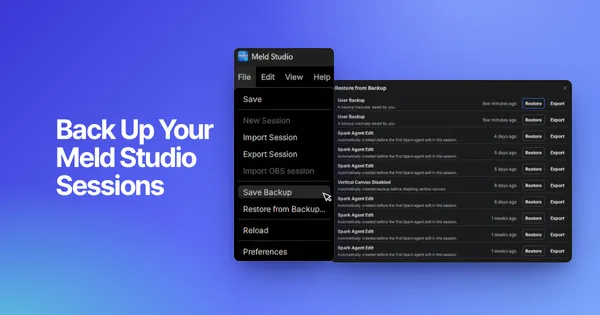
Meld Studio has a built-in backup system that takes about ten seconds to use. Here's exactly how to save your session, export a long-term copy, and restore it when you need it.
Step 1: Create a Session Backup
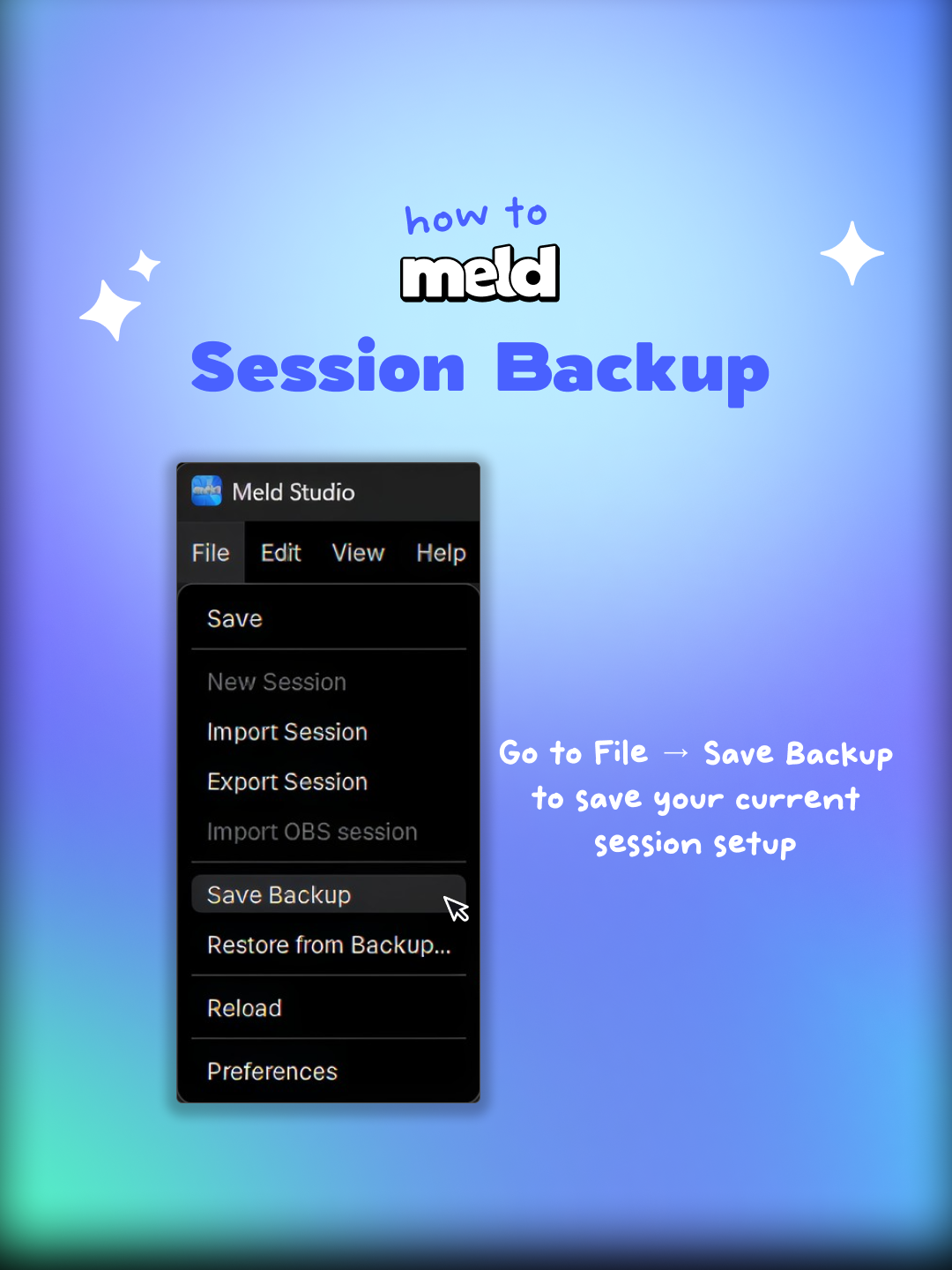
Before making any changes to your scenes or layout, save a backup of your current session.
How to do it:
- Open Meld Studio
- Go to File → Save Backup
- That's it. Meld saves a snapshot of your current session automatically.
Make this a habit before any major edit. Think of it the same way you'd hit Ctrl+S before making big changes in a document. A few seconds now can save you a lot of frustration later.
Step 2: Export a Copy to Keep Long Term
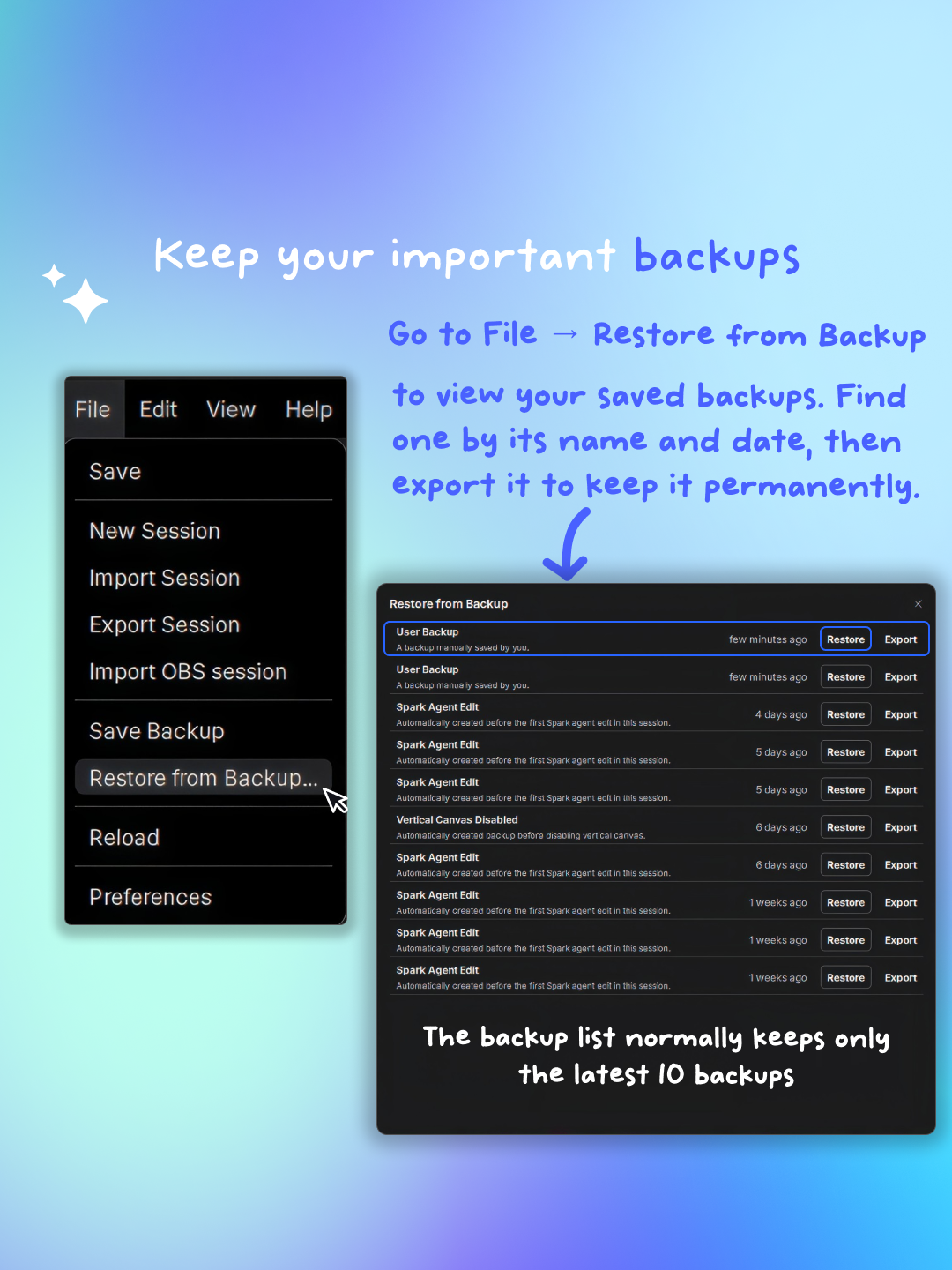
Meld keeps the 10 most recent backups automatically. Once you go past that limit, older backups start disappearing. If you want to preserve a specific session indefinitely, you need to export it.
How to export a backup:
- Go to File → Restore from Backup
- Find your backup by name and date in the list
- Click Export
- Save the exported file somewhere safe, like a dedicated folder on your desktop, an external drive, or cloud storage
This is the step most people skip, and it's the one they regret. If you built a setup for a specific event, a sponsored stream, or a show format you might return to, export it before it rolls off the list.
Step 3: Restore a Saved Session
Ready to go back to a previous setup? The restore process is straightforward.
How to restore:
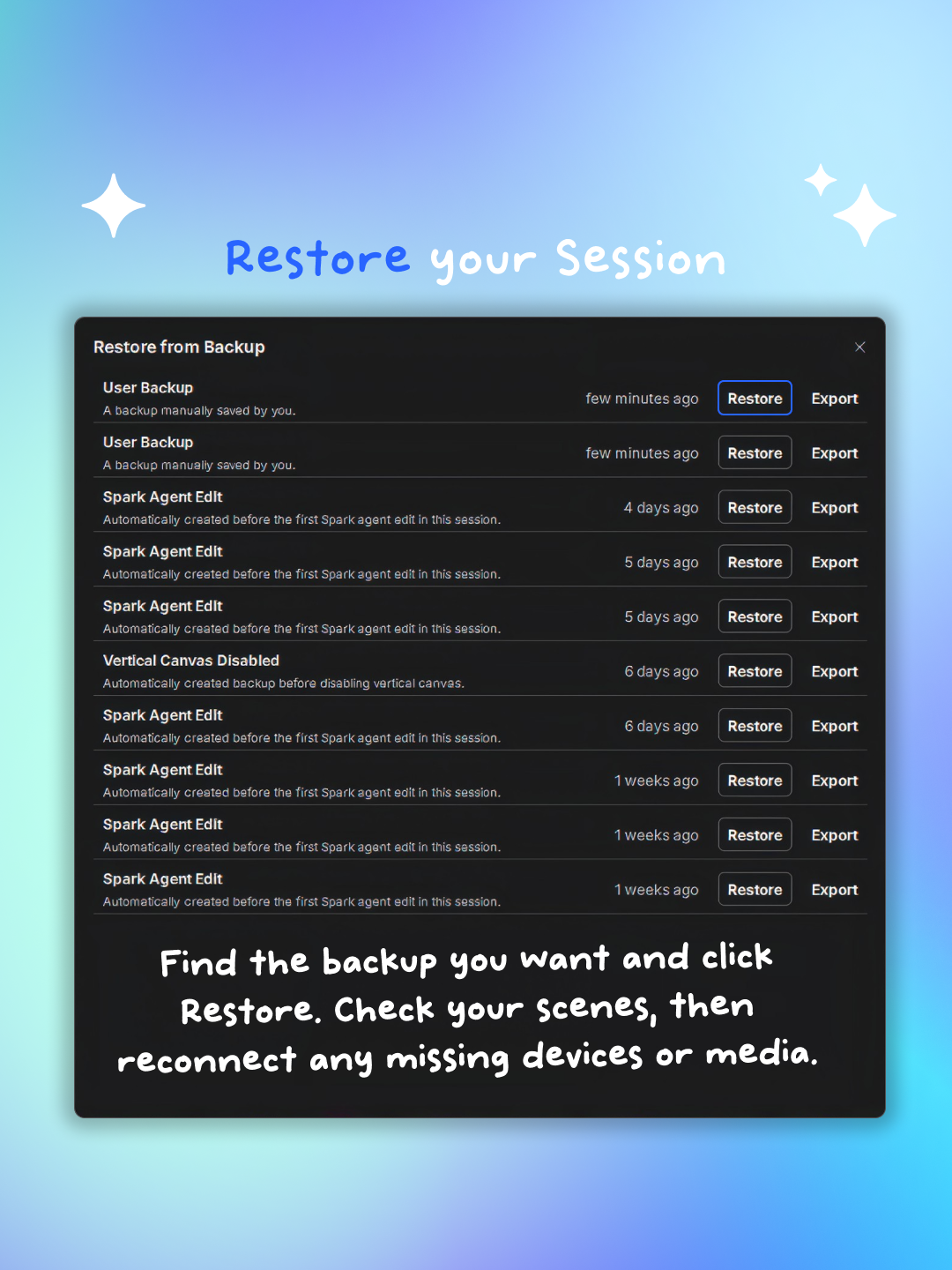
- Go to File → Restore from Backup
- Choose the backup you want to restore
- Click Restore
- Once it loads, check your scenes and reconnect any missing media files or devices
What happens to your current session?
Meld automatically saves a backup of your current session before restoring. So if you restore the wrong backup, you can get back to where you were. One important note: if that automatic backup can't be saved for any reason, the restore process will stop. Meld won't overwrite your current session unless it can protect it first.
A note on media files
A session backup preserves your setup: your scenes, sources, layout, and settings. It does not bundle your actual media files (video clips, images, audio files) into the backup. Keep those backed up separately. Don't rely on a session backup as your only copy of those assets.
Quick Reference
Task | Where to find it |
|---|---|
Save a backup | File → Save Backup |
Export a backup to keep | File → Restore from Backup → Export |
Restore a previous session | File → Restore from Backup → Restore |
Remember: Meld keeps the 10 most recent backups. Export anything you want to hold onto permanently.
For the full details, check out the Meld Studio sessions documentation.
Conclusion
Backing up your Meld Studio sessions takes seconds and saves you from hours of rebuilding work. Make File → Save Backup part of your pre-edit routine, export anything you want to keep past the 10-backup limit, and you'll never lose a setup you worked hard to get right.
The restore process is just as simple: find the backup, click Restore, and reconnect any media. Meld protects your current session before overwriting it, so there's always a way back.
Check out the full Meld Studio sessions documentation for more detail on how sessions work.
FAQ
Does restoring a backup delete my current session?
Not without protection. Before restoring, Meld automatically saves a backup of your current session. If that automatic backup fails for any reason, the restore process stops entirely. Meld won't overwrite your current setup unless it can save a copy of it first.
How many backups does Meld Studio keep?
Meld keeps the 10 most recent backups. Once you exceed that limit, the oldest backups are removed. If you want to hold onto a specific session indefinitely, export it via File → Restore from Backup → Export and save the file somewhere safe.
Are my media files included in a session backup?
No. A session backup saves your setup: scenes, sources, layout, and settings. It does not bundle your actual media files (video clips, images, audio files). Keep those backed up separately using your own storage solution.
How do I export a Meld Studio backup to keep it permanently?
Go to File → Restore from Backup, find the backup you want by name and date, and click Export. Save the exported file to a folder on your computer, an external drive, or cloud storage. This is the only way to preserve a backup beyond the 10-session limit.
Where is the Save Backup option in Meld Studio?
It's under the File menu at the top of the application. Go to File → Save Backup to create a snapshot of your current session at any time.
Can I restore a backup from a previous version of Meld Studio?
The Meld Studio sessions documentation covers session compatibility in more detail. When in doubt, export your backups regularly so you always have a copy regardless of version changes.
What should I do after restoring a backup?
After the restore completes, go through your scenes and check that all sources are working. Reconnect any missing media files or devices that weren't included in the backup. Everything related to your layout and settings should be restored, but external assets need to be in the same location as when the backup was created.