We have a big one this update. macOS users are getting background removal and blur for their camera, and the rest of the changelog is packed with quality-of-life wins across streaming, performance, audio, and onboarding. Here's everything that's new.
macOS Background Removal and Blur
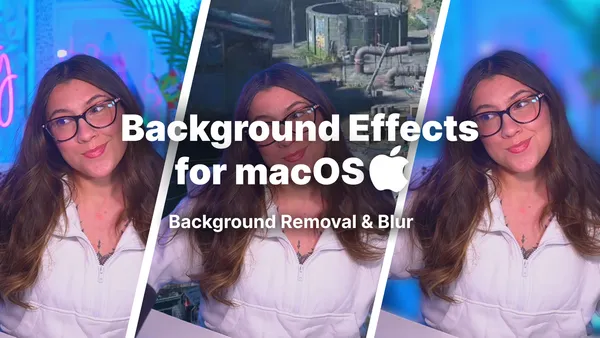
This is the headline feature of the update, and it's one we've been excited to ship for a while. macOS users can now remove or blur their camera background directly inside Meld Studio, no green screen required.
How to add it: Open your camera source, head to the Effects panel, and select Background Removal or Background Blur. That's it.
Once enabled, Meld handles the processing natively on your Mac. The result is a clean, professional look whether you're streaming from a messy home office, a busy café, or anywhere in between.
A few things worth knowing:
- Background removal and blur are macOS only in this release
- The effect is applied per camera source, so you can use it on one camera and leave others untouched
- Performance impact will vary by machine; we recommend testing before going live
Everything Else in This Update
Beyond the big camera feature, this release is full of improvements that make Meld faster, cleaner, and easier to use.
Independent Stream Resolution
You can now stream at a different resolution than your canvas and recordings. Want to record in 4K while streaming at 1080p? Done. Meld handles the downscale automatically, so your local footage stays sharp while your stream stays bandwidth-friendly.
Better Responsiveness During Busy Chats and Raids
Chat and event processing has been moved off the main UI thread. In plain terms: when your chat is going wild during a raid or a hype moment, Meld should feel more responsive. We're not making specific claims about dropped frames yet, but this is a real architectural improvement and you should notice the difference.
Improved Audio Effects Browser
The audio effects picker got a proper redesign. It's now searchable, fully keyboard-navigable, and split into separate Effects and VST tabs (VST support must be enabled to see the VST tab). Finding the right effect mid-stream is a lot less friction now.
More Reliable Spark Editing
Spark editing is more dependable in this release. Layer sizing and effect selection behave more consistently, and browser scripting is significantly more robust: async results are handled properly, error messages are clearer, and Spark recovers gracefully when browser targets close unexpectedly.
Fewer Clicks to Go Live
If you've already configured your stream, you can now skip the Go Live review window entirely. One less step between you and being live. If you prefer the review window, there's a setting to bring it back.
Clearer Camera Setup
Camera selection is now searchable, resolution and frame rate are easier to access, and the settings and diagnostics panel has been improved. These updates are available even when camera effects are disabled, so they benefit everyone regardless of setup.
Smoother Onboarding
For anyone setting up Meld for the first time (or returning after a while), the Getting Started checklist is more accurate, platform connection can be skipped immediately, the Spark welcome experience is better, and the What's New content now shows only what's changed since your last version rather than everything ever.
Go Get It
The update is live. Open Meld Studio and it'll prompt you to update, or download the latest version from meldstudio.co.
As always, drop any feedback in our Discord or reach out on Twitter/X. We read everything.
FAQ
Is background removal and blur available on Windows?
Not in this release. Background removal and blur are macOS only for now. We're not announcing a Windows timeline yet, but it's on our radar.
Will background removal affect my stream performance?
It can, depending on your Mac's hardware. The processing runs natively on your machine, so older and lower-spec Macs may see more of an impact. We recommend enabling it in a test stream before going live to see how your system handles it.
Do I need a green screen to use background removal?
No. That's the whole point. Meld uses machine learning to detect and remove your background without any physical setup.
Can I use background removal on multiple cameras at once?
Yes. The effect is applied per camera source, so you can enable it on one camera, multiple cameras, or none. Each source is controlled independently.
What's the difference between background removal and background blur?
Background removal makes your background fully transparent, so whatever is behind your camera layer in your scene shows through. Background blur keeps the background visible but softens it, similar to the blur effect in video call apps.
Can I stream at 1080p while recording in 4K?
Yes, that's what the new independent stream resolution setting is for. Set your canvas and recording to 4K, then set your stream output to 1080p. Meld handles the downscale automatically. Note that this setting also affects your clip resolution, and it's not available when Twitch Enhanced Broadcasting is active.
How do I skip the Go Live review window?
Go into your stream settings and disable the Go Live review step. Once turned off, hitting Go Live will take you straight to your stream. You can re-enable it at any time if you want the review back.
Where can I find VST plugins in the new audio effects browser?
Open the audio effects picker and look for the VST tab. It only appears if VST support is enabled in your settings. Once it's visible, you can search by name and navigate with your keyboard.
Is Meld Studio free?
The core app is free. Meld Spark, which adds an AI-powered assistant for generating overlays and assets, is a paid subscription.