Meld Spark
Section titled “Meld Spark”Meld Spark is a chat-based creative partner built into Meld Studio. Describe the vibe and it shows up in your scene in seconds, on-brand, animated, and reacting to your stream in real time. No code knowledge required.
Overlays, widgets, chat overlays, lower-thirds, stream alerts, countdown timers, full scene packages, chat-controlled mini-games, animated avatars, live leaderboards. If you can picture it, Meld Spark can probably build it.
Use it in Meld Studio, OBS with Spark Plug, or your browser.
Opening Meld Spark
Section titled “Opening Meld Spark”In Meld Studio, click the sparkle icon in the right sidebar. The Spark panel opens with a chat input labeled "What are you creating today?". Type your request and hit Enter.
Anything Meld Spark builds, overlays, widgets, entire scenes, is added to your current scene automatically. No import step, no approval dialog. You can cycle through previous prompts with the up and down arrows, and drag any image into chat to use as visual reference.
Start From the Gallery
Section titled “Start From the Gallery”The fastest way to get something on screen is to skip prompting. The Meld Spark gallery has ready-made elements, chat games, avatars, alerts, overlays, that drop straight into your scene.
Click Make it yours on an element's gallery page, then paste the link into Meld Studio (⌘V on macOS or Ctrl+V on Windows). Meld adds the element to your current scene automatically.
Pick one, add it, and treat it like any other layer. You can also ask Meld Spark to customize it:
"Change the avatar style from pixel art to minimal."
"Only show chat avatars for subscribers."
Starting from a gallery element is also the easiest way to get a feel for how things are structured before you build your own.
For a ready-made scene, start with Scene Templates and ask Spark to customize it.


Your First Prompt
Section titled “Your First Prompt”If you'd rather build from scratch, try:
"Create a countdown timer in the top-right, starting at 5 minutes, with a minimal style."
Hit Enter. Meld Spark will say what it's building, write the code, and the timer appears in your scene. Then keep refining in the same chat:
"Make the font bigger and change the color to white."
That's the loop: describe, let it build.
How to Write a Good Prompt
Section titled “How to Write a Good Prompt”A strong prompt covers four things: what, where, how it behaves, and the style.
Weak:
"Add a timer."
Strong:
"Add a countdown timer widget in the top-right, starting at 5 minutes, with a cyberpunk style and a pulse animation when it hits 30 seconds."
Prompting Checklist
Section titled “Prompting Checklist”| Include | Example |
|---|---|
| The function | "a follow/sub/raid alert" |
| The position | "top center" |
| The behavior | "animate in, hold 4 seconds, fade out" |
| The style | "cozy", "cyberpunk", "minimal", or your own palette |
| Test events | "fire a test follow and a test sub so I can preview" |
State the Style Early
Section titled “State the Style Early”If you don't pick one, Meld Spark will. That's fine for a one-off, but for a full stream package name the aesthetic up front so everything stays consistent. Keywords like cozy, cyberpunk, minimal, retro, esports, pixel art, space, horror, or pokemon all work, but so does any mood in your own words. You can also mix them, for example "minimal with a pokemon accent".
"Using a minimal aesthetic, create a lower third with my name and social handles."
Show It a Color Palette
Section titled “Show It a Color Palette”On Pro and Max, Meld Spark reads images. If you've found a palette you love, or even have a screenshot of your favorite game, drag the image into the chat and it'll pick the colors from there. No hex codes required.
If you already have the hex values, you can paste them in too.
"Use this palette: #0D1B2A background, #1B263B panels, #415A77 borders, #778DA9 text, #E0E1DD highlights."
Reacting to Your Stream
Section titled “Reacting to Your Stream”Meld Spark can build overlays that react to live stream events like chat, follows, subs, and raids across Twitch, YouTube, Kick, and TikTok.
Preview Before Going Live
Section titled “Preview Before Going Live”Stop streaming, recording, and the virtual camera before testing. Desktop test events can reach other connected elements, not just the selected one.
- Open Preview on a Spark element card.
- Choose an available event, or ask Spark to send one.
- Check the animation, sound, and any other elements that react.
On the website, tests stay in the web preview.

Test an Element in the Scene Editor
Section titled “Test an Element in the Scene Editor”In Meld Studio, select a compatible Spark element on the canvas and click Test element. Chat and caption elements receive sample text; alerts alternate between a follow and a subscription.
The button is unavailable during streaming, recording, or virtual camera use. No test event for this element means the button has no matching test. Tests can still appear in the clip buffer.


Getting the Most Out of Meld Spark
Section titled “Getting the Most Out of Meld Spark”Build a Full Stream in One Go
Section titled “Build a Full Stream in One Go”Ask for multiple scenes in Meld Studio or OBS with a compatible Spark Plug. On the website, build elements in a single preview scene.
"Create Starting Soon, Be Right Back, and Ending scenes with a cyberpunk style."
Reference Layers by Name
Section titled “Reference Layers by Name”Name the layer you want to edit.
"Change the Countdown Timer to start at 10 minutes."
Ask for a Visual Check
Section titled “Ask for a Visual Check”In Meld Studio or a compatible Spark Plug, a conversation with vision can inspect a screenshot of your scene.
"Take a screenshot and check the text alignment."
Debug Conversationally
Section titled “Debug Conversationally”Describe what happened and what you expected. In Meld Studio and Spark Plug, Spark can inspect browser-layer logs.
Ask About Your Setup
Section titled “Ask About Your Setup”In Meld Studio, Spark can read your preferences and streaming, recording, and clipping settings.
"What resolution am I streaming and recording at?"
Spark can explain those settings, but you change them yourself in Meld.
Restore Points (Undo and Redo)
Section titled “Restore Points (Undo and Redo)”Use the arrows beneath a Spark response or on your message:
- Undo: restore your session's scenes and overlays to how they were before the message.
- Redo: restore your session's scenes and overlays to how they were after Spark's response.
This affects the whole session, including changes made in other scenes, not just the scene you are viewing.

Your chat history stays unchanged. Restore points are stored on the current device and browser; older points or points cleared with site data may be unavailable.
For a lasting backup, export your session and keep its media files separately. Review restored scenes before going live.
Quick-Start Prompts
Section titled “Quick-Start Prompts”Copy any of these straight into the chat.
Stream alerts:
"Create a stream alert widget that reacts to follows, subscriptions, and raids. Show the supporter's full username (scale the font down if long). Animate in at the top center, hold a few seconds, animate out. Add a celebratory sound. Fire a test event for each type."
Live chat overlay:
"Create a chat overlay in the bottom-left showing the last 8 messages with profile pictures, smooth scroll-in animations, and a semi-transparent background for readability over gameplay. Handle long messages and usernames gracefully. Show a few test messages."
Full stream package:
"Set up a Starting Soon scene (5-minute countdown), a Be Right Back scene, and an Ending scene. Use a cyberpunk aesthetic. Keep them animated and visually distinct but consistent."
Spark Plug for OBS
Section titled “Spark Plug for OBS”The Spark Plug is the official Meld Studio plugin for OBS Studio. It brings Meld Spark's overlay builder into OBS, so you can describe an overlay in plain language and add it to your current OBS scene as a browser source.
Use the Spark Plug when you want Spark-built overlays without moving your existing OBS setup. It can create alerts, countdown timers, lower thirds, goal trackers, starting soon screens, chat-driven widgets, and other browser-based overlays.
Install Spark Plug for OBS
Section titled “Install Spark Plug for OBS”- Download the Spark Plug installer.
- Close OBS Studio.
- Run the installer. When it asks where to install, choose the OBS Studio folder, the one that contains
binandobs-plugins. On a standard install this isC:\Program Files\obs-studio, and the installer fills it in automatically. Change it only if OBS Studio is installed elsewhere, such as on another drive or as a portable copy. - Open OBS Studio. On first boot after install, OBS adds the Spark Plug tabs automatically.
- Sign in with your Meld account.
- Describe the overlay you want to build.
Enable the OBS WebSocket
Section titled “Enable the OBS WebSocket”The Spark Plug needs the OBS WebSocket enabled in order to talk to OBS. Here's how to enable it:
- In OBS, open the Tools menu in the top bar.
- Select WebSocket Server Settings.
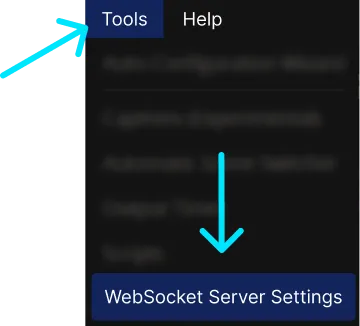
- In the WebSocket Server Settings dialog, check Enable WebSocket Server and Enable Authentication, then generate a random password.
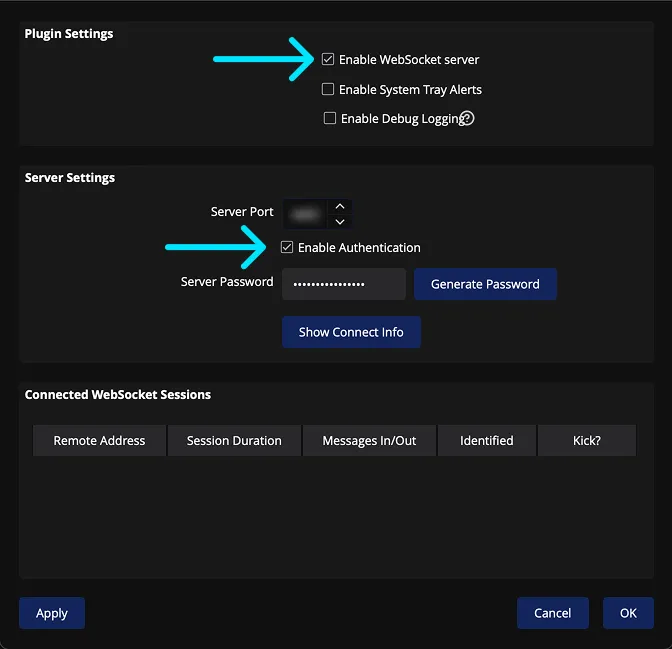
The Spark Plug detects the WebSocket automatically once it's enabled.
What It Can Do
Section titled “What It Can Do”- Build overlays from plain-language prompts.
- Add Spark creations to OBS as browser sources.
- Create animated overlays using HTML, CSS, and JavaScript.
- React to live chat messages and commands.
- Use reference images for color and visual direction on Pro and Max.
- Refine overlays conversationally after they are created.
- Create and manage scenes, and move or resize existing sources with Spark Plug.
Meld Spark writes code, not static image files. That means overlays can animate smoothly, respond to stream events, and be edited directly if you want to inspect the HTML, CSS, or JavaScript behind them.
What It Does Not Do
Section titled “What It Does Not Do”Add cameras, captures, media, and audio through OBS itself. Use OBS controls for filters, groups, and the audio mixer.
| Feature | Spark Plug for OBS | Meld Studio + Spark |
|---|---|---|
| Spark overlay building | Yes | Yes |
| Chat reading and interactivity | Yes | Yes |
| Built-in multistreaming | No | Yes |
| Create and manage scenes | Yes | Yes |
| Audio adjustment | No | Yes |
If you want Spark to work alongside Meld Studio's audio tools, or use built-in multistreaming, use Meld Spark inside Meld Studio.
If Spark shows Update Required, install the current Spark Plug and restart OBS.
Spark web
Section titled “Spark web”Spark on the website lets you build overlays, alerts, and widgets without opening a streaming application. Your elements appear in a preview beside the chat. Your local Meld Studio or OBS session is not connected to this workspace.
Start a Build
Section titled “Start a Build”- Open Spark on the website and sign in with your Meld account.
- Describe an element, or choose a starter prompt. For example: "Build a five-minute countdown with large white text on a transparent background."
- Wait for Spark to create the element. It appears in the workspace's Elements list and preview.
- Continue in the same chat to change its layout, colors, or behavior.
The preview uses one 1920 × 1080 scene. Tell Spark if an element needs a different size, such as a narrow chat overlay.
The sidebar provides New chat, recent conversations, Ideas, and a link to the Gallery. On a phone, use the menu button above the chat to open the sidebar.

Preview and Test an Element
Section titled “Preview and Test an Element”- Choose an element in Elements, or click Open in preview on its chat card.
- Inspect it in the preview panel. An alert or chat overlay may remain empty until it receives an event.
- Use the preview's event controls to send a simulated event, or describe the test you want in chat.
- Check the result and tell Spark what happened. Spark cannot take a screenshot of this preview.
Web tests stay in the preview. For desktop tests, see Preview Before Going Live.
On a phone, the preview opens over the chat. Use Close the preview to return, and Test events and copy link to open its controls. On desktop, use Show the preview or Hide the preview to change the layout.
If the element card shows Open in tester, it opens the hosted element tester instead of the workspace preview.


Use an Element in Meld Studio
Section titled “Use an Element in Meld Studio”- Open Meld Studio on your computer and select the destination scene.
- On the website, select the element and the version you want to use.
- Click Open in Meld Studio. Allow your browser to open the application if prompted.
- Inspect the element in Meld Studio and adjust it for your actual canvas before using it on stream.
To edit your desktop scenes afterward, use Spark inside Meld Studio.
If the application does not open, check that Meld Studio is installed and running. You can also use Copy link and paste the URL directly into Meld Studio (⌘V on macOS or Ctrl+V on Windows). Meld adds the element to your current scene automatically.

Use an Element in OBS
Section titled “Use an Element in OBS”- Select the element and the version you want to use.
- Click Use it in OBS. The website copies the element URL and opens instructions. If copying fails, use the copy button in that dialog.
- In OBS, add a Browser source and paste the URL.
- Set its width and height to match the element's intended size, then inspect it in your scene.
You can add an element URL as a Browser Source without the Spark Plug. To receive live follows, subscriptions, and chat in OBS, or ask Spark to edit your OBS scenes, install and open the Spark Plug for OBS.
On a phone, use Copy link and transfer the URL to the computer running Meld Studio or OBS. The desktop handoff buttons are not shown in the phone layout.


What the Web Workspace Can Access
Section titled “What the Web Workspace Can Access”Spark can edit the elements in this workspace and use files you attach. It cannot control your desktop scenes, cameras, audio, or outputs, or inspect the preview with a screenshot. To edit desktop scenes, open Spark inside Meld Studio or OBS.
Account and Usage
Section titled “Account and Usage”Open your account row in the sidebar to view usage and Account settings. If a limit prevents another request, follow the reset time or available options shown in Spark. Creating a new chat does not reset the allowance.
If the Workspace Does Not Load
Section titled “If the Workspace Does Not Load”- If Spark says Your session ended, use Log in to sign in again.
- If it says Spark is taking a while to load, use Retry.
- If an element is absent from the preview, select it in Elements or use Open in preview in its chat card. If Spark has only described the element, ask it to finish building and add it to the preview.
- If an event-driven element stays empty, send a supported test event and report what appeared, including any error message.
Does Meld Spark use AI?
Section titled “Does Meld Spark use AI?”Meld Spark uses AI to understand your requests and write code. Importantly, Meld Spark's output is always code (HTML, CSS, and JavaScript), not static images, audio, or video. Think of it like having your own personal developer inside Meld Studio.
Does Meld Spark make images, video, or art?
Section titled “Does Meld Spark make images, video, or art?”No. It writes HTML, CSS, and JavaScript. Your overlays are code, not rendered pictures. That's why they animate smoothly, react to live events, and can be edited line by line.
Can Meld Spark access files on my computer?
Section titled “Can Meld Spark access files on my computer?”No. It can't read your filesystem or see anything on your drives. The only files it sees are the ones you drag directly into the chat.
Does Meld Spark run on my GPU?
Section titled “Does Meld Spark run on my GPU?”No. Meld Spark runs on our servers. The overlays it produces render in a lightweight browser layer inside Meld Studio, alongside your game, camera, and encode.
Can Meld Spark copy or "steal" something it sees?
Section titled “Can Meld Spark copy or "steal" something it sees?”Spark writes code from your prompt, using reference images as visual direction.
What should I do when a chat gets long?
Section titled “What should I do when a chat gets long?”Start a new one to focus on your next idea. The panel will nudge you when it's a good moment to reset.
Do I have to approve overlays before they appear in my scene?
Section titled “Do I have to approve overlays before they appear in my scene?”No. When Meld Spark finishes building, the overlay is added automatically. Tweak, reposition, or delete it from there like any other layer.
Can I use something pre-made instead of prompting?
Section titled “Can I use something pre-made instead of prompting?”Yes. The gallery has ready-made Spark elements you can drop straight into your scene. Use them as-is or ask Meld Spark to customize them.
Can I use Meld Studio without Meld Spark?
Section titled “Can I use Meld Studio without Meld Spark?”Yes. Meld Spark is completely optional. Choosing not to use it has no impact on your normal Meld Studio experience.
What if I hit a usage limit?
Section titled “What if I hit a usage limit?”Usage is tied to your plan. If you hit a limit, a banner in the panel tells you when it resets or how to upgrade. Your existing overlays keep working.
Is the Spark Plug made by OBS?
Section titled “Is the Spark Plug made by OBS?”No. It is an official plugin made by Meld Studio, the team behind Meld Spark.
Do I need a Meld account to use the Spark Plug for OBS?
Section titled “Do I need a Meld account to use the Spark Plug for OBS?”Yes. Spark runs on Meld's servers, so you need a Meld account to authenticate.
Does the Spark Plug for OBS work on macOS or Linux?
Section titled “Does the Spark Plug for OBS work on macOS or Linux?”Not yet. Spark Plug is Windows only.
Why are the Spark Plug tabs missing in OBS after installing?
Section titled “Why are the Spark Plug tabs missing in OBS after installing?”The most likely cause is that the installer was pointed at the wrong folder. The Spark Plug installs into the OBS Studio folder itself, the one that contains bin and obs-plugins, and not into a folder inside it. Run the installer again and check the path on the Select Destination Location page.
Can I edit an overlay after Spark builds it?
Section titled “Can I edit an overlay after Spark builds it?”Yes. You can ask Spark to make changes conversationally, or edit the overlay code directly if you want.
Can the Spark Plug for OBS manage my scenes?
Section titled “Can the Spark Plug for OBS manage my scenes?”Yes, with a compatible plugin and OBS WebSocket enabled. Add new cameras, captures, media, and audio sources through OBS itself.