On this page
If you're still picking one platform and hoping your audience finds you there, you're leaving a lot of reach on the table.
Multistreaming, also called simulcasting, means broadcasting a single live stream to multiple platforms at the same time. One source. Multiple destinations. Your content hits Twitch, YouTube, Kick, and TikTok simultaneously without you running four separate shows.
In 2026, this isn't a power-user trick anymore. It's become standard practice for creators who are serious about growth. Most mid-tier streamers (1K–50K followers) now broadcast to at least two platforms every session. The question isn't whether you should multistream. It's how to do it without making your setup a nightmare.
Key Takeaways:Multistreaming sends one encoded stream to multiple platforms simultaneously. You encode once; software handles the rest.With software-based multistreaming (like Meld Studio), your upload bandwidth scales with destinations. With cloud relay, it stays flat.Twitch allows simulcasting for all Affiliates and Partners, but enforces a Quality Parity rule: Twitch must receive equal or better quality than any other destination.The recommended encoder settings for cross-platform compatibility: H.264, CBR, 6,000–8,000 Kbps for 1080p/60fps, AAC-LC audio at 128 Kbps, 2-second keyframe interval.Platform stacks vary by goal: Twitch + Kick for gaming revenue, YouTube + Facebook for educators, Twitch + YouTube + TikTok for VTubers.Meld Studio handles multistreaming natively, including simultaneous 16:9 and 9:16 outputs for landscape and vertical platforms.
This guide covers everything: what multistreaming is, how it works technically, the bandwidth and CPU implications, platform rules, recommended encoder settings, chat management, and how to get it all running in Meld Studio.
What Is Multistreaming and How Does It Work?
Multistreaming is the simultaneous transmission of one live stream to multiple destination platforms from a single source. Your encoder produces one video and audio feed; software duplicates it and pushes independent copies to every platform you've configured, all at the same time.
There are two architectures, and they have meaningfully different implications for your bandwidth and hardware.
Software-Based Multistreaming (Local)
Your streaming software, like Meld Studio, sends your stream directly to multiple RTMP endpoints from your machine. Each destination gets its own connection, but your encoder only runs once. The tradeoff: your upload bandwidth scales linearly with the number of destinations.
The math is straightforward:
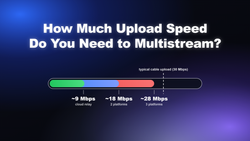
- 1 platform at 6,000 Kbps = ~6 Mbps upload
- 3 platforms at 6,000 Kbps = ~18 Mbps upload
- 5 platforms at 6,000 Kbps = ~30 Mbps upload
If you have a fast, stable fiber connection (25 Mbps+ upload), software-based multistreaming to 2–4 destinations is completely viable. This is the cleanest, lowest-latency setup for interactive live streams where you're at your computer the whole time. Meld Studio handles this natively, no plugins or workarounds required.
Cloud Relay Services
You send one stream to a cloud service, which then redistributes it to your connected platforms. Your upload stays flat regardless of how many destinations you add. The tradeoff: you're adding a relay hop, which introduces a few extra seconds of latency between you and your audience.
Which approach should you use?
| Situation | Best Approach |
|---|---|
| 25+ Mbps upload, interactive live stream | Software-based (Meld Studio) |
| Under 10 Mbps upload | Cloud relay |
| 5+ platforms simultaneously | Cloud relay |
| Lowest possible latency | Software-based |
| Dual 16:9 + 9:16 formats | Software-based (Meld Studio multi-canvas) |
Does Multistreaming Affect Stream Quality?
This is the most common concern, and the answer depends on which approach you use.
With software-based multistreaming, quality stays identical across all platforms as long as your upload can sustain the load. If your connection is saturated, you'll see dropped frames everywhere simultaneously. The fix: use hardware encoding (NVENC or QuickSync) and keep your total bitrate well under 80% of your tested upload speed.
With cloud relay, your local machine is only responsible for one outbound feed, so resource pressure is lower. Each platform's ingest and transcoding pipeline handles the rest independently.
One important nuance: each platform transcodes your stream differently. The same source feed may look slightly different on Twitch versus YouTube due to how each platform's CDN processes the video. Always check the live result on each destination rather than assuming they'll look identical.
Recommended Encoder Settings for Multistreaming
This is the section most guides skip, and it's where most multistreaming problems actually originate. Getting your encoder settings right means all your destinations receive a stable, compatible feed from the start.
The goal is to find settings that satisfy every platform's ingest requirements simultaneously. Here's what works reliably across Twitch, YouTube, Kick, and TikTok:
| Setting | Recommended Value | Why It Matters |
|---|---|---|
| Video codec | H.264 (Main Profile) | Universal RTMP compatibility across all major platforms |
| Bitrate mode | CBR (Constant Bitrate) | Required by most platforms; VBR can cause ingestion errors |
| 1080p/60fps bitrate | 6,000–8,000 Kbps | Meets Twitch, YouTube, and Kick quality requirements |
| 720p/60fps bitrate | 4,000–5,000 Kbps | Reliable fallback if upload is borderline |
| Audio codec | AAC-LC, 128 Kbps stereo | Required by YouTube and Facebook; rejected if missing |
| Keyframe interval | 2 seconds | Required by most RTMP ingest systems for segment alignment |
| Encoder | NVENC (NVIDIA) / QuickSync (Intel) / AMF (AMD) | Hardware encoding keeps CPU free for gameplay and overlays |
AV1 in 2026: When to Use It
If you have an NVIDIA 40-series or 50-series GPU, AV1 encoding delivers roughly 30% better visual quality than H.264 at the same bitrate. The catch: not every platform accepts AV1 via RTMP yet. As of 2026, YouTube supports AV1 ingest, while Twitch and Kick still require H.264.
Practical recommendation: Use H.264 CBR as your default for multistreaming to ensure all destinations accept the feed. If you're streaming exclusively to YouTube, AV1 is worth enabling.
The Keyframe Interval Rule
A 2-second keyframe interval is non-negotiable for multistreaming. Most platform RTMP ingest systems use keyframes to align video segments. If your keyframe interval is too long (the OBS default is 0, which means "auto"), some platforms will struggle to process your stream correctly, leading to artifacting or ingestion failures. Set it explicitly to 2 seconds in your output settings.
Hardware vs. Software Encoding
Always use hardware encoding when multistreaming. Software (x264) encoding is CPU-intensive, and adding multiple RTMP outputs on top of a game or complex scene can push even a powerful CPU to its limits.
- NVIDIA (40-series or newer): NVENC with AV1 for YouTube-only, NVENC with H.264 for multi-platform
- NVIDIA (30-series or older): NVENC with H.264
- Intel (12th gen or newer): QuickSync with H.264
- AMD: AMF with H.264
In Meld Studio, navigate to Settings > Output and select your hardware encoder from the dropdown. The app will automatically detect what's available on your system.
Which Platforms Should You Multistream To?
No single platform dominates every metric in 2026. Each one owns a different slice of the creator economy, and the right combination depends on your content type and goals.
Here's how the major platforms stack up:
| Platform | Subscription Split | Best For | Key Weakness |
|---|---|---|---|
| Twitch | 50/50 (70/30 top Partners) | Live community, gaming culture, emote ecosystem | Weak organic discovery for new streamers |
| YouTube Live | 70/30 on memberships | Long-term discoverability, VOD replay, Shorts funnel | Smaller live concurrent audience |
| Kick | 95/5 on subs | Revenue per subscriber, growing gaming audience | Smaller overall audience |
| TikTok Live | 50/50 on gifts | Mobile-first, viral discovery, For You algorithm | Short attention spans, RTMP access gated by eligibility |
| Facebook Live | Varies | Older/broader demographics, community groups | Declining creator engagement |
The Revenue Math
The payout difference between platforms is significant enough to shape your multistream strategy. With 1,000 subscribers paying $5/month:
- Kick: $4,750/month (95/5 split)
- YouTube: $3,500/month (70/30 on memberships)
- Twitch (standard): $2,500/month (50/50 split)
That's a $27,000/year difference between Kick and standard Twitch at the same audience size. This is exactly why multistreaming to both Twitch and Kick has become the default stack for mid-tier gaming creators.
Twitch Simulcast Rules: What You Need to Know
Twitch dropped its old exclusivity requirement in 2023. Both Affiliates and Partners can now simulcast to other platforms simultaneously. But Twitch enforces two rules that every multistreamer needs to understand:
Rule 1: Quality Parity. Your Twitch stream cannot be lower quality than any other destination. If you're streaming 1080p/60fps to YouTube, Twitch must also receive 1080p/60fps. You cannot send 4K to YouTube and 1080p to Twitch. If your bandwidth is tight, you must lower quality everywhere, not just on non-Twitch platforms. Per Twitch's Simulcast Guidelines, this applies to resolution, framerate, and latency equally.
Rule 2: No Traffic Redirection. You cannot tell Twitch viewers to leave and watch somewhere else. Watermarks directing people to Kick, bots posting links to rival platforms, or explicit on-stream callouts are violations. Linking to your other channels in your Twitch bio is fine. Telling your Twitch audience to go watch you on Kick is not.
Recommended Platform Stacks by Creator Type
Gamers and esports creators: Twitch (community) + Kick (revenue) as your core. Add YouTube for VOD replay and long-tail discoverability. This is the highest-ROI stack for gaming in 2026.
Educators, podcasters, and talk-show formats: YouTube as your primary (searchable VODs keep working after the stream ends) + one social layer like Facebook or LinkedIn for community reach.
VTubers and entertainment streamers: Twitch + YouTube + TikTok Live. TikTok's algorithm can push unknown creators to thousands of viewers overnight, making it valuable for discovery even if the live audience is smaller.
Starting out: Don't try to cover all platforms on day one. Pick two: YouTube plus one other. Add more once you have a workflow that doesn't stress you out.
How to Set Up Multistreaming in Meld Studio
Meld Studio has multistreaming built in, no plugins, no external relay services, no workarounds. Here's how to get it running from scratch.
Step 1: Open Stream Settings
Launch Meld Studio and navigate to Settings > Stream. You'll see your destination management panel where you can add multiple platforms.
Step 2: Add Your Destinations
Click Add Destination for each platform you want to stream to. For Twitch, YouTube, and Kick, you'll connect via OAuth (one-click login). For platforms that require manual setup (like TikTok Live on desktop), paste in the RTMP URL and Stream Key from that platform's studio dashboard.
Step 3: Configure Your Output Settings
Navigate to Settings > Output and configure:
- Encoder: Select your hardware encoder (NVENC, QuickSync, or AMF). Meld Studio auto-detects what's available.
- Bitrate: 6,000–8,000 Kbps for 1080p/60fps. Because you're encoding once and distributing, you don't multiply this by the number of destinations.
- Bitrate mode: CBR
- Keyframe interval: 2 seconds
- Audio: AAC, 128 Kbps
Step 4: Go Live
Hit Start Streaming. All connected destinations go live simultaneously. If one platform has an ingestion issue, the others keep running unaffected.
Dual-Format Streaming: Landscape + Vertical Simultaneously
This is one of Meld Studio's most underused features. If you want a 16:9 landscape feed for Twitch/YouTube/Kick and a 9:16 portrait feed for TikTok Live, you can configure multi-canvas layouts to run both from a single session. You're not running two separate encoding pipelines. You're running one session with two output canvases.
This matters because TikTok Live's mobile-first audience expects vertical video. Sending them a letterboxed 16:9 stream is a significant drop in viewer experience. Running dual formats means every platform gets the format its audience expects, from one stream.
Before You Go Live: The Pre-Stream Checklist
- Run a speed test and confirm your upload is at least 1.5x your total bitrate
- Do a 5-minute private test stream to all destinations and check each platform's live view
- Verify audio levels on each platform independently
- Confirm your alerts are firing and showing the correct platform attribution
- Check that your stream titles are set correctly on each platform (what works for a YouTube search doesn't always work for a Twitch category browse)
Managing Chat Across Multiple Platforms
Chat management is the part most guides gloss over. It's also where multistreaming gets genuinely hard in practice.
When you're live on three platforms simultaneously, you have three separate chat streams moving at different speeds, with different cultures, and different expectations. Trying to read all of them equally will make you feel disconnected from every community.
The Strategy That Actually Works
Pick one platform's chat as your primary. Before you go live, decide which chat you'll actually watch and respond to. Acknowledge the other platforms verbally ("Hey to everyone on YouTube and Kick") but read primarily from your main chat window.
Use Meld Studio's integrated chat. Meld Studio pulls chat from your connected destinations into a unified view, so you can see which platform each message is coming from without switching browser tabs or windows. This is the difference between managing multistream chat and being overwhelmed by it.
Set up platform-specific alerts. Configure your alerts to show which platform a subscription or donation came from. Viewers on Kick want to know their sub was seen. Same for Twitch bits and YouTube Super Chats. Platform-blind alerts feel impersonal and miss the community-building opportunity.
Understanding Platform Chat Cultures
Each platform's chat moves differently and has different expectations:
- Twitch: Emote-heavy, fast-moving, raid culture. Viewers expect acknowledgment of channel points, predictions, and hype trains.
- YouTube: Slower-paced, more text-based. Super Chats are highlighted and viewers expect them to be read.
- Kick: Similar to Twitch in structure but with a smaller, often more engaged audience. Your subs feel more personal.
- TikTok Live: Gift-driven, mobile-first, extremely fast-scrolling. The audience is largely discovery-driven and may not know you at all.
When to Add a Moderator
If you're consistently multistreaming to three or more platforms with active chats, a moderator becomes less optional. One person can't meaningfully engage with 200+ concurrent messages across multiple platforms while also running a show. A mod on each platform makes the community feel attended to even when you're focused elsewhere.
The honest truth: Don't pretend you can read every comment from every platform. Viewers understand. A simple "I see messages coming in from everywhere, keep them coming" is enough. Trying to acknowledge every single message across four chats makes you look frantic and breaks your stream's flow.
Building a Multi-Platform Strategy That Scales
Getting multistreaming working technically is step one. Building a strategy around it is what actually drives growth.
Start With a Primary Platform
Every successful multi-platform creator has a home base. Pick the platform where your audience already lives, or where your content type performs best. That platform gets your full attention during the stream. The others are distribution layers, not competing priorities.
Analyze Where Your Engagement Actually Comes From
After a month of multistreaming, look at the data. Which platform generated the most new followers? Where did your most engaged conversations happen? Where did your monetization come from? Let the answers guide where you invest more energy. Gut feeling is not a strategy.
Optimize Your Content Format Per Platform
The single biggest upgrade you can make to your multistream setup is running dual formats: a 16:9 landscape feed for Twitch, YouTube, and Kick, and a 9:16 portrait feed for TikTok. Same content, different aspect ratios. Meld Studio's multi-canvas feature makes this possible from a single session without running two separate encoding pipelines.
Schedule Destinations Around Peak Hours
Not every platform needs to run at the same times. TikTok Live sees its highest engagement between 6–11 PM in the viewer's local time zone. Facebook Live performs best during daytime hours. If you're streaming during off-peak times for a particular platform, consider whether it's worth including that destination or saving it for a better-timed session.
Clip and Repurpose After Every Stream
Multistreaming multiplies your live reach. Clipping and repurposing multiplies it again. Your best moments from each stream become short-form content for YouTube Shorts, TikTok, and Instagram Reels. Meld Studio's built-in clipping workflow lets you mark moments during the stream so you're not scrubbing through VODs afterward.
The creators who get the most out of multistreaming aren't just broadcasting to more places. They're using the data from multiple platforms to understand their audience better, and iterating faster than creators locked into a single platform ever could.
Multistreaming FAQ
Does multistreaming hurt stream quality?
No, not inherently. With software-based multistreaming, quality is identical across all destinations as long as your upload bandwidth can sustain the load. If your connection is saturated, you'll see dropped frames on every platform simultaneously. The solution is to use hardware encoding (NVENC, QuickSync, or AMF) and keep your total bitrate under 80% of your tested upload speed. With cloud relay, your local machine sends one feed and quality pressure is even lower.
Does Twitch allow multistreaming in 2026?
Yes. Twitch removed its exclusivity requirement in 2023. All Affiliates and Partners can now simulcast to other platforms simultaneously. Two rules apply: (1) Twitch must receive equal or better quality than any other destination (the Quality Parity rule), and (2) you cannot direct Twitch viewers to leave and watch on another platform. Full details are in Twitch's Simulcast Guidelines.
How much upload bandwidth do I need to multistream?
It depends on your approach. With software-based multistreaming, multiply your target bitrate by the number of destinations. Streaming 1080p/60fps at 6,000 Kbps to 3 platforms requires roughly 18 Mbps of sustained upload, plus headroom. A safe rule: your tested upload speed should be at least 1.5x your total outbound bitrate. With cloud relay, you only need to sustain the single outbound feed regardless of destination count.
Can I stream different formats to different platforms at the same time?
Yes, with the right software. Meld Studio supports multi-canvas layouts that let you run a 16:9 landscape feed for Twitch/YouTube/Kick and a 9:16 portrait feed for TikTok Live simultaneously, from a single session. This is the recommended setup for creators who take TikTok Live seriously, since the platform's mobile-first audience expects vertical video.
What encoder settings work best for multistreaming to multiple platforms?
Use H.264 video in CBR mode, 6,000–8,000 Kbps for 1080p/60fps, AAC-LC audio at 128 Kbps stereo, and a 2-second keyframe interval. These settings satisfy the RTMP ingest requirements of Twitch, YouTube, Kick, and TikTok simultaneously. Always use hardware encoding (NVENC for NVIDIA, QuickSync for Intel, AMF for AMD) to keep CPU load manageable during gameplay or complex productions.
Is multistreaming free?
It depends on the software. Meld Studio includes multistreaming as part of its core free application. You connect your platforms directly from the software and go live to all of them at no additional cost. Cloud relay services typically charge a monthly fee for multi-destination support.
What happens if one platform goes down during a multistream?
If one platform experiences an ingestion failure, the other destinations continue unaffected. Each platform connection is independent. You may see an error notification in your streaming software for the failed destination, but your stream keeps running everywhere else. This is one of the practical advantages of software-based multistreaming: there's no single relay point that can take down your entire broadcast.
Start Multistreaming Today
Multistreaming in 2026 is one of the highest-leverage things a creator can do with the same amount of work. One stream. Multiple communities. More data to learn from. And with the right software, none of the complexity that used to make it a headache.
Download Meld Studio for free, connect your platforms, and run your first multistream this week. Pick two destinations to start. See how it feels. Add more when the workflow is second nature.
Your audience is already spread across platforms. Meet them where they are.