On this page
Every streamer has a mental list of overlays and features that they want to implement but never get around to building. A clean lower third, a scrolling ticker, and even a QR code so viewers can actually find your socials. With Meld Spark, that list gets shorter in minutes!
We pulled some of the most requested features from the Meld community and put together the exact prompts and pro tips you need to build each one from scratch. Copy, customize, and make these yours with Meld Spark.
What is Meld Spark?
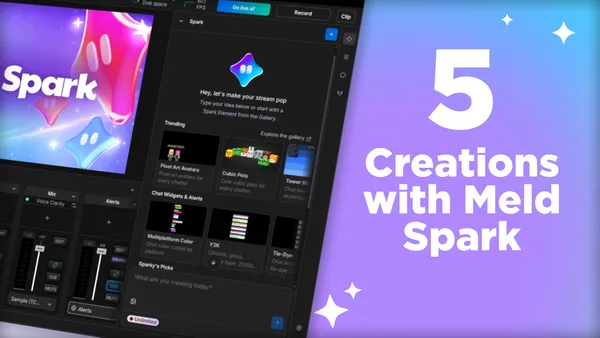
Spark is the creative tool that we built directly into Meld Studio. It understands plain-English descriptions and writes HTML, CSS, and JavaScript to power your overlays as browser sources. Everything can be animated at 60fps, is reactive to live events, and runs without touching your GPU.
To get starts with Meld Spark, click the Spark icon that is found above the Inspector Panel tab. Clicking the icon will open up the right sidebar where you can describe what you want and hit Enter.
Create a Slideshow
A rotating image or card slideshow can be one of the most versatile things you can add to your stream. It can be useful during a Starting Soon screen to spotlight what's to come with the stream, show off your emote collection, or display a curated gallery of art that sets the mood. It also works great for BRB screens to keep viewers engaged while you're stepping away, or even if you want to spotlight sponsors under your camera while you're playing a game.
Traditionally, building a slideshow meant either using a third-party tool like Davinci Resolve or Adobe Premier to mimic a slideshow by recording a video, or buying one that was pre-built and doesn't animate the way you want. With Spark, you describe the behavior, the style, and the content so it can generate a fully animated, looping overlay right in your scene.
Slideshow Overlay
Create a slideshow overlay that cycles through 5 slides with smooth fade in/out transitions every 4 seconds. Each slide should have a title, a short description, and a spot for an image. Use a minimal dark aesthetic with white text and a subtle shimmer animation on each slide. Place it centered on screen.
Pro Tips
- Drag a reference image into the Spark chat and say "use this color palette for the slideshow" to have Spark read the image and pull the exact hex values automatically.
- Ask for "slide-in from the right" or "zoom and fade" transitions to match your stream's energy. Cozy streams go well with soft fades, while high-energy gaming streams go for quick cuts.
- Tell Spark to "fire a test preview so I can see all slides" before going live to catch any layout issues. If you have it going in a continuous loop you don't have to test a preview.
- Name the layer in your scene something unique and identifying of what it is (e.g., "Sponsor Slideshow"), that way you can tell Spark "update the Sponsor Slideshow to cycle every 6 seconds" without the need to rebuild it.
Scrolling Ticker Tape
The scrolling ticker tape is a streaming classic for very good reason: it delivers information continuously without interrupting your gameplay or commentary. Use it to loop your stream rules, upcoming events, social handles, sponsor shoutouts, or any message you want every viewer to catch.
What makes Sparks' version powerful is that you're not locked to a template. You control the speed, direction, text size, colors, background, and whether it sits at the top or bottom of your scene. You can even tell Spark to reach to events such as flashing the ticker when someone subscribes to your channel.
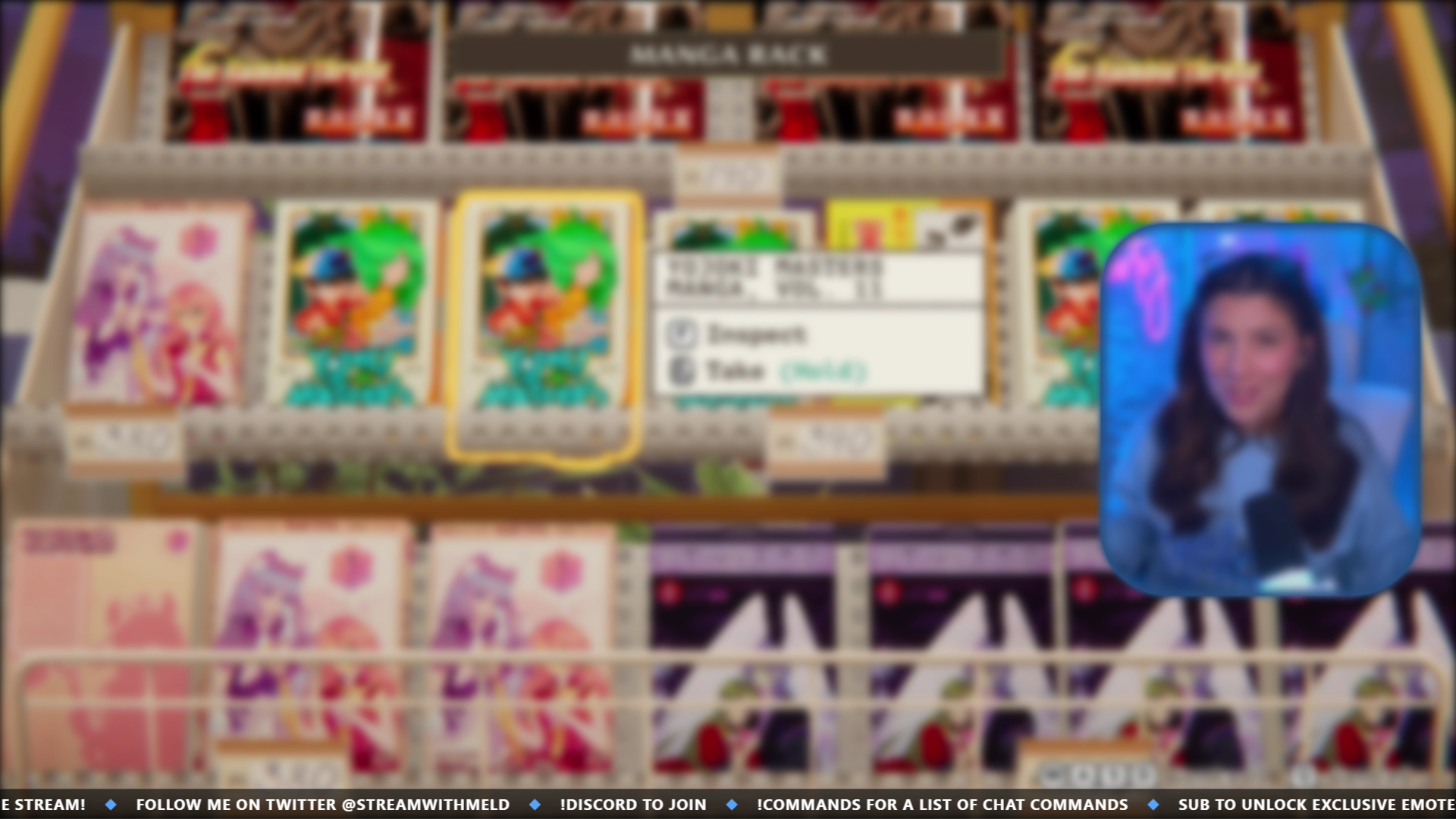
Scrolling Ticker Tape
Create a scrolling ticker tape at the bottom of my screen. It should continuously scroll left with these messages separated by a diamond bullet: 'Welcome to the stream! ◆ Follow me on Twitter @YourHandle ◆ !Discord to join ◆ !commands for a list of chat commands ◆ Sub to unlock exclusive emotes ◆ Next stream: Friday 7PM EST'. Use a semi-transparent dark background, white bold text, and keep it about 40px tall.
Pro Tips
- Ask for a slower scroll speed such as 'scroll leisurely so viewers can read each message comfortably.'
- Include a small icon or logo before the ticker text: 'Add a small star emoji before each message.' Spark can generate CSS icon shapes or grab emojis without any image files.
- Request a command (e.g., !pauseTT) for moments when you're on a scene with a layout where you want to have a specific message on screen for viewers to read.
- For multilingual communities, have Spark alternate messages in different languages in the same loop.
Lower Thirds
Lower thirds are the TV-style name plates that appear in the lower portion of your screen. These tend to show your name, social handles, a character's name if you're roleplaying, or a guest's info during a podcast stream. They're a great way to give your stream a more polished style, and they're one of the most asked for features in Meld. With Spark, the wait for lower thirds is finally over.
The beauty of using Spark for lower thirds is that you can build a version that perfectly matches your stream's brand instead of using a pre-made template. Want a glitchy cyberpunk nameplate? A soft cozy pastel bar? A clean editorial-style lower third like a news broadcast? Just describe it.
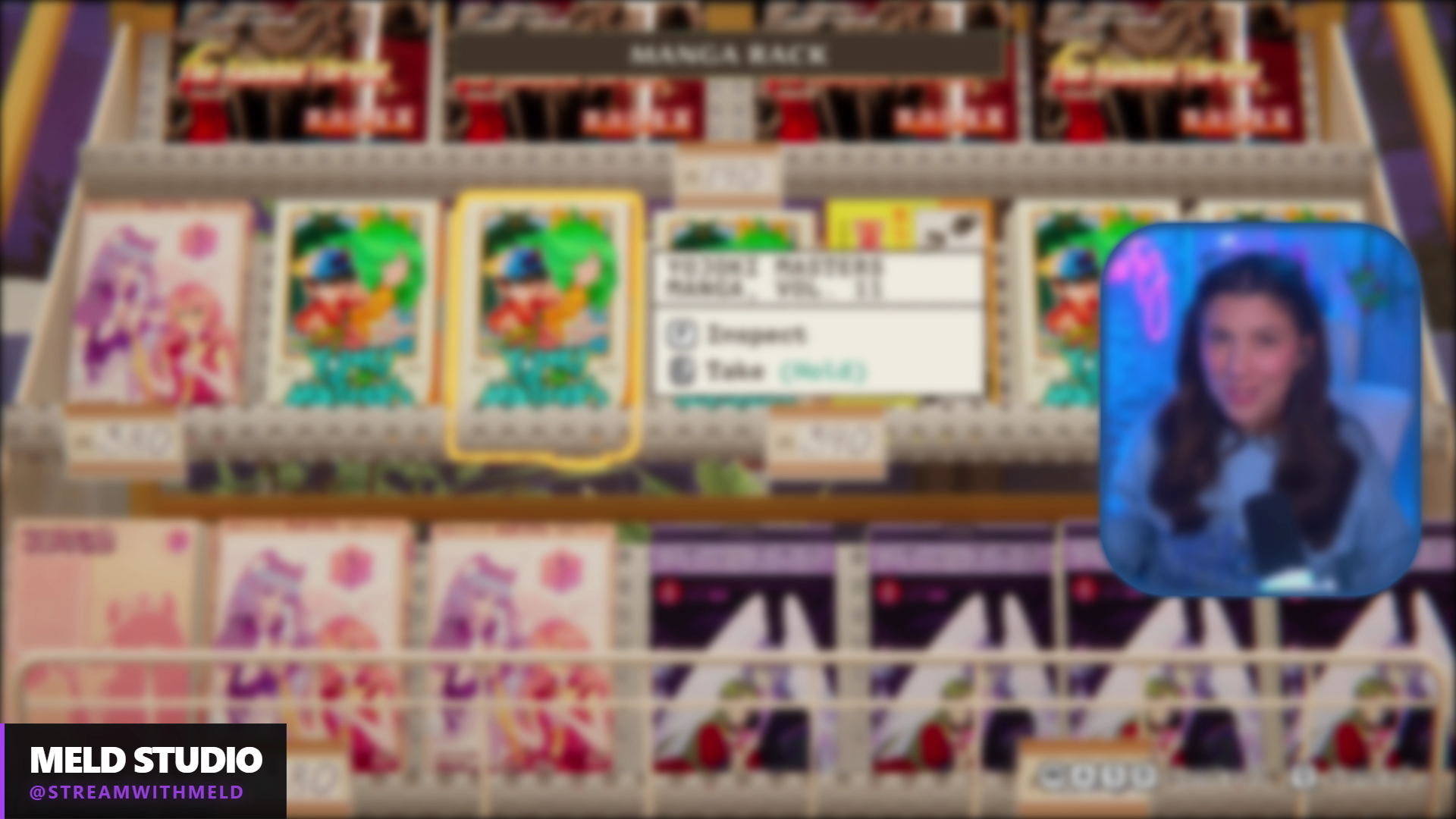
Lower Third Overlay
Create a lower third overlay in the bottom-left corner. It should slide in from the left, display my name 'YourName' in large bold text on the top line and my social handle '@YourHandle' in smaller text below it, then hold for 5 seconds and slide back out. Use a minimal dark aesthetic with a thin accent bar on the left side in electric purple. Animate it in and out smoothly.
Guest / Co-Host Variant
Create a version of the lower third that shows guest's name and title. Add a subtle 'GUEST' label in the corner so viewers know who they're watching. Make it trigger whenever I use the command !guest so I can fire it whenever a guest joins.
Pro Tips
- Build your lower third alongside your full stream package by asking Spark to "match the style of my follow alert" (if you created them in Spark) so everything looks like it belongs together.
- Add a subtle looping animation to the idle state for a slow shimmer or breathing glow effect so it stays visually alive even while holding on screen.
- For roleplay streamers: "Create a lower third that shows my character's name, race, and class in a fantasy RPG style with parchment texture and gothic font."
Stream Schedule Pop-up
Viewer retention between streams is one of the hardest problems in streaming, and your schedule is the single most powerful tool you have to solve it. A schedule pop-up that appears on your stream triggered at key moments like your intro, a raid-out, or an ending screen, tells viewers exactly when you come back. Done right, it's also a perfect moment to reinforce your brand.
With Spark, you can build a schedule overlay that looks nothing like the standard "schedule" widget everyone else is using. Think animated cards for each stream, a countdown to your next session, or a visual week-view that fades in when you command it from chat.
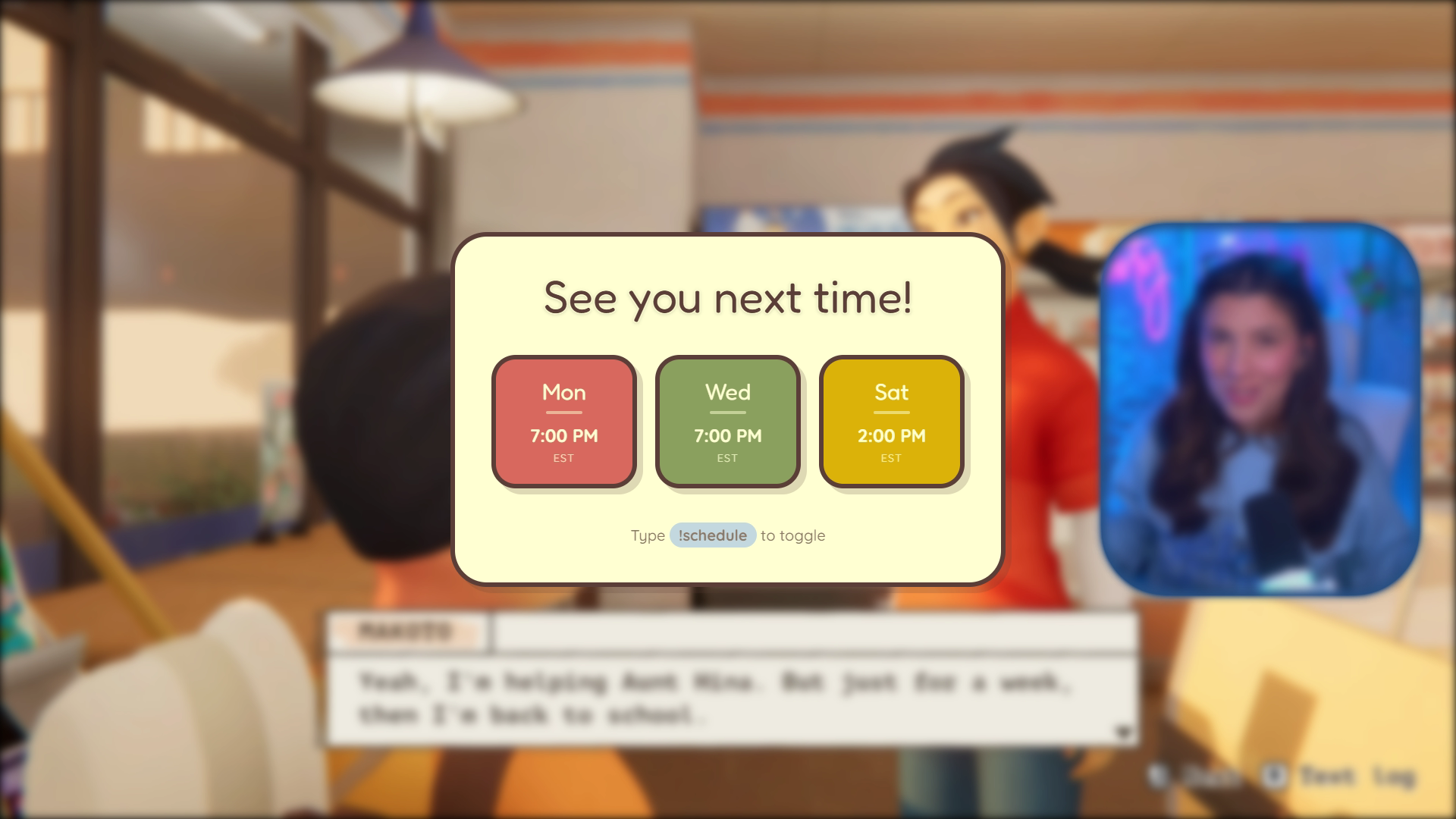
Stream Schedule Pop-Up
Create a stream schedule pop-up overlay that appears centered on screen when triggered. Show my weekly schedule as individual day cards: Monday 7PM, Wednesday 7PM, and Saturday 2PM all in EST. Add a 'See you next time!' header at the top. Style it with a cozy warm aesthetic, rounded cards, and a gentle bounce-in animation. It should auto-dismiss after 10 seconds or when I trigger it again.
Countdown Variant
Add a live countdown timer below the schedule cards that counts down to my next scheduled stream. Update it dynamically.
Pro Tips
- Build this for your ending scene specifically. It's the moment viewers are most likely to decide whether to follow, and a visible schedule removes all friction from that decision.
- Ask Spark to make the pop-up triggerable from chat with a command like "!schedule" so viewers can summon it themselves mid-stream.
- Add your Discord link to the pop-up: "Include a line at the bottom that says 'Join Discord for updates' with the invite link." This pairs schedule visibility with community growth.
- Request a version for your BRB screen that just shows a "back in a few minutes" message alongside your next stream date to keep the context going even when you step away.
QR Code for Socials
Here's a feature that looks simple but punches well above its weight for channel growth: a QR code overlay for your social links. When viewers are watching on a second monitor, a TV, or a phone (which is an enormous slice of your audience), typing URLs is a huge ask. Pointing a camera at a QR code on screen? Two seconds flat.
The version built by Spark isn't just a static QR code dropped on screen. It can be a fully designed callout panel with animated borders, your social icons, a short message, and a code that actually links to your Linktree, Discord, Twitter, or any URL you choose. It can appear on a timer, on a hotkey, or on a chat command.
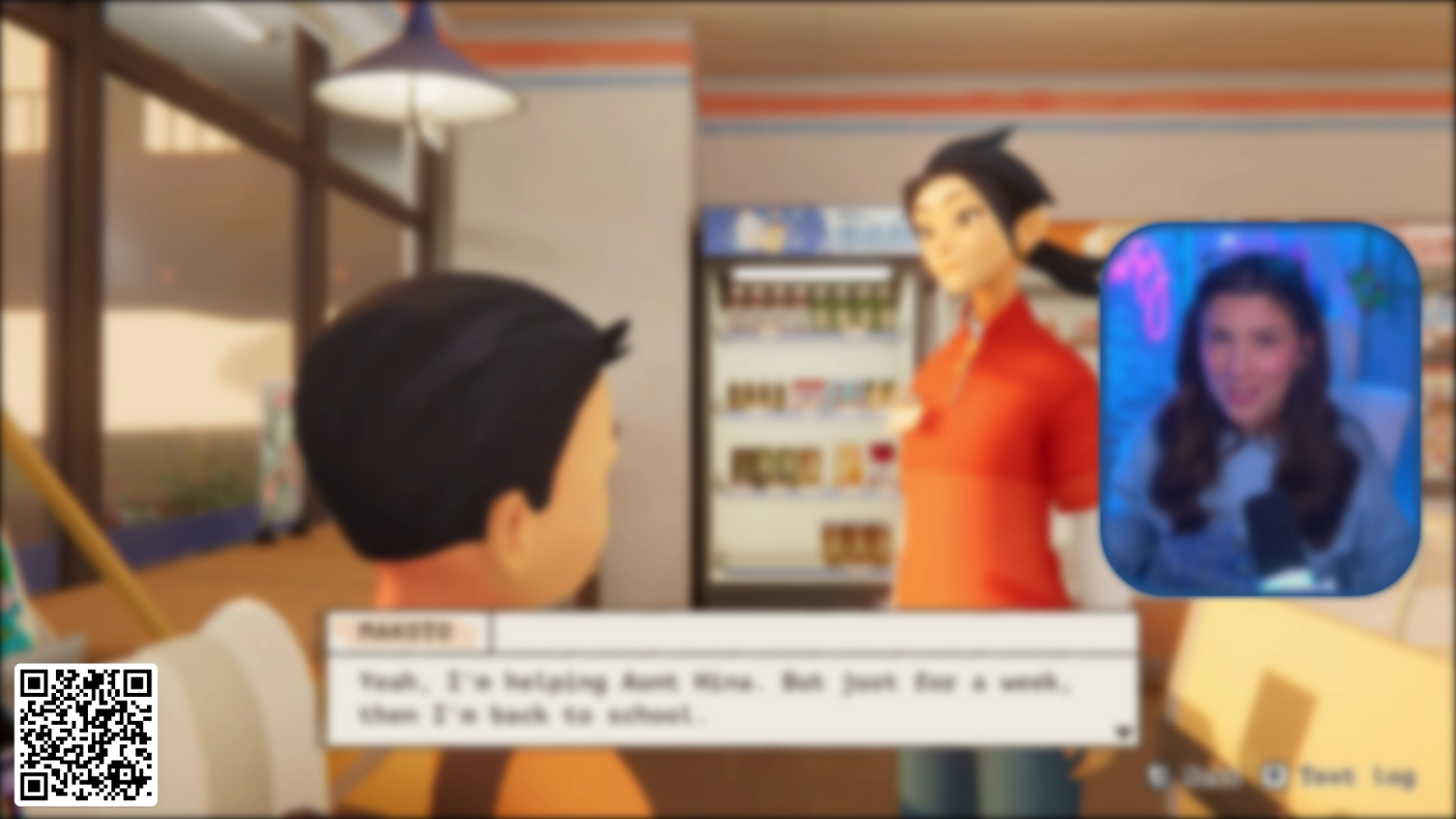
QR Code Overlay Panel
Create a QR code overlay panel in the bottom-right corner of my screen. Generate a QR code that links to 'https://linktr.ee/YourHandle'. Surround it with a small card that says 'Follow Me!' at the top and '@YourHandle' below the QR code. Use a dark semi-transparent card with a glowing purple border. Animate it sliding in from the right and add a subtle pulsing glow effect on the border. It should appear for 12 seconds and then slide back out.
Multi-Platform Variant
Create a version with three QR codes side by side — one for Twitter, one for Discord, and one for my YouTube channel — each with a small label. Make it appear on the !socials chat command.
Pro Tips
- Use a Linktree or Beacons link as the QR destination so one code gives viewers access to all your platforms and you never need to rebuild the overlay if your handles change.
- Schedule it to appear automatically every 20–30 minutes during long streams: "Make the QR code appear automatically every 25 minutes and dismiss after 15 seconds."
- Ask Spark to add a short text prompt above the code: something like "Scan to join the Discord" performs better than just showing the code silently.
- Test the QR code immediately after Spark builds it and ask "take a screenshot so I can verify the QR code is visible and scannable before going live."
Your Stream, Built in Minutes Not Days
These five features represent the kind of stream production that used to require either expensive overlay packs, a hired developer, or months of teaching yourself HTML. With Meld Spark, each one is a conversation. Describe what you want, watch it appear in your scene, and keep refining until it's exactly right.
The prompts above are starting points, not final answers. The real power of Spark is in the follow-up: changing the color, adjusting the timing, adding a new trigger, referencing your brand colors from a screenshot. Every iteration is one message away.
And because Spark builds code rather than images, everything it creates for you animates smoothly, reacts to live stream events like follows, subs, and raids, and works across Twitch, YouTube, Kick, TikTok and X out of the box. No extra setup. No platform-specific exports. It just works.
Start with the one feature that's been on your wish list the longest. Copy the prompt, paste it into Spark, and see what shows up in your scene. Then keep going.
FAQ
Do I need to know how to code to use Meld Spark?
Not at all! Spark is designed specifically so you never have to touch a line of code if you don't want to. You can describe what you want and Spark will write it.
Is Meld Spark free? What's the difference between the free and paid plans?
Meld Studio itself is free, so if you have not given it a try, do! Spark has a free tier that gives you a limited number of requests per month. With each paid tier you get more requests and priority processing.
Does Meld Spark work with Twitch, YouTube, Kick, TikTok and X?
Yes. Spark overlays work across all platforms Meld Studio supports right out of the box. Because Spark builds code, your overlays render the same everywhere.
Can Spark overlays actually react to live events like follows and subs?
Yes, this is one of the biggest advantages of using Spark over static overlay packs. Because your platforms are already connected in Meld Studio, Spark overlays can react in real time to follows, subscriptions, raids, chat messages, commands, and more!
Can I edit or customize a Spark overlay after it's been created?
Yes, you can! You can refine a Spark element over and over and in different chats, too! Just tell Spark what layer you're wanting to make changes to by giving it the name of the layer.
Can Spark build a full stream package like Starting Soon, BRB, and Ending screens all at once?
Yes. You can request multiple scenes in a single prompt and Spark will keep the aesthetic consistent across all of them.
How do I create a slideshow overlay for my stream?
Type "create a slideshow that cycles through 5 slides with fade transitions every 4 seconds, minimal dark style, centered on screen" into Spark and it builds it right there in your scene.
How do I make a lower third for my stream?
Tell Spark "create a lower third in the bottom left with my name and Twitter handle, slide it in from the left, hold for 5 seconds, then slide back out." It builds the whole thing including the animation. Change the colors, font, position, whatever you want just by asking. Most people have one live on their stream within five minutes of trying it for the first time.
How do I add a scrolling ticker tape to my stream?
Open Spark and say "create a scrolling ticker at the bottom of my screen with these messages" and then paste in whatever you want it to say. It handles the animation, the speed, the styling, everything. You can go from zero to a live ticker in about two minutes.
How do I put a QR code on my stream for my socials?
Tell Spark "create a QR code overlay that links to my Linktree, put it in the bottom right corner with a card around it that says Follow Me, slide it in and out automatically." Spark generates the actual working QR code, wraps it in a branded card, and adds it to your scene. The whole thing takes maybe three minutes.
My Spark overlay isn't showing up or something looks broken. What do I do?
Just tell Spark! Describe what's wrong conversationally "the alert isn't animating" or "the ticker is cut off on the right side" and Spark can read the logs without you opening dev tools. If Spark isn't fixing the issue, start a new chat and ask again. This will typically fix the issue.
Do I need to know how to code to use Meld Spark?
Zero coding required. You just describe what you want in plain English and Spark writes all the code itself. If something looks off you just say "make the text bigger" or "change that to purple" and it fixes it. There is no coding step anywhere in the process.
Will Meld Spark slow down my PC or use my GPU?
No. Spark runs on our servers, not your machine. Your GPU stays focused on your game and your stream encode. The overlays Spark creates run as lightweight browser layers inside Meld Studio so your performance is not affected at all.
Does Meld Spark use my data to train AI?
No. Under our current API agreement with Google your prompts and overlays are not used to train the underlying model. We store your chat history so you can come back to past builds, that is it.