On this page
We're excited to announce that Meld Studio now supports AMD hardware encoding (finally), bringing smoother performance to creators using AMD GPUs.
What's Changed?
Meld Studio now supports AMD hardware encoding with H.264, which means your AMD GPU can finally handle the demanding work of encoding. Hardware encoding leverages the dedicated video encoding circuits built into modern graphics cards. Instead of your CPU doing all the heavy lifting through software, your GPU's specialized encoding hardware takes over.
This means hardware encoding can reduce CPU usage by 50-70% compared to CPU-only encoding. This frees up processing power for your games, applications, and other streaming software elements like overlays, alerts, and browser sources. The result is smoother gameplay and a more stable streaming experience overall.
Transform Your Stream
Stream competitive games where every frame matters
Create YouTube videos with consistent performance during recording
Run multiple applications without performance trade-offs50-70% less CPU
Perfect for mid-range CPUs that were maxing out during streams
Push higher resolutions or frame rates with ease1080p60+
Get Started with AMD Encoding
Grab the latest version of Meld Studio and enable AMD hardware encoding in your settings. It's completely free with no watermarks or feature restrictions.
Hardware Requirements
AMD hardware encoding in Meld Studio works best with
- AMD Radeon RX 5000 Series: RX 5300, 5500, 5600, 5700
- AMD Radeon RX 6000 Series: RX 6600, 6700, 6800, 6900
- AMD Radeon RX 7000 Series: RX 7600, 7700, 7800, 7900
- AMD Radeon RX 9000 Series: RX 9060, 9070
Supported AMD GPUs
- RX 9070 XT
- RX 9070
- RX 9060 XT
- RX 9060
- RX 7600
- RX 7700
- RX 7800
- RX 7900
- RX 6600
- RX 6700
- RX 6800
- RX 6900
- RX 5300
- RX 5500
- RX 5600
- RX 5700
Why Newer GPUs Perform Better
Each generation of AMD Radeon GPUs includes improved video encoding technology:
- RX 9000 Series features enhanced VCN 4.0 with professional-level recording and streaming capabilities, plus improved power efficiency for longer streams
- RX 7000 Series features VCN 4.0 with improved H.264 quality and AV1 encoding support, delivering the best streaming quality
- RX 6000 Series includes VCN 3.0 with B-frame support for better quality at lower bitrates
- RX 5000 Series offers VCN 2.0, providing solid hardware encoding performance for 1080p streaming
How to Enable AMD Hardware Encoding
To get started, open up your Meld Studio and make sure you're on the most recent version. Make sure to update your GPU drivers to the latest version in your AMD Adrenalin Software.
- Open up your Settings > General tab
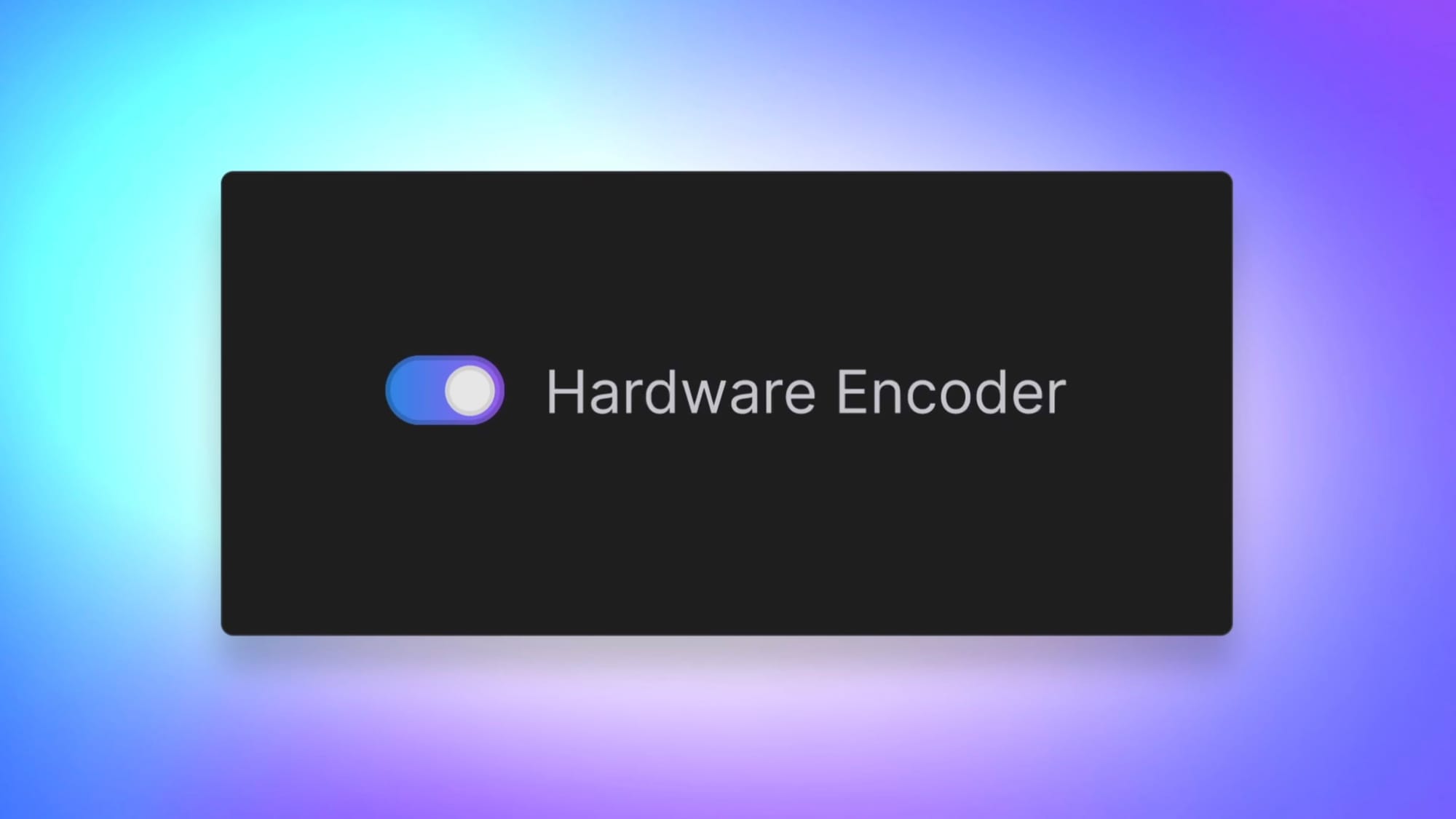
- Under Stream Settings toggle ON Hardware Encoder
- Adjust your bitrate and quality settings if needed
- Start creating!
Once enabled, all your streams and recordings will utilize AMD hardware encoding by default. You can always switch back to CPU encoding if needed by toggling OFF hardware encoding.
Streaming Settings
| Resolution | Bitrate | Encoder Preset |
|---|---|---|
|
1080p
60 FPS
|
6000 Kbps | Quality / Balanced |
|
1080p
30 FPS
|
4500-5000 Kbps | Quality |
|
720p
60 FPS
|
4500 Kbps | Quality |
Twitch limits bitrate to 6000 Kbps while YouTube allows higher bitrates for better quality.
For local recording, you can use 2-3x higher bitrates (15,000-25,000 Kbps for 1080p60) for maximum quality.
AMD Hardware Encoding vs NVIDIA NVENC
If you're comparing streaming software options and encoder performance, AMD's hardware encoding is now competitive with NVIDIA's popular NVENC encoder. Modern AMD GPUs deliver quality that's nearly identical to NVENC for live streaming purposes, making either option excellent for content creators.
The key advantage of AMD hardware encoding is freeing up your CPU resources, regardless of which GPU brand you choose. Both AMD and NVIDIA hardware encoders dramatically outperform CPU encoding for live streaming performance.
Dual PC Streaming Setups
If you're running a dual PC streaming configuration, AMD hardware encoding on your dedicated streaming PC is an excellent choice. Your gaming PC can focus entirely on delivering maximum frame rates while your streaming PC efficiently handles encoding using the AMD GPU's dedicated hardware.
This setup is particularly popular among professional streamers and esports players who need every bit of gaming performance while maintaining broadcast-quality streams. Pairing a mid-range AMD GPU like an RX 6600 or 7600 in your streaming PC provides professional encoding capability at a fraction of the cost of high-end streaming solutions.
Troubleshooting Common Issues
Can't turn on the Hardware Encoder option?
Make sure you've updated to the latest Meld Studio version and have the most recent AMD Adrenalin drivers installed.
Experiencing stream stuttering or pixelation?
Try lowering your encoder preset from Quality to Balanced, or reduce your streaming resolution from 1080p to 720p.
Encoder overload warnings?
This usually means your GPU is being pushed too hard. Lower your encoder preset or reduce your output resolution. Also ensure no other applications are heavily using your GPU during streaming.
Stream looks blurry or blocky?
Increase your bitrate within your platform's limits (Twitch allows up to 8000 Kbps for partners, YouTube allows higher). Also verify your encoder preset is set to Quality rather than Speed.
The Future of AMD Streaming Technology
AMD continues investing in encoding technology improvements. The latest RDNA 3 architecture (RX 9000 series) includes enhanced VCN 4.0 with AV1 encoding support, positioning AMD GPUs for next-generation streaming as platforms adopt the more efficient AV1 codec.
With AMD Smart Access Video technology and ongoing driver optimizations, AMD hardware encoding performance continues improving with each software update, making it an increasingly compelling choice for streamers of all levels.
Conclusion
This release represents our continued commitment to supporting diverse hardware configurations and giving creators the tools they need to stream and record efficiently. We're constantly working to optimize Meld Studio's performance across all platforms.
Ready to experience the difference? Download or update Meld Studio today and feel the performance boost for yourself. Your AMD card has been waiting for this moment.
Join the conversation in our Discord or Reddit communities and share your streaming setup improvements. Happy streaming!
FAQ
Will AMD encoding look as good as CPU encoding?
AMD hardware encoding provides excellent quality, especially at higher bitrates. While CPU encoding (x264) can sometimes product slightly better quality at very low bitrates, most streamers won't notice a difference at typical streaming bitrates.
What bitrate should I use with AMD encoding?
For 1080p 60fps streaming, we recommend starting with 6000 kbps if your internet upload speed allows it. For 1080p 30fps, try 4500-5000 kbps. For 720p 60fps, 4000-4500 kbps works well. Always leave some headroom in your upload speed to prevent dropped frames.
Do I need to update my AMD drivers?
Yes. We recommend using the latest AMD Adrenalin drivers for the best encoding performance and stability.
Can I still use CPU encoding if I want to?
Of course! AMD hardware encoding is an option, not a requirement. You can switch between CPU and GPU encoding in your settings.
What is best AMD GPU for live streaming
AMD Radeon RX 9070 and 9060 series cards.