
On this page
In this release we're introducing Layer Grouping in Meld Studio. It's exactly what it sounds like: a simple way to organize your streaming software layers so your scenes stay clean, readable, and easy to manage. Meld puts your workflow front and center with Scenes and Layers on the left, your canvas in the middle and the Inspector Panel on the right. Layer Grouping levels up that workflow by keeping the left side from turning into a scroll-fest.
Whether you're a brand-new streamer building out your first overlay or you're running a multi-scene, multi streaming setup, Layer Grouping is one of those quality-of-life features that makes everything feel smoother instantly.
What is Layer Grouping?
Layer Grouping allows you to collect multiple layers into a single collapsible group inside of your layers panel. Imagine it as a folder to organize your scene's layers:
- Layers stay in the same scene
- Organize your layers in sections you can expand/collapse
- Find what you're looking for faster and keep your workspace tidy
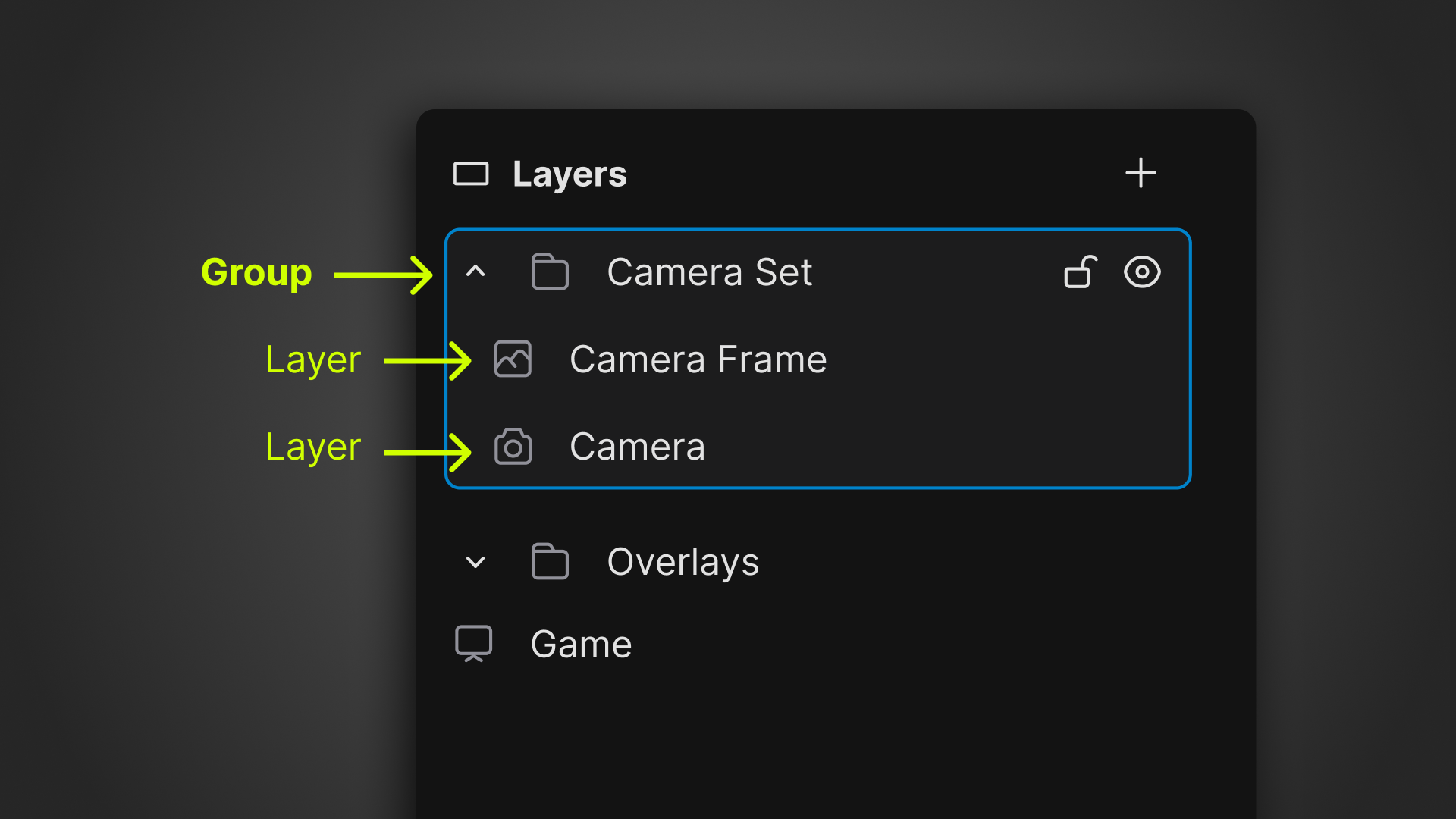
This is especially helpful because streaming scenes can naturally grow over time. What starts as a scene with a game and webcam quickly becomes a scene with a background, camera frames, goals, social handles, alerts, widgets, Twitch channel point redemptions, and so much more. You go from managing two layers to a whole string of layers.
Layer Grouping is here to help make that growth feel manageable without the mess.
A Cleaner Layers Panel = Faster Changes Mid-Stream
When you can collapse "Overlay" or "Alerts" into a group, you spend less time hunting and more time creating. That means quicker fixes when something is slightly off, and fewer moments where you have to pause what you're doing mid-stream.
Easier Theme Swapping in Scenes
If you like to change out your scenes based on themes, the season, or game type, grouped layers are built-in labels. Turn an entire group off/on with the click of a button to change out the themes in your scenes.
How Layer Grouping works in Meld Studio
Layer Grouping is designed to feel natural and easy to use.
Select Layers You Want to Group
You can multi-select layers from the canvas or the layers panel (Shift + Select is your best friend here!) A common use-case is to gather your media files or alerts and group them together.
Create a Group
Once you have your layers selected, create a new group and give it a name.
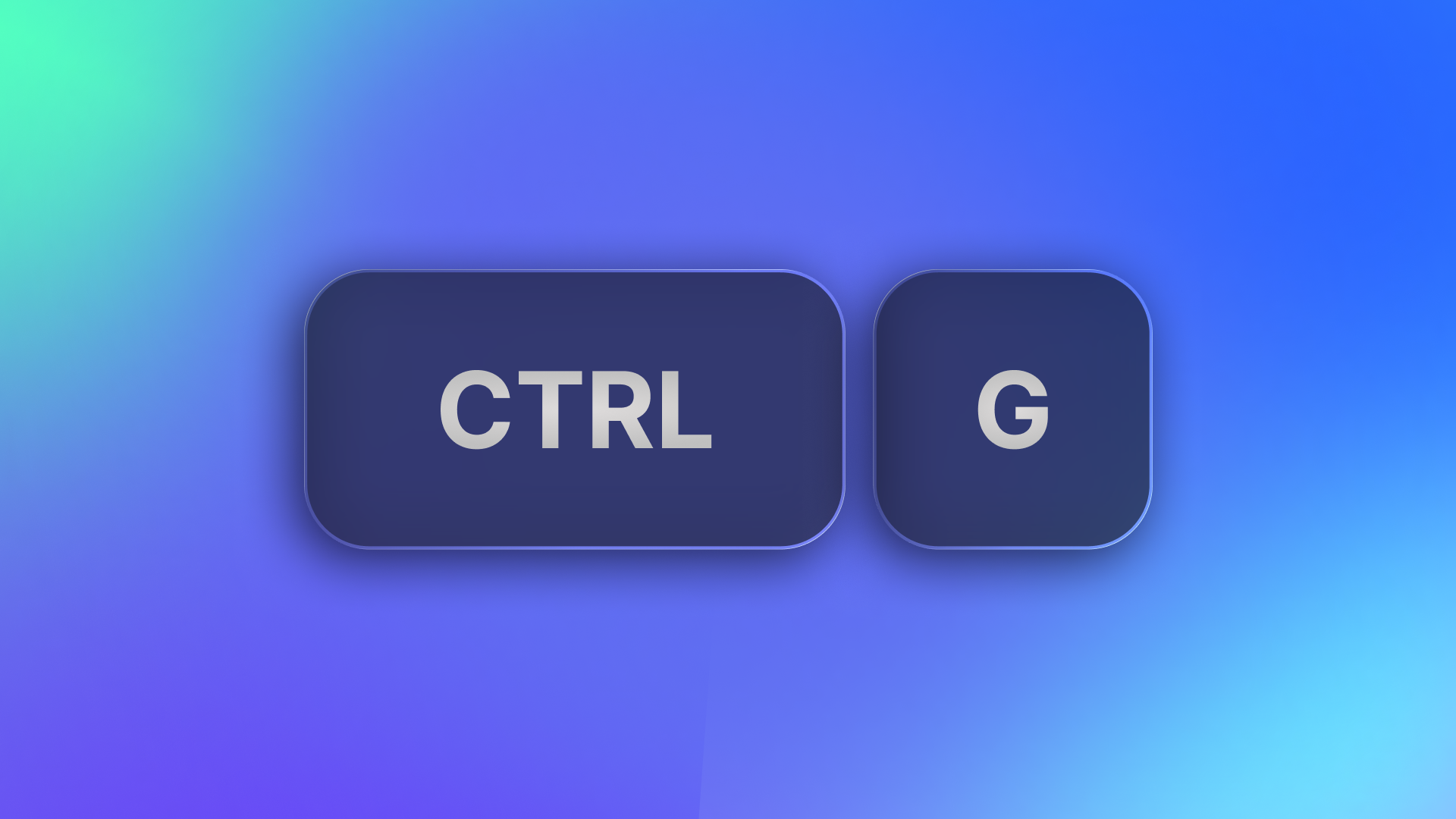
You can do this by right clicking and creating a group or by using CTRL + G or CMD + G for MacOs.
The best group names are going to be simple and descriptive such as:
- Alerts
- Overlay UI
- Starting Soon
- Lower Thirds
- Sponsor Assets
The reason you want them to be descriptive and simple is for ease of use and to prevent you from accidentally deleting the wrong grouping of layers.
Collapse and Expand as Needed
This is where your organization really comes into play. Collapse groups you're not actively working on, and expand only the section you need. This means:
- Less scrolling
- Less clutter
- More focus
Move Layers In & Out of Groups
As your scenes evolve and you make updates to your layers, you can keep them tidy by moving layers in and out of your groups. This helps to keep you organized.
In Meld Studio you can add up to three (3) groupings in one.
Duplicate a Group of Layers
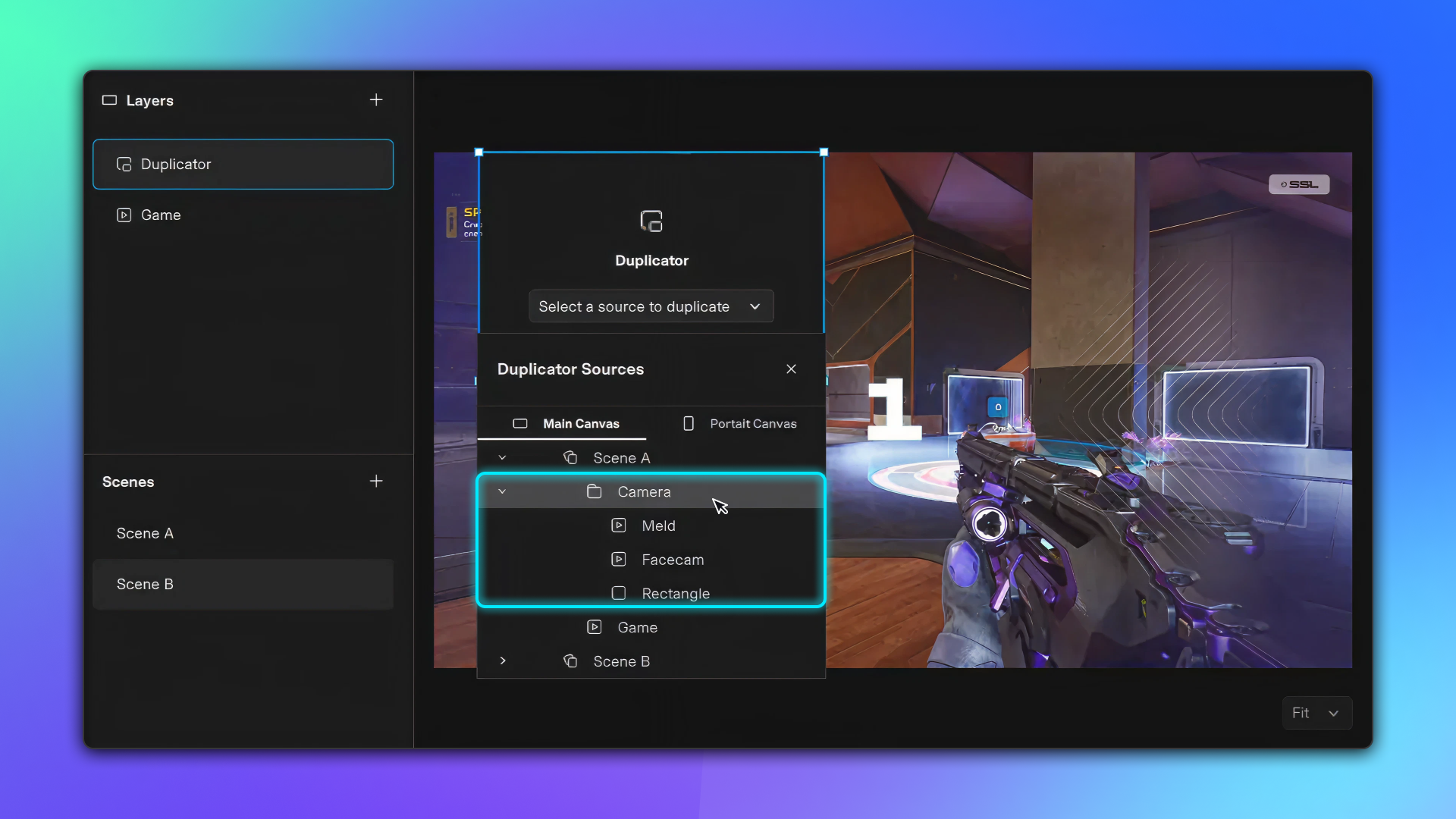
The Duplicator Layer lets you clone a group of layers onto any scene in seconds. Once your layers are grouped, duplicate them anywhere, move them around as one unit, and keep everything in sync! Changes to the original group automatically reflect in the duplicate.
Practical Ways to use Layer Grouping
Here are some easy, high-impact ways to use Layer Grouping right away to make your workflow easier:
The Webcam Stack
Group everything that lives in your webcam area together so you can easily move around your webcam setup.
- Webcam source
- Frame
- Social Handles
This makes your webcam stack feel like one modular unit.
Group Your Alerts
If you've got alerts you can group them up with other similar layers:
- Browser Sources for Alerts
- Media Sources
- Decorative Accent Graphics
- Channel Point Redemptions
You can duplicate your groups between scenes and move them as one unit around your canvas for perfect placement.
Try Layer Grouping and Build Cleaner Scenes
Streaming is creative and creativity can get messy. Layer Grouping is about giving you a workspace that stays calm and readable even when your ideas get big.
If you've been looking for a smoother way to manage your overlay layers, reduce scene clutter, and keep your streaming setup organized, Layer Grouping is going to feel like a breath of fresh air.
Conclusion
Layer Grouping is one of those features that seems simple until you use it and realize how much smoother everything feels. When your Layers panel is organized, you work faster, make fewer mistakes, and spend more time creating instead of scrolling.
We can't wait to see how you use Layer Grouping in your streams. Give it a try, tidy up a scene you've been meaning to clean for months, and let us know what you'd love to see next. Happy streaming!
FAQ
What is Layer Grouping in Meld Studio?
Layer Grouping lets you bundle multiple layers into a single, named group so your Layers panel stays clean and easy to navigate. It's designed to help you organize complex scenes without losing track of what's what.
Does grouping change how layers look on stream?
Grouping is primarily an organization tool. It doesn't change how your scene renders by itself.
Can I rename groups?
Yes! Name your groupings to make it easier to stay organized.
Can I hide/show an entire group at once?
Yes! You can turn off all the layers in the grouping or show them all by clicking the eye icon next to the layer group.
Can I lock a group so nothing inside gets bumped?
Yes you can! Locking helps prevent accidentally moving or adjusting layers while you're live, so we made sure to implement that.
Can I multi-select layers to create a group quickly?
Absolutely. Multi-select is a key part of fast scene building and organizing.
Can I copy/paste groups across scenes?
Yes, you can duplicate your grouped layers across different scenes for faster setup.
Will grouped layers still be editable individually?
Yes, you can click into the group and fine-tune individual layers just like you would if they were ungrouped.
Can I put a group inside another group?
Yes! Layer Grouping supports nested groups up to 3 levels deep. That means you can group layers, then group those groups together for even cleaner organization.