On this page
A few months ago, while implementing Twitch enhanced broadcasting, we found ourselves with internal support for recording multi-track video content in Meld Studio something we've teased before in an interview with our founder. Now, "officially" Meld Studio only supports one recording output with one video track and up to eight audio tracks, however if you know the right places to look multi-video track recording is something you can play around with today.
Who needs Multi-Track Video Recording?
It makes sense to start off with why people might want to use multi-video track recording in their workflows. The big reasons are:
- All video tracks stay perfectly synced in a single file.
By having all video tracks in a single file it eliminates the need to manually re-sync footage in post-production. This was one of the major reasons behind us implementing multi-audio track recording but the same holds true for video tracks. - Video track per canvas / source
Currently Meld Studio only supports two canvases (main and portrait) however some streamers have asked for the ability to record both canvases at once or record a specific layer as a separate video track. You could also imagine having a setup where some layers only show for some outputs and not others. If we add support for this in the future suddenly multi-video track recordings could help a lot to keep everything organized in a single recording file.
Why is it not supported currently?
You might see part of the reason why we've not chosen to expose this yet from the above two points. Until Meld Studio allows for more complex multi-canvas setups or per layer recording we only have two possible video tracks right now (main and portrait canvas). And while recording both the main and portrait canvases at the same time is something we'd like to support there are other issues with multi-video track recording that need to be addressed before we'd be comfortable fully exposing it.
1) Lack of Video Editor Support
The big issue with multi-video track recording right now is the lack of support from the major video editors for importing multi-video track video files.
Now admittedly this is a bit of a chicken and egg problem but currently if you have a multi-video track video file you need to split out all of the video tracks into separate video files before importing them into tools like DaVinci Resolve or Adobe Premiere Pro.
Video player support for mutli-video track files is also lacking. When playing around with this the only video player I personally can across which supported these files was VLC Media Player and even then its support would depend on the file format you were using.
2) GPU / CPU Resource Limitations
Any time you need to record a different video source that involves spinning up an extra video encoder. Every additional video encoder adds additional GPU and CPU load to your system and unless you know what you're doing it can be easy to put your system under too much load.
Currently Meld Studio forces you to use the same encoder settings for all stream and clipping outputs for this very reason. Recording outputs are allowed to have their own encoding settings but in total this limits you to three video encoders maximum (main canvas + portrait canvas + recording output).
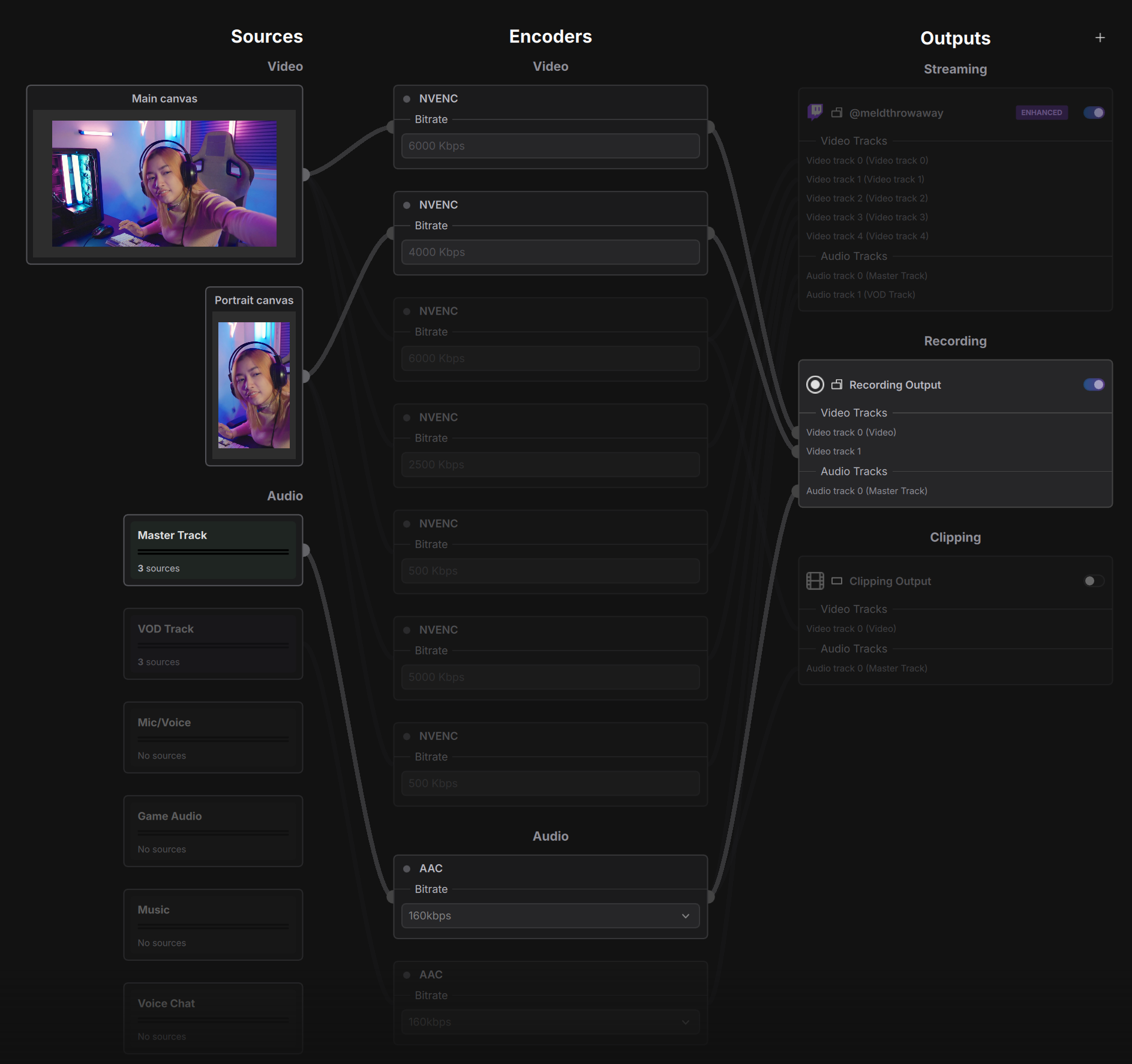
This can be seen via the encoder view, notice how in the below screenshot there are only three video encoders (audio encoders are not so much of a performance concern).
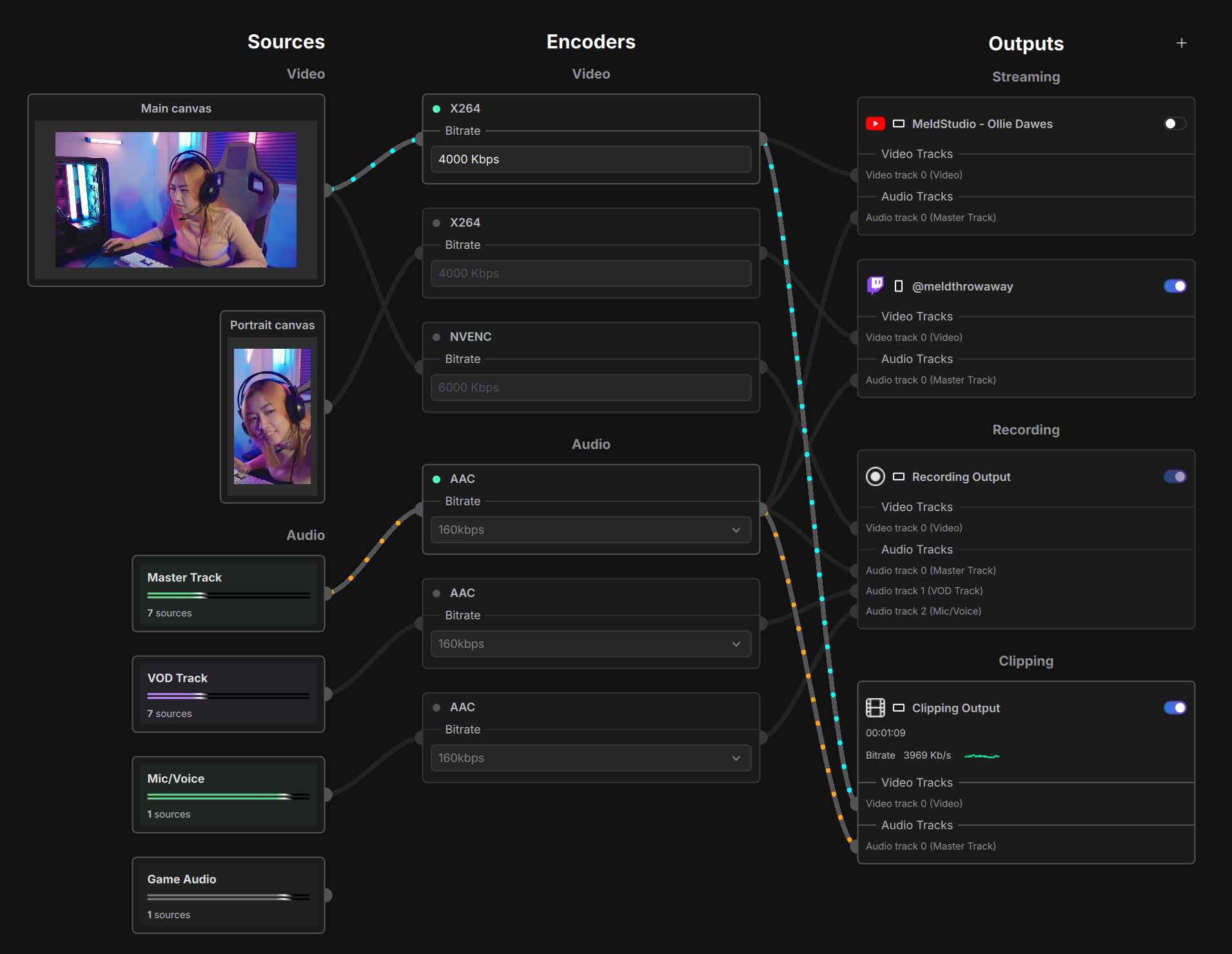
We try to keep to only three video encoders to avoid limits with hardware encoders and performance issues. Consumer NVIDIA GPUs for example typically cap out at eight NVENC encoding sessions, though in practice GPU load tends to be the bottleneck before that limit is ever hit. Without this constraint someone playing around and changing encoder settings per stream could end up with many video encoders and start seeing lag either in Meld Studio or in the game they are playing. With the limit Meld Studio can safely assume responsibility for setting up encoders in a way that won't put your system under too much load.
The exception to the above "three video encoder" rule is when you enable Twitch enhanced broadcast you may get more than three video encoders. However in this case the responsibility has simply switched from Meld Studio to Twitch for determining how many video encoders your system can safely support, again making it so you don't need to worry about encoder setup.
How to test Multi-Video Track Recording
Before you rush to test the below steps it is worth re-iterating that multi-video track and multi output recording are not supported workflows in Meld Studio today. Following the below steps may result in crashes or session corruptions so make sure to backup your session.json and prefs.json files before playing around with these features. It's strongly recommended to use a fresh prefs.json file when following these steps.
That aside if you want to try out multi-video track recording you can do so by following these steps:
1. Start Meld Studio with the --qml-official-build=0 flag.
On Windows you can do this by opening PowerShell and typing:
MeldStudio.exe --v=1 --qml-official-build=0
This will start Meld Studio with various developer UI options exposed. Meld Studio's UI is built in QML on top of a C++ backend, hence the "qml" part of the command.
2. Enable "Expose advanced encoder settings" under the "Advanced" settings.
Normally this option is hidden however --qml-official-build=0 allows you to enable it.
Note that we don't show this option in official mode for a reason. The options this switch exposes have not been as thoroughly tested and are not considered supported unless configured by Meld Studio. Using this switch may result in unhandled errors or even crashes so be careful.
Video showing how to enable "Expose advanced encoder settings" in Meld Studio.
This option exposes lots of extra encoder options that we don't normally show in the UI such as:
- Being able to set different encoder settings per streaming output.
- Changing scaled resolution for the output texture.
- Various other options like "Adaptive Quantization", "B-frames", etc.
- Ability to set outputs to "sync" from other outputs.
However the feature we're interested in is the ability to add / remove video and audio tracks from outputs arbitrarily.
3. Add an extra video track to the recording output.
Navigate back to the general settings, here things might look a bit different given "Expose advanced encoder settings" has been enabled. Then click on the Recording output to edit its settings.
If you have Twitch enhanced broadcast enabled you will want to disable the sync settings for the recording output as by default it will be syncing from the Twitch enhanced broadcast output preset.
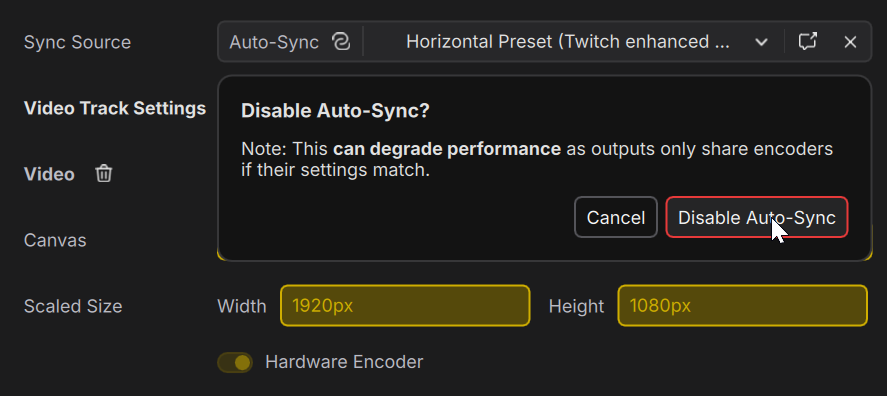
Note: Presets and sync sources are not something we expose in official Meld Studio. However they are basically outputs which you cannot stream, record or clip from. They exist purely as an implementation detail to help us keep all of your streaming outputs in sync normally. There may come a time when they are exposed officially or they may be removed completely in the future.
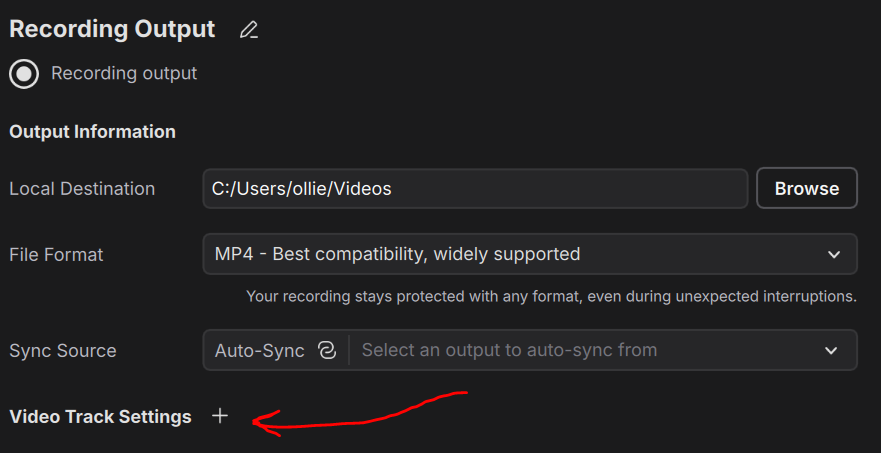
Now click the "+" button next to the new "Video Track Settings" section that shows. This will add a new video track giving you two video tracks in total.
Then you will need to remove the "Synchronizer" from the video track if it is set (Should only be set if you have Twitch enhanced broadcast enabled).
Add a new "Synchronizer" to the first video track and select the same value in the second video track.

If two video tracks use the same "Synchronizer" then all video keyframes will be synchronized for those tracks. The synchronizer is a requirement for multi-video track recording and for Twitch enhanced broadcast and probably deserves its own blog post but the short explanation is when muxing multiple video tracks into a single container each track's keyframes (IDR frames) need to be aligned so the container can be seeked and split cleanly. Without this you can get audio desync or corruption when scrubbing in a player.
Video for how to add second video track to Meld Studio recording output.
You can then change the "source" for the second video track to your portrait canvas (you'll need multi-canvas enabled) and if you then open up the encoder view (view > Open Encoder View) you should see that your recording output has two video tracks each pulling from different sources.
4. Record!
If you then click record you should see that it starts recording as you would expect.
And finally if you stop the recording and open the output file in VLC Media Player you should see that it has multiple video tracks.
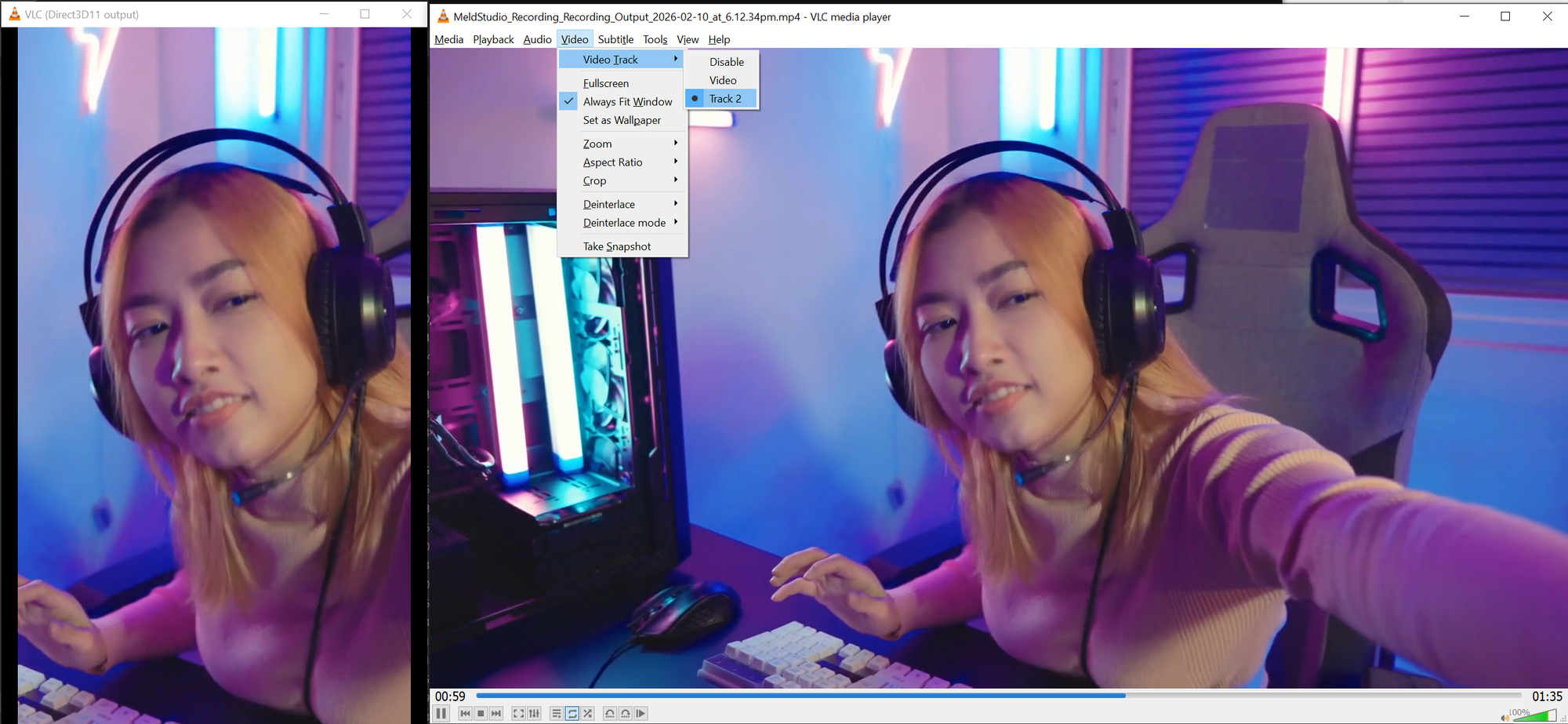
Now, to import the above generated video into a video editor like DaVinci Resolve we need to split out all video tracks into their own video files. If you have FFmpeg installed you can use the following command to do that:
ffmpeg.exe -i multi-video-track-input.mp4
  -map 0:v:0 -c copy output_0.mp4
  -map 0:v:1 -c copy output_1.mp4
That splits out the first and second video tracks of the above recording into their own video files. Obviously if the recording has more than two video tracks just append extra -map lines as required.
Wrap up
Hopefully this walkthrough has given you some insight into how encoders, outputs, and video tracks work under the hood in Meld Studio. Multi-video track recording isn't quite ready for prime time, mainly due to limited video editor support, but as you can see the foundations are already there! We expect to expose more of these options officially as time goes by and if we see the demand is there from our userbase.
In the meantime, we have a feature suggestion thread for multi-video track recording over on our Discord, including a poll on whether you'd prefer multi-video track or multi-recording output support. If either of these is something you're looking forward to, head over and cast your vote — it helps us prioritize what to work on next.