On this page
Vertical video has taken over the internet and livestreaming is no exception to the rule. TikTok Live regularly pulls millions of concurrent viewers, while YouTube Shorts continues to explode as one of the fastest-growing short-form platforms on the web. If you're a streamer who hasn't gone vertical yet, you're leaving an entire audience on the table.
The good news is that setting up a professional vertical stream doesn't have to be complicated. With the right tools and a little know-how, you can be live in portrait mode and growing two audiences at once. This guide walks you through everything you need to know from aspect ratios and streaming software settings to going live on TikTok and YouTube Shorts simultaneously using Meld Studio.
Why Vertical Streaming is Important
Before we dive into the how, let's talk about the why. According to Statista, mobile devices account for well over 55% of global web traffic. People are consuming content on their phones in portrait orientation, full screen, thumbs scrolling. Horizontal streams feel awkward on mobile whereas vertical feels native.
TikTok's algorithm is purpose-built to reward engagement, and lives streams get priority placement in the For You Page (FYP) ecosystem. YouTube Shorts will pull from an audience of over 2 billion logged-in users per month (YouTube Press). Going live vertically lets you tap into both of these platforms simultaneously, compounding your reach without doubling your workload.
Vertical streaming also opens up a new content style: intimate, immediate, and personal. Viewers feel closer tot he creator because the phone-camera framing mimics how we naturally record ourselves. That intimacy builds community faster.
Understanding Vertical Aspect Ratios and Resolutions
The standard horizontal broadcast resolution is 1920x1080 (16:9). Vertical video flips that on its head.
For vertical streaming, you want a 9:16 aspect ratio. Here are the key resolutions you'll want to know:
1080×1920
Full HD Portrait
The gold standard for vertical streaming. It delivers crisp, full HD portrait video that looks great on both TikTok Live and YouTube Shorts. This is what you should be targeting if your hardware can handle it.
720×1280
HD Portrait
A solid fallback if you're working with a less powerful machine or a slower upload connection. It still looks great on mobile screens and keeps your stream stable.
Bitrate matters just as much as resolution. For 1080p vertical streaming, aim for 4,500-6,000 Kbps. For 720p, 2,500-4,000 Kbps is a sweet spot. Always run a speed test before going live. Your upload speed should be at least 1.5x your target bitrate to leave headroom for any network fluctuations.
Set Up Meld Studio for Vertical Streaming
Meld Studio is built with modern streamers in mind, making vertical output setup significantly more streamlined than traditional tools. Here's how to set it up:
Step 1: Add a Vertical Canvas
Open Meld Studio and navigate to your Scene settings. Select Multi-Canvas as your canvas type so that you'll have a 1920x1080 canvas for native horizontal streaming and a 1080x1920 canvas for vertical streaming.
Step 2: Arrange Your Sources
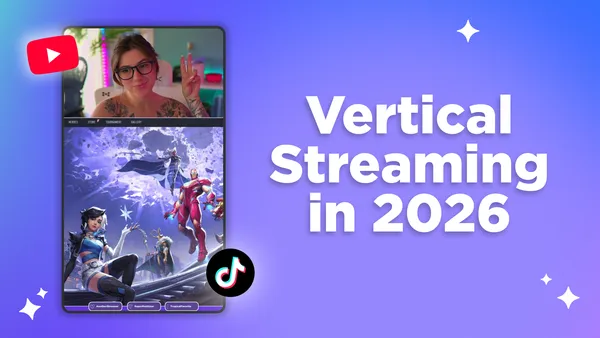
With your portrait canvas, add your layers to fit this format. A popular vertical stream layout can look like this:
- Top third: Facecam (webcam) or VTuber Model, large and centered.
- Middle third: Game footage, screen capture, or secondary content.
- Bottom third: Chat overlay, alerts, and lower-third branding.
Meld Studio's drag-and-drop source editor makes it easy to reposition and resize elements without needing to manually type coordinates. Take your time to create a well-designed layout. It can make the difference between a stream that looks polished and one that feels like an afterthought.
How to Stream to TikTok Live
TikTok Live has eligibility requirements: you must be at least 18 years old and have a minimum of 1,000 followers to access the RTMP streaming feature via third-party tools. Once you're eligible, here's how to get started:
Getting Your TikTok Stream Key
- Open TikTok on your mobile device
- Tap the + button to create a new post
- Select LIVE at the bottom
- Tap Cast / Go Live with PC (this option may appear as "Live Studio" depending on your app version)
- TikTok will provide you with a Server URL and Stream Key
Copy both values so you can stream in Meld Studio.
Connecting TikTok to Meld Studio
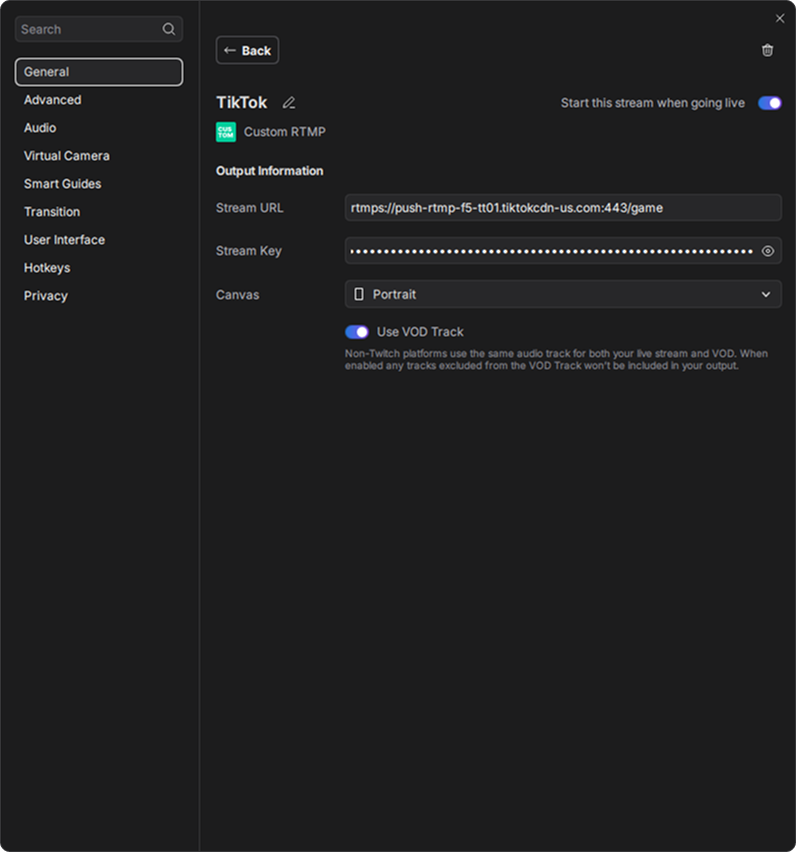
In Meld Studio, add a new output and select Custom RTMP as your service. Paste your TikTok Server URL into the Server field and your Stream Key into the Stream Key field. Close the output settings and click Go Live.
It can take 10-20 seconds for your stream to go live on TikTok after you hit the button. Check your phone to confirm the stream is active before stepping away from your setup.
On Windows and don't have a TikTok streaming key? You can use TikTok Studio with Meld Studio's virtual camera to stream. TikTok will push your content out to more viewers if you are using TikTok Studio.
How to Stream to YouTube Shorts
YouTube Shorts livestreaming works through YouTube's standard Live Streaming infrastructure. You're essentially streaming live in vertical format, and YouTube surfaces it as a Shorts-compatible broadcast to mobile viewers.
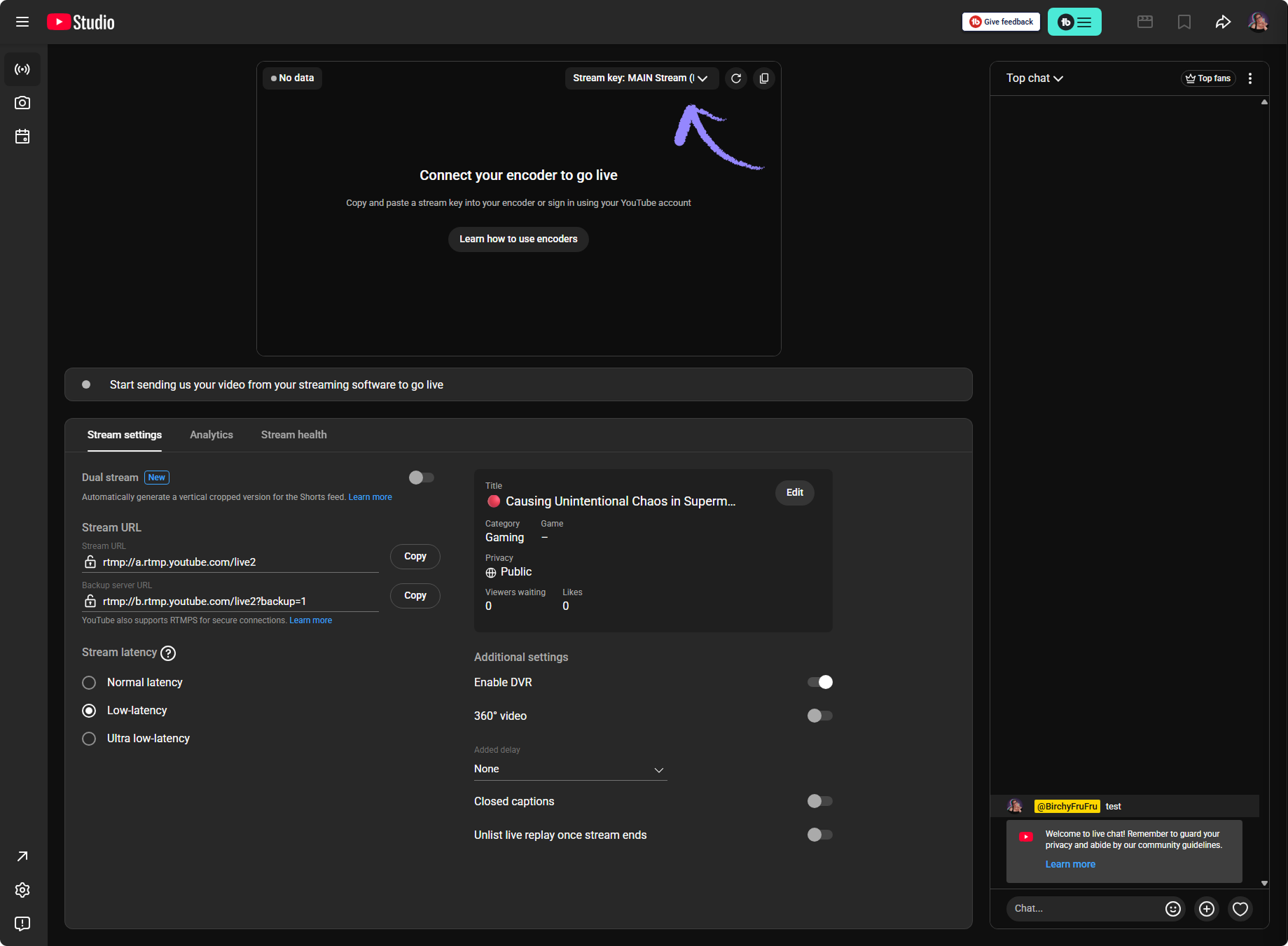
Getting Your YouTube Stream Key
- Head to YouTube Studio
- Click Create → Go Live
- Select Stream
- Copy your Stream URL and Stream Key from the Stream Settings Panel
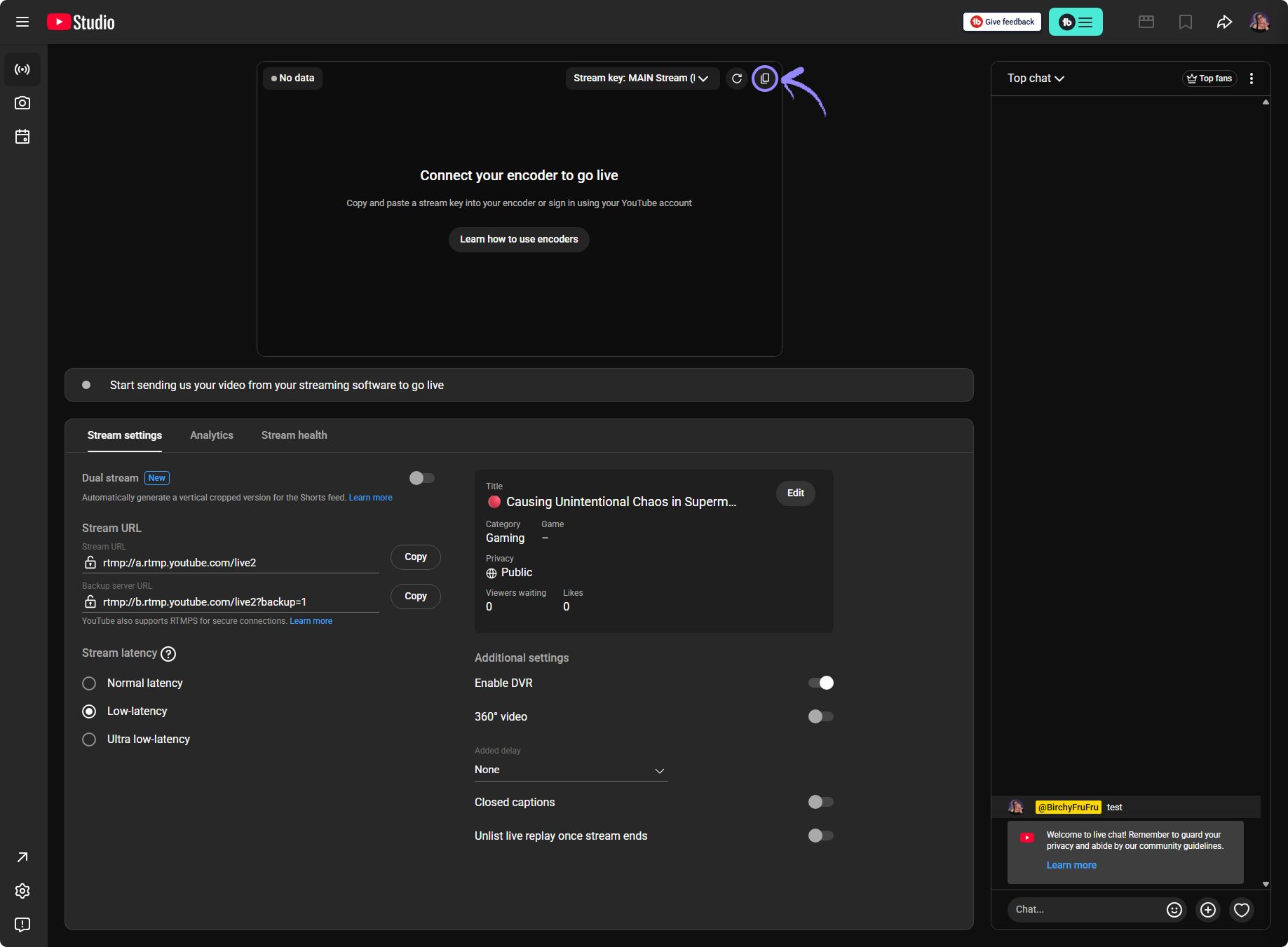
Be sure to set your stream to Public if you want it to surface on the Shorts feed. YouTube automatically identifies vertical streams and routes them accordingly.
Connecting YouTube to Meld Studio
As with TikTok, go to your Output settings in Meld Studio and add a Custom RTMP, then paste in your stream key. Apply your settings and you're ready to go live.
Streaming to TikTok Live AND YouTube Shorts at the Same Time
This is where Meld Studio's multi-streaming capability becomes a game-changer. Rather than choosing between your TikTok audience and your YouTube audience, you can broadcast to both simultaneously with a single stream session.
Meld Studio supports multi-destination streaming natively by toggled on/off the platforms you want your stream to be sent to. Meld also handles the encoding and distribution to both platforms in parallel. You'll want to make sure your upload bandwidth can support both streams simultaneously.
Here's a few things to keep in mind when multi-streaming:
Latency will differ. TikTok and YouTube process and deliver streams at different speeds. Your TikTok viewers and YouTube viewers will be slightly out of sync with each other, which matters if you're asking live questions or interacting with chat across both platforms.
Moderate both chats. Running two live chats at once is a lot to manage solo. Meld Studio's built-in chat aggregation tools let you pull both feeds into a single view so you're not jumping between apps.
Test before going public. Run a private or unlisted stream on both platforms for 5-10 minutes to make sure your audio levels, video quality, and overlays look exactly right before you flip the switch to public.
Tips for a Better Vertical Stream
Fill the frame intentionally. Vertical video gives you a tall canvas so be sure to utilize it. Stack information, use full-height motion graphics, and make sure your face fills the top portion of the screen. Dead space in a portrait layout reads as lazy.
Optimize your lighting for close-up. Because vertical streams typically feature a much tighter shot of the creator, lighting imperfections are more visible. A decent ring light or key light directly in front of you makes a significant difference.
Keep text overlays readable on small screens. Your viewers for portrait streaming are going to be on their phones. Use large, high-contrast fonts for any on-screen text. Thin or decorative fonts that look great on a monitor become illegible at mobile size.
Engage early and often. Both TikTok's and YouTube's algorithms prioritize streams with high early engagement. Welcome new viewers by name, ask questions, and interact with chat in the first few minutes to signal activity to the algorithm.
Keep streams focused. Vertical stream audiences have shorter attention spans than traditional horizontal stream viewers. Tighter, more intentional content tends to outperform rambling open-ended streams on these platforms.
Conclusion
Vertical streaming is no longer a novelty but a serious channel for audience growth. Creators who master it now have a real advantage. TikTok Live and YouTube Shorts represent two of the most algorithm-friendly environments for live content on the internet, and with Meld Studio's vertical canvas and multi-streaming support, going live to both simultaneously has never been more accessible.
Set up your vertical scene, grab your stream keys, and go live. Your audience is already waiting in portrait mode.
FAQ
Do I need special hardware to stream vertically?
No. Vertical streaming is a software configuration. Any PC capable of running Meld Studio can output a vertical stream.
Can I use the same stream key for multiple sessions?
TikTok generates a new stream key for each session, so you'll need to grab a fresh one each time you go live. YouTube stream keys are persistent by default but can be regenerated in YouTube Studio's settings.
What happens if my internet drops mid-stream?
Both TikTok and YouTube will show your stream as ended to viewers if you disconnect for more than a few seconds. Meld Studio will attempt to reconnect automatically.
Can I show landscape gameplay in a vertical stream?
Yes. You can add a 16:9 gameplay capture source to your vertical canvas and crop it to fill the frame.
What frame rate should I use for Vertical streaming?
30 FPS is the standard and most reliable choice for vertical streaming on both TikTok and YouTube. 60 FPS is supported on YouTube but may not be available or beneficial on TikTok.
Why does my vertical stream look blurry on TikTok?
This is almost always a bitrate issue. Make sure your output bitrate in Meld Studio is set to at least 4,000 Kbps for 1080x1920.