On this page
If you're working on your content growth as a creator in 2026, "just streaming in one place" is basically playing on hard mode. Audiences split their attention across different formats, such as watching long-form livestreams on desktop while others discover creators through vertical live in the Shorts feed.
This guide walks you through going live in both formats at once: a standard horizontal YouTube livestream and a vertical YouTube Shorts live, using Meld Studio's native Multi Canvas so you can do it with fewer apps and no plugins. Meld Studio supports simultaneous landscape + portrait layouts in the same project.
Why Stream to YouTube + YouTube Shorts at same time?
Just like audiences split their attention across different formats, they do the very same thing with different platforms.
Massive discoverability boost
Vertical livestreams can surface to people who never clicked a standard livestream before, especially on mobile.
Two formats for more engagement
Some viewers will settle in for the full stream while others will swipe in, discover you, and convert later on.
Vertical content with no extra editing
You can design your portrait layout once and reuse it for vertical-first platforms. This saves you time and with Meld's native clipping feature, you can clip your best moments in portrait mode and post them to socials faster and easier.
Multi Canvas makes it simple
Meld Studio's Multi Canvas lets you build landscape + portrait content in one project without the need for a plugin so you can stream them simultaneously.
Set Up YouTube (Keys + Auto-Start/Stop)
In this section we'll show you how to obtain your stream keys, setup the auto-start/stop feature, and get everything ready for your streaming software.
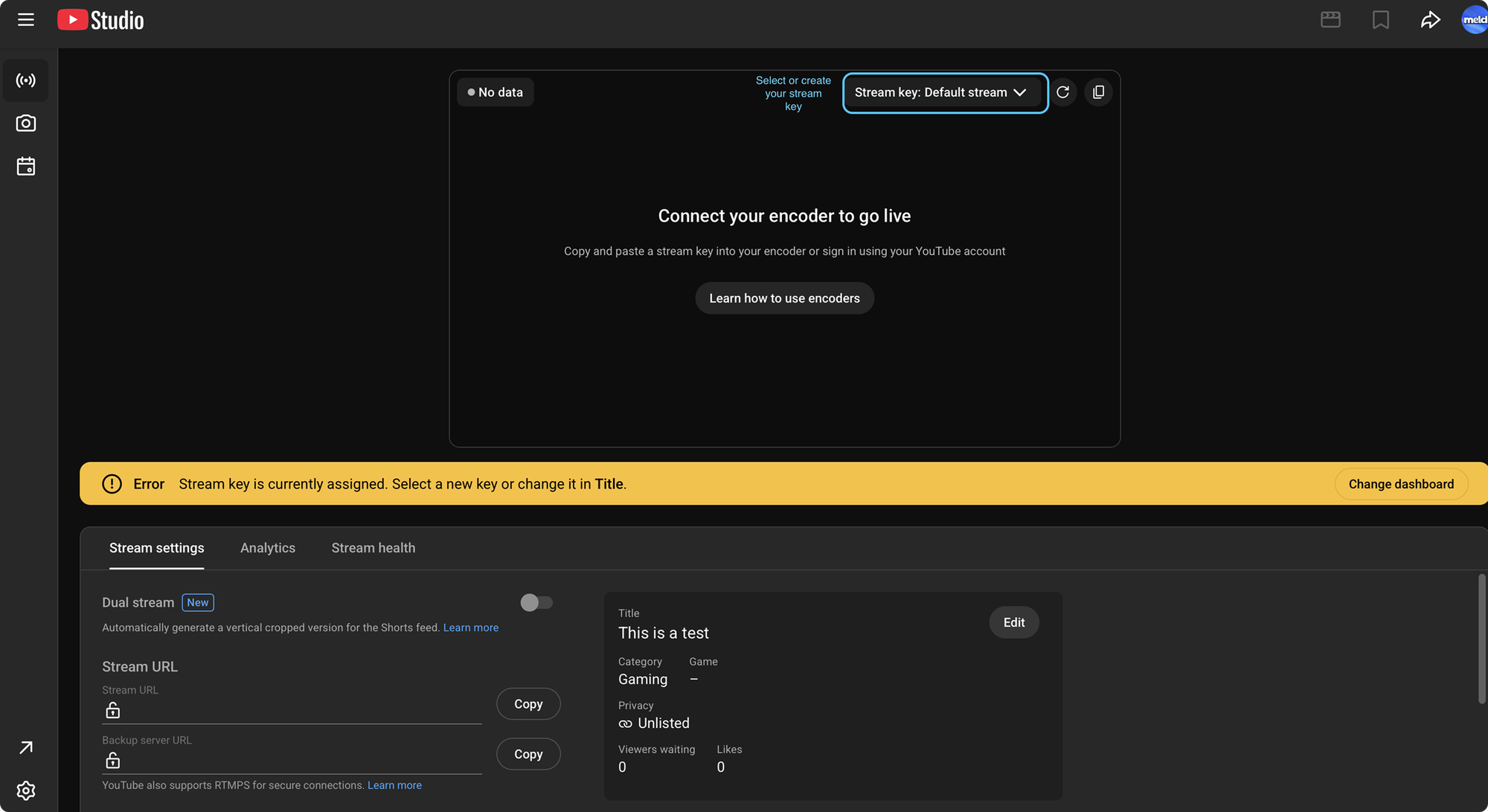
Open YouTube Studio
In YouTube Studio, you'll want to click Create → Go live, then open the Stream area inside Live Control Room.
Create Two Stream Keys (horizontal + vertical)
You're going to want two stream keys in order to go live to both Live + Shorts:
- Main / Horizontal (16:9)
- Shorts / Vertical (9:16)
YouTube encoder workflows rely on pairing your stream key and server/stream URL with your streaming software.

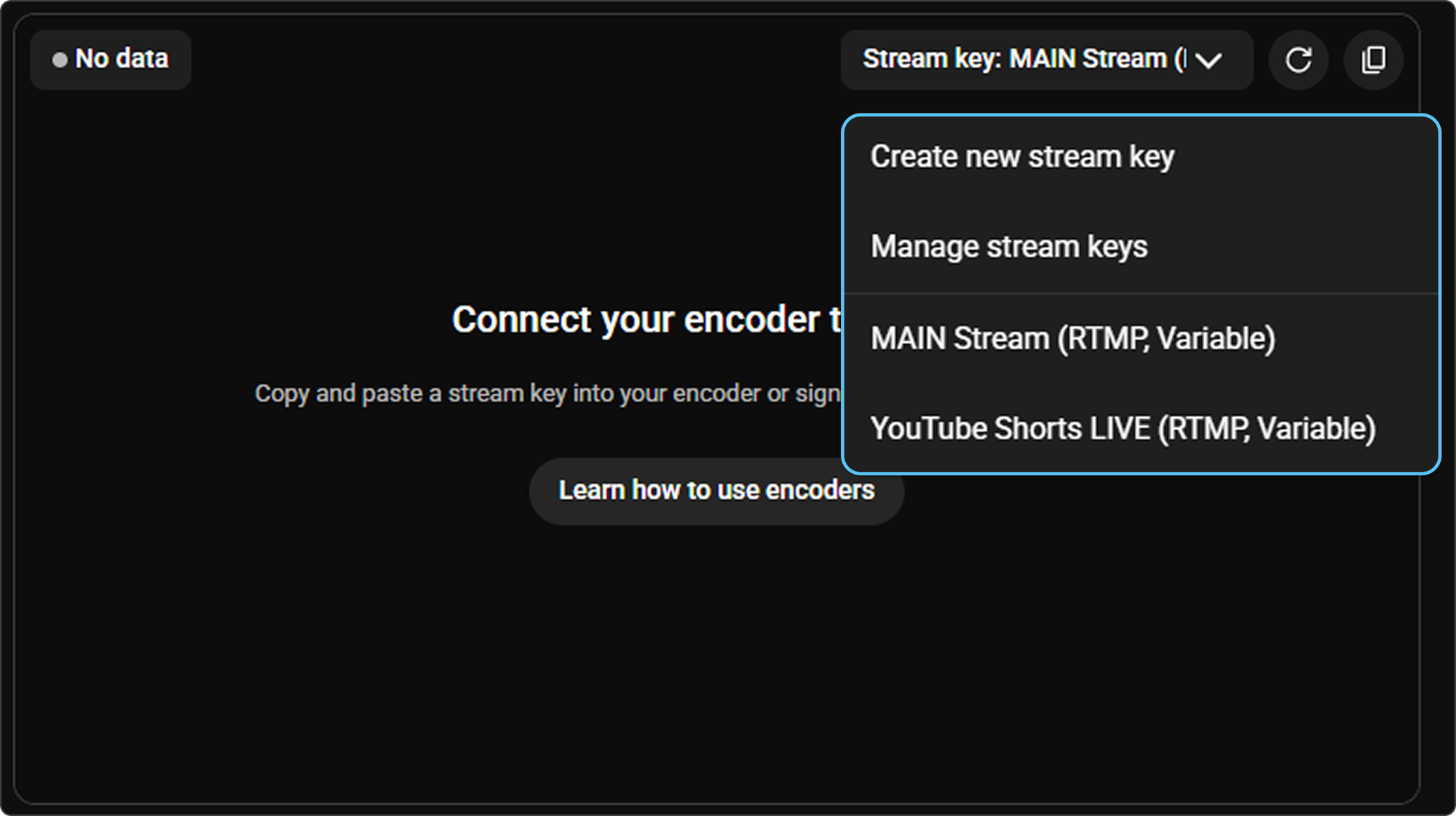
In the top right corner of the stream box you will see a dropdown menu for your Stream Key. You can create extra stream keys or do your initial setup by clicking the dropdown menu and selecting Create New Stream Key or Manage Stream Keys. If you have stream keys already created they will also appear in this menu. Choose the one you want to stream to.
Enable Auto-Start & Auto-Stop
Turn on the Auto-Start and Auto-Stop so YouTube will start/stop the broadcast when Meld starts/stops sending video.
Dual Stream in YouTube (Optional)
There are some creators who will see a Dual Stream toggle in Live Control Room. If it's available to you, YouTube allows a horizontal + vertical live pairing. This includes an Encoder option where you enter a second stream key for the vertical stream. (This feature has been rolling out and may not be available to everyone).
Dual Stream will crop your horizontal canvas to fit in portrait mode, so you may want to stick to the two stream key method above if you want to be able to customize your portrait canvas for Shorts.
Set Up Meld Studio
Now that you have everything setup on YouTube, it's time to add your keys to your Output in Meld.
Enable Multi Canvas (Landscape + Portrait)
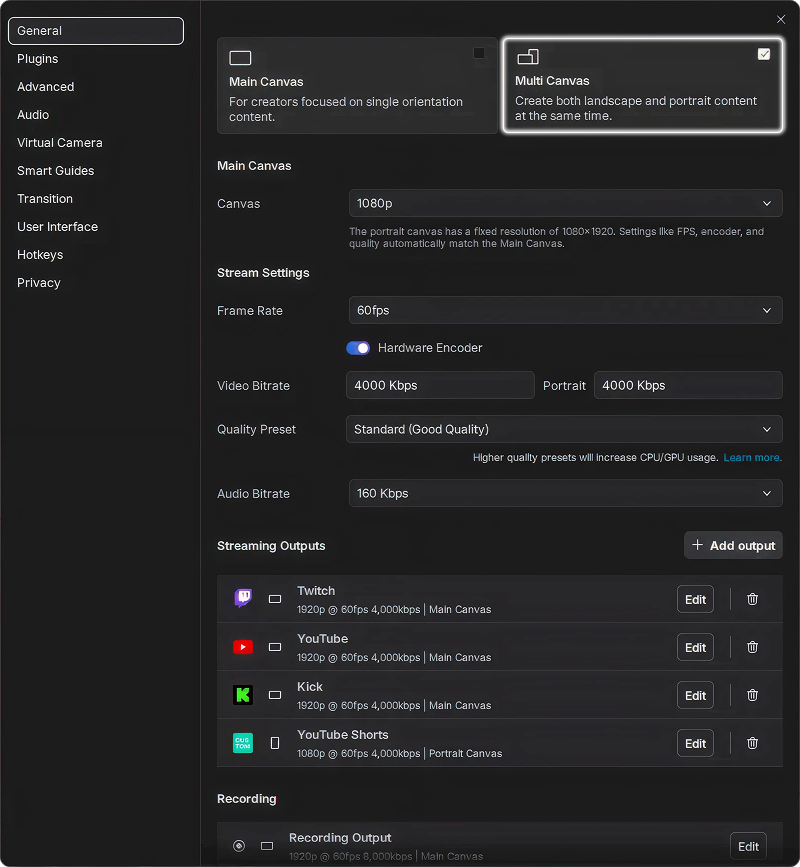
With Multi Canvas enabled you have control over how your content looks and gets sent to each output. With Multi Canvas you have your Main Canvas, which is in landscape (16:9) which is your standard YouTube livestream format. The Portrait Canvas (9:16) runs at 1080x1920 and matches your main canvas framerate, being great for Shorts live.
In order to enable Multi Canvas go to File →Preferences →General or simply click the cog wheel near the bottom right corner and you will have the option to select Main Canvas or Multi Canvas.
Create Your YouTube Output (Main Horizontal)
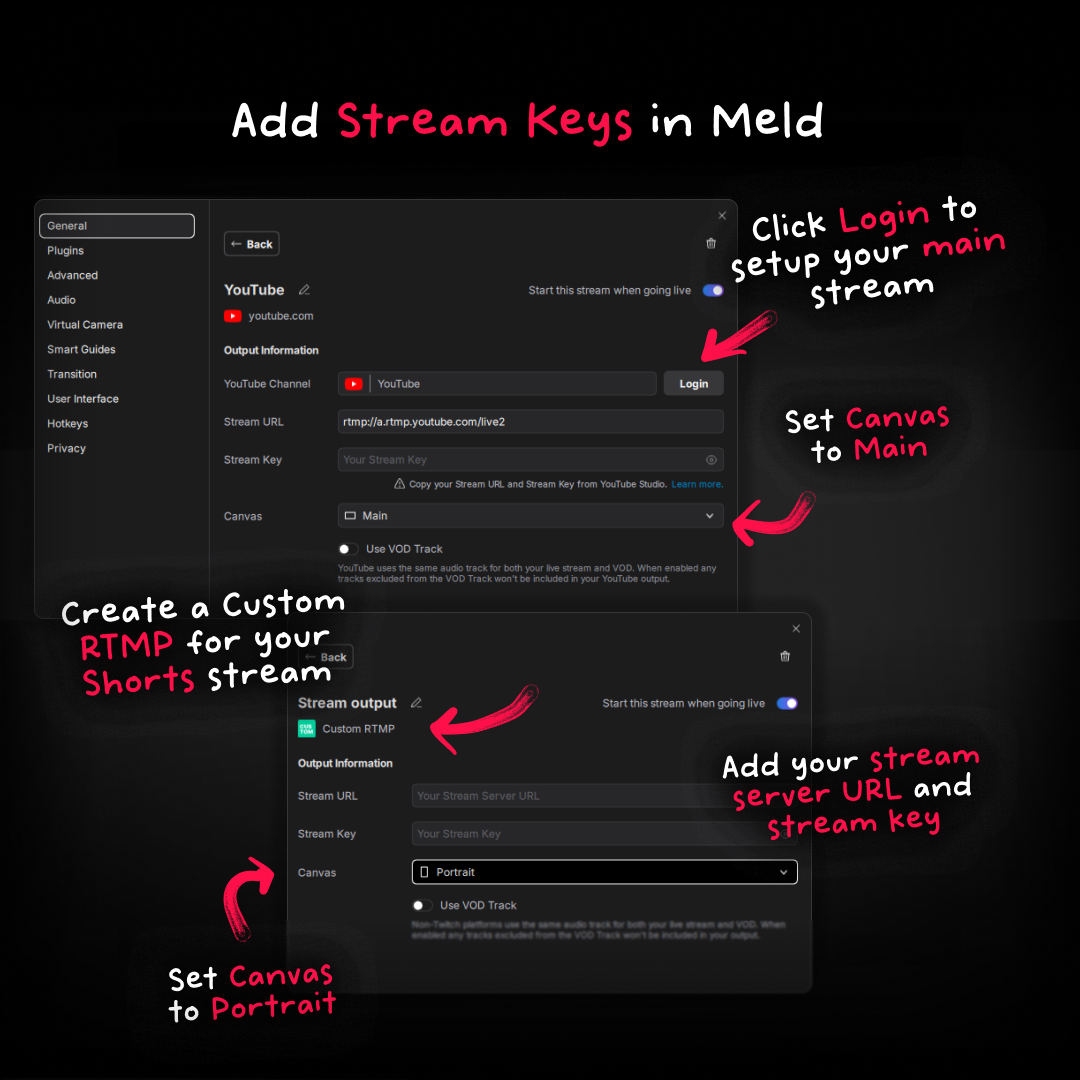
In Meld Studio you'll be adding an Output for your horizontal streams by connecting YouTube.
- Go to Settings → General → Stream Outputs
- Click + Add output
- Choose YouTube
- Click Log In and authorize your channel, following the steps
This is going to be your main horizontal YouTube stream. By logging in and authorizing your channel, it allows Meld to utilize their API so that you can read chat and see your activity directly in your streaming software.
Create a Custom RTMP Output (Vertical Shorts)
Next, we'll add your vertical stream as a Custom RTMP output:
- Settings → General → Stream Outputs
- Click + Add output → Custom RTMP
- Paste your YouTube Shorts / Vertical Stream Key that you created
- Paste the matching Stream Server / Stream URL from YouTube
- Select Portrait in the Canvas dropdown
- Name it something obvious like YouTube Shorts (Vertical)
- Schedule your Custom RTMP stream in your YouTube Dashboard
Remember to always treat your stream key like a password and do not share it with anyone you wouldn't want to go live on your channel.
Keep Chat Clean In Meld Studio
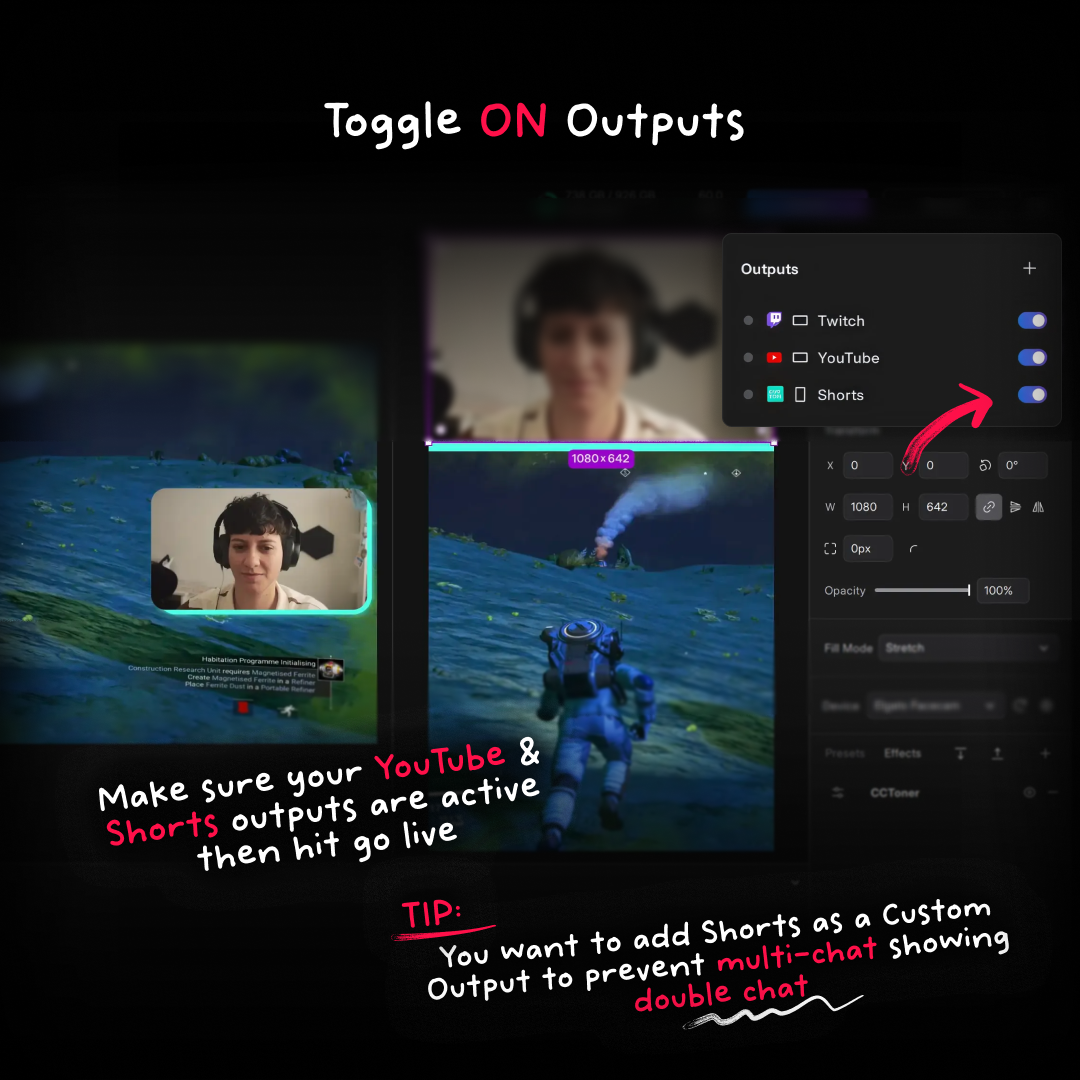
With Meld Studio's built-in Multi Chat you can connect and interact with your YouTube chat in one dock. Using a Custom RTMP for the vertical Shorts stream lets you keep your YouTube chat connection straightforward in Meld without doubling up your chat messages.
Go Live
Once both of your outputs are properly configured you are ready to go live! Make sure you toggle on the Outputs you want to send your stream to. With Auto-Start/Stop enabled, your YouTube streams will start/stop when your streaming software starts/stops sending a stream.
Conclusion
Once you've done this setup once, going live in both formats becomes a one-click routine: open Meld, toggle your outputs on/off, hit Go Live, and you're broadcasting! No extra plugins or browser windows to juggle.
FAQ
Why do I need two stream keys?
This is due to each format being treated as a distinct stream configuration.
Do I need to schedule both streams?
Although scheduling can make streams easier to manage and promote, you only have to schedule your Custom RTMP stream.
What do Auto-Start and Auto-Stop do?
When these settings are toggled on, YouTube can start/stop streaming based on your encoder so you don't have to manually go to YouTube and hit Go Live every single stream.
Why use Custom RTMP for Shorts instead of a second YouTube Output?
A Custom RTMP output lets you send the vertical feed to YouTube while keeping your integration nice and clean. Meld Studio fully supports Custom RTMP outputs with server URL + stream key.
Can I end one stream and keep the other running?
Yes! Meld Studio lets you manage outputs independently, so you can start/stop individual streams without killing everything. When you're ready to end a designated output, simply toggle it off. The same goes for if you would like to start a stream later than others, toggle it on when ready and it will go live.
Do I need to keep YouTube Studio open while streaming?
Not necessarily. If you're using Auto-Start/Stop, you can focus instead inside Meld Studio and monitor chat. Auto-Start/Stop is designed specifically to let you start and stop your streams from inside your streaming software.