On this page
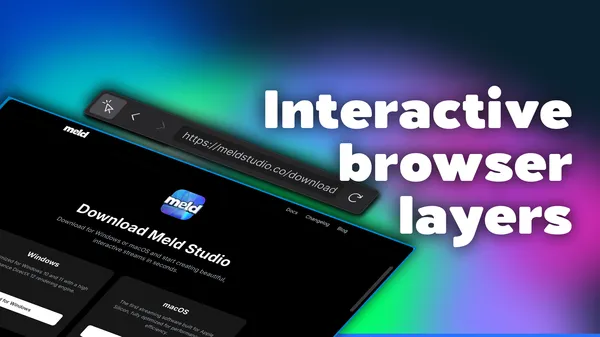
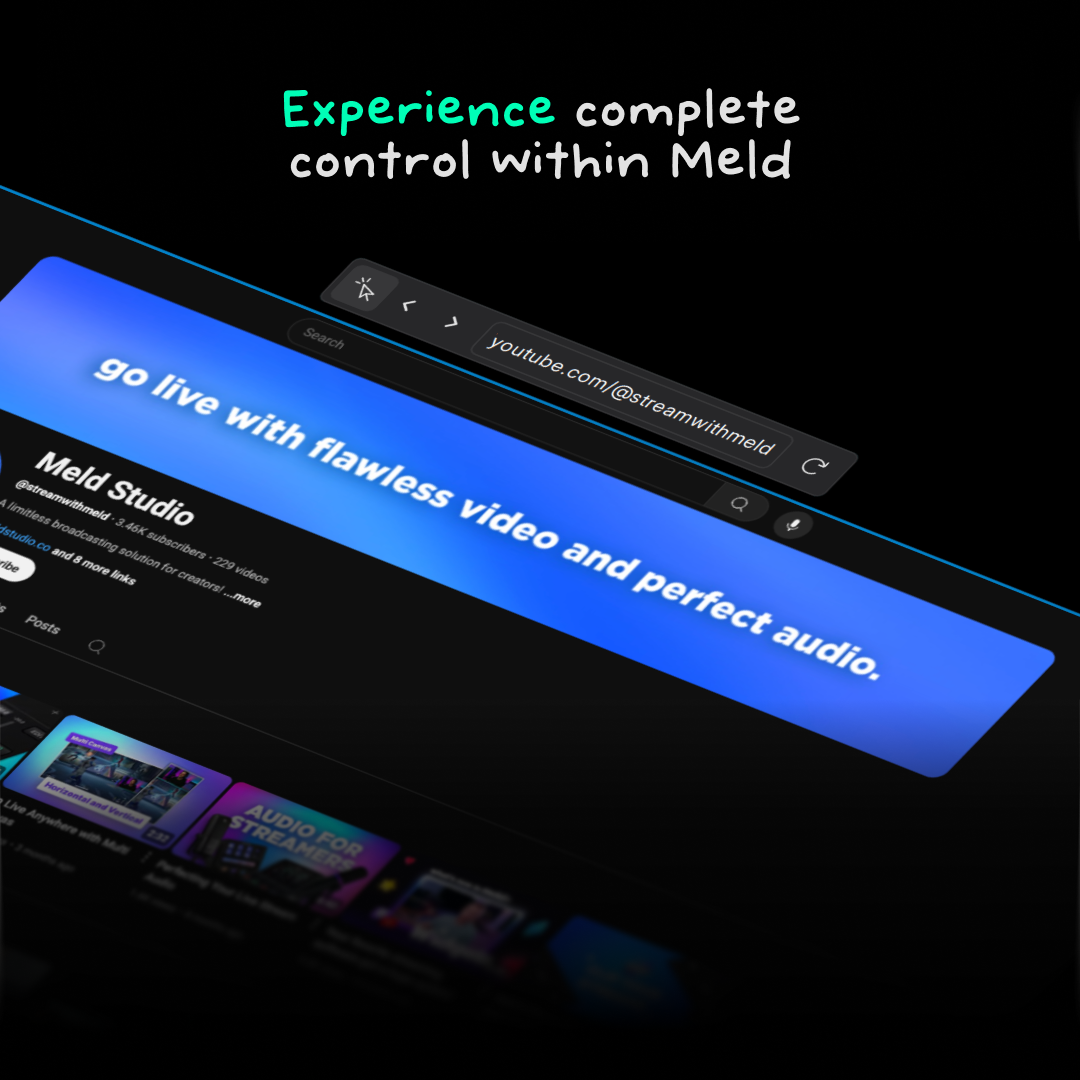
In July, 2025, Meld Studio rolled out version 0.9.4.1, bringing one of its most unique features: Interactive Browser Layers. Now you can embed a live website directly into your scene and have it be fully clickable, scrollable and interactive. All without leaving Meld Studio!
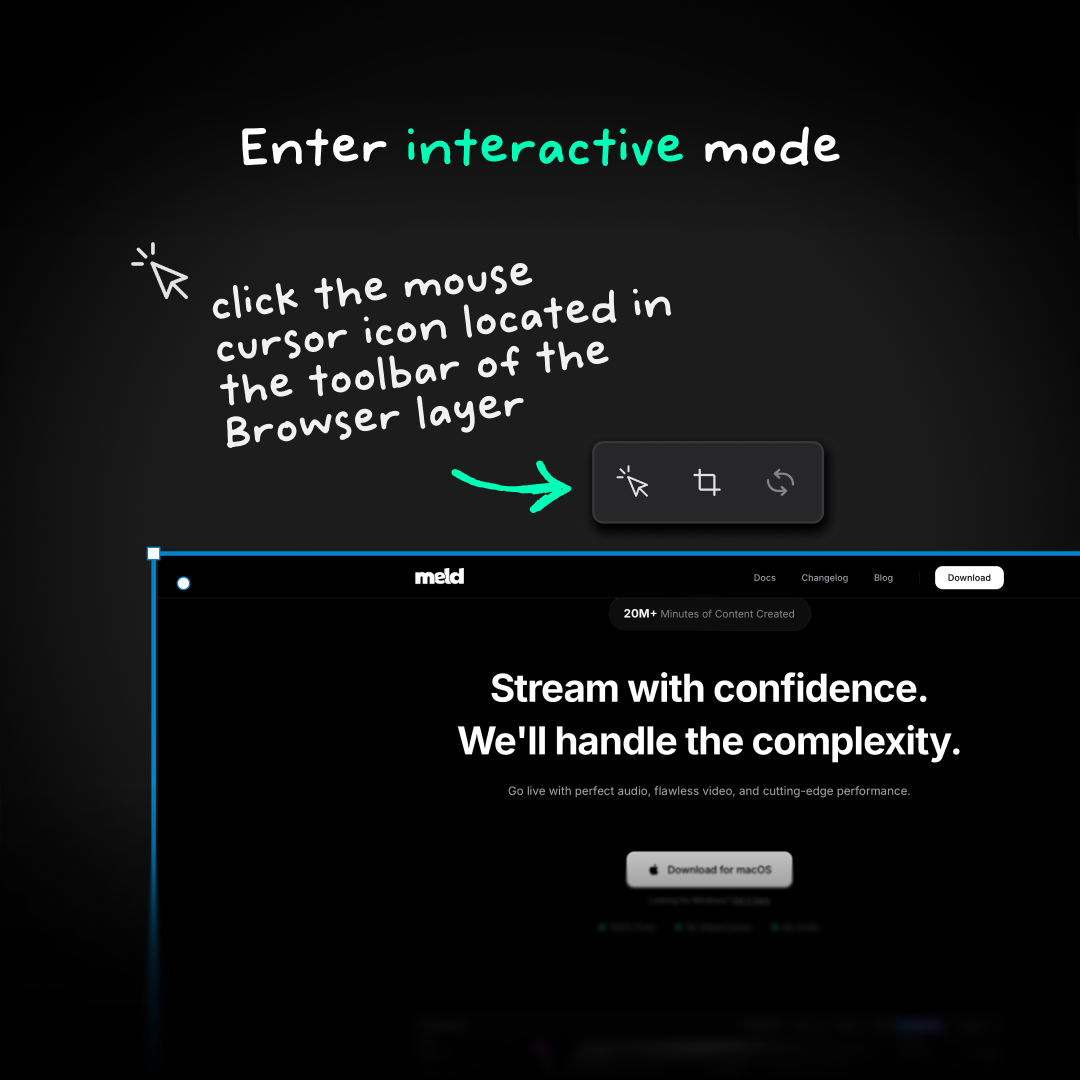
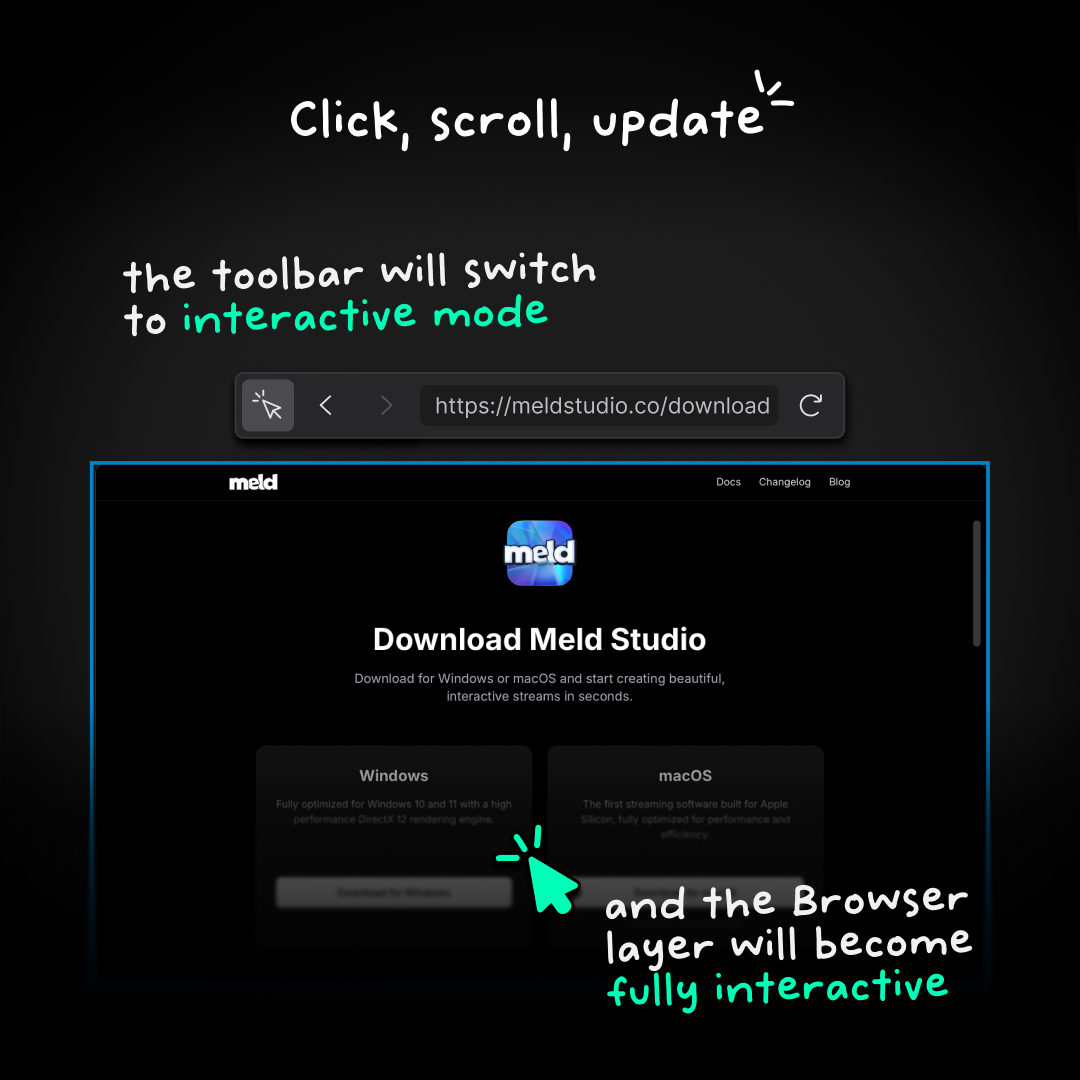
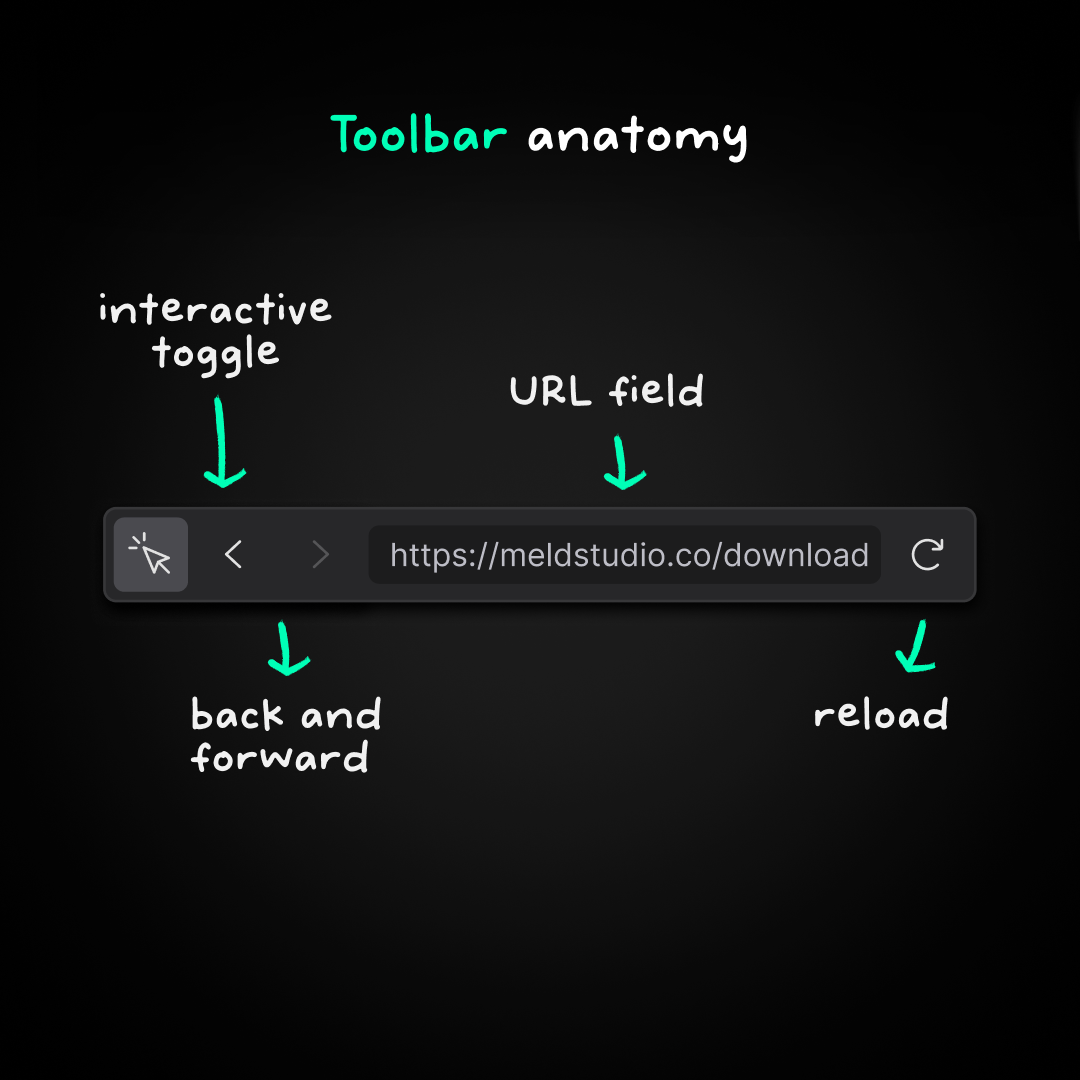
Activate it via the mouse-pointer icon in the browser layer toolbar overhead. Once toggled on, you're able to pull live websites into your stream scene and interact with it in real time from Meld Studio. No more tab-switching or alt-tabbing! This feature keeps your focus and flow inside Meld.
Benefits of Interactive Browser Layers
Let's go over some of the benefits of interactive browser layers and how they can help you no matter what kind of content you make.
Multi-Tasking Efficiency
There's no need to juggle browser windows or alt-tab repeatedly to interact with websites that you're showing to your audience. Navigate your website overlays directly in your stream canvas.
Engaging Presentations
Walk your viewers through live tutorials, site tours, or real-time web content without losing control or screen clarity. Got a new merch store you want to show off? Open it right in your studio's canvas and show them all your cool swag with no hassle.
Teaching & Demonstration
If you're all about production, education and demonstrations then Meld's interactive browser layer is the perfect addition to your workflow. If you make content like news updates, webinars or presentations you can create separate layers that you can hide until you're ready to go through them.
Enhanced Viewer Interactions
Show polls, forms, or interactive overlays and respond on the fly, making viewers feel involved in your content.
How to Use Interactive Browser Layers
Interactive browser sources are so simple to use that you just add a new layer to your canvas. Not sure where to add a layer? We've got you covered with this step-by-step tutorial:
- Click the mouse pointer icon to switch the layer to interactive mode.
- Enter your website URL in the toolbar above the layer.
- Add an audio track in the inspector panel if you want audio on stream.
In the layers panel, click the + button, then choose Browser.
Customize and Adjust
You can resize or lock your browser layer size so it doesn't move around your canvas if need be.
Why Use Interactive Browser Layers?
Streamers often run into obstacles when attempting to share browser-based content. Not only do you have to alt-tab but everything from your browser is revealed on stream. For instance, having multiple tabs open will reveal to your viewers what your browsing history is like, including revealing any personal information you may have saved. Don't give your viewers more personal information than you're willing to reveal.
Use Cases for Inspiration
If you're a gaming streamer you may be thinking "how does this help me?", and at first glance you may not think this is a feature that you can use during your livestreams.
Live Site Walkthroughs
Streamers hosting tutorials can navigate live one-screen and narrate in real time without breaking the immersion. Have you ever wanted to do a Bob Ross stream where you follow along to one of his videos? Play the video right from your canvas so your chat can follow along with you. Imagine all the neat artwork your community can share in your Discord that they did following along on stream!
In-Stream Voting or Polls
Embed a google form, poll, or interactive widget. Users can see your mouse clicks and responses live, such as contributors responding to their own poll.
Real-Time Research or Social Media Display
Do you report on streamer news? Live-show Tweets or feedback threads by embedding Twitter or Reddit pages into your Studio's canvas. Scroll and click to highlight conversation threads or new posts. Do you like to read creepy pastas to your chat? Show it on screen so they can read along with you!
Coding or Data Demos
Web developers can demo a live code environment, documentation site, or TypeScript Playground in real time on stream, clicking through examples or results. This is a great way to show your audience what you've been working on.
Conclusion
This update marks a major leap in interactivity directly from your canvas for streaming and creation workflows. Whether you're hosting webinars, running tutorials, playing with code, or walking through analytics dashboards, these browser layers keep everything inside your scene and under your control.
FAQ
What are Interactive Browser Layers?
Interactive Browser Layers let you embed a live, fully clickable website directly into your scene. You can scroll, click, type and interact in real time right inside Meld Studio.
How do I turn on interactivity for a browser layer?
Click the mouse-pointer icon in the browser layer toolbar that appears above. Once it's toggled on, the browser becomes fully interactive and responds to your mouse and keyboard inputs.
Can viewers see my browser tabs or personal information?
Only the content inside of the browser layer is visible. Your tabs, bookmarks, extensions, or browser UI won't appear.
Can I add audio from the website?
Yes! Just add an audio track for the browser source in the inspector panel. If the website plays sound, Meld will route it into your stream mix.
Does this affect my PC performance?
Interactive Browser Layers are optimized, but websites vary. If the site is intensive it may require more system resources.
Can I interact with the website while live?
Of course, that's the whole point! You can click, scroll, type, fill forms, navigate menus, update dashboards, and anything else you can do in a browser directly inside of your canvas.
Is interactivity shown to my viewers?
Yes, your viewers see everything you do inside the embedded website. Mouse movement, scrolling, video playback, and everything else!
What happens if I love the browser layer?
Locking the layer prevents you from accidentally moving or resizing it, but you can still click and interact with the content as normal.
Can gaming streamers benefit from this feature?
Yes! Here are some examples of things you can do as a gaming streamer using the interactive browser layer:
- Follow along with guides or tutorial videos
- Display a wiki or lore page
- Show patch notes or dev blogs during reactions
- Run polls or forms with viewer participation
- Embed social media for live commentary streams
Are interactive browser layers available on all platforms?
Yes! Any Meld Studio user on version 0.9.4.1 or newer has access to this feature.
Can I hide a browser layer until I need it?
Yep! You can toggle the visibility in the Layers Panel. This is great for presentations, news segments, and tutorials where you stage multiple websites that you prep before going live.